
BMP: The Format That Refuses to Die
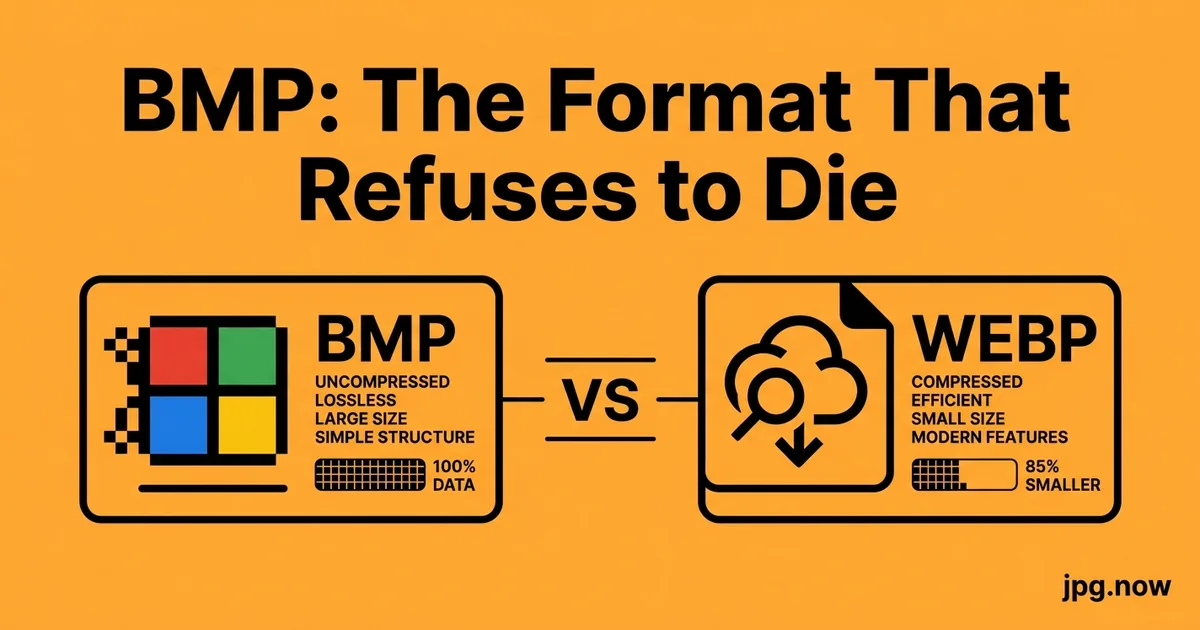
Picture a factory floor in suburban Ohio: a Cognex camera mounted on a robot arm fires 60 times per second, capturing the exact moment a bottle cap is pressed onto a sauce jar. Each capture lands on a Windows 7 industrial PC as a 6.2 MB BMP file. The inspection software reads pixel-level intensity to verify cap alignment. Thirty years from now, when the line is decommissioned, those BMPs will still be on a tape backup somewhere. The format is dead everywhere except where it is irreplaceable, and irreplaceable spots are surprisingly many.
BMP — bitmap — was introduced by Microsoft in 1990 with Windows 3.0. It stores pixels uncompressed, one after another, in a structure so simple you can parse it with about 40 lines of C. It produces enormous files. It has no transparency in its most common variants. It is, by every modern measure, an obsolete format. And yet, in 2026, BMP is still the required upload format for surprising swathes of industrial software, government systems, and legacy enterprise pipelines. Here is where it lives, why it survives, and how to handle it without going insane.
The technical reality of BMP
A typical BMP is structured as a header, a color table (for indexed images), and a raw pixel array. There is no compression by default. A 1,920 x 1,080 24-bit BMP is exactly 6.2 MB — width times height times 3 bytes per pixel, plus a small header. The same image as JPG at quality 85 is 200 to 400 KB. As WebP, half that.
BMP supports 1, 4, 8, 16, 24, and 32 bits per pixel. The 32-bit variant carries an alpha channel and transparency, though most software treats BMP as opaque. RLE compression exists in the spec but is rarely used because virtually no software supports decoding it.
Background: why simplicity won
BMP exists because Microsoft needed a screen-format that the Windows 3.0 GDI subsystem could blit directly to display memory with no decode step. Speed mattered more than disk space when 286 PCs had 2 MB of RAM and floppy disks held 1.44 MB. Once that decision was made, every Windows graphics tool defaulted to BMP, every printer driver consumed BMP, and every screen-capture utility produced BMP. The format calcified into infrastructure.
Where BMP actually lives in 2026
- Industrial machine vision. Cognex, Keyence, and Omron camera systems often output raw frames as BMP because there is no decode step — the bytes come off the sensor and land on disk. Real-time inspection loops cannot afford a 5 ms JPG encode.
- Medical imaging adjuncts. Some older PACS systems and ultrasound machines export thumbnails as BMP even when the primary format is DICOM.
- Embedded systems and microcontrollers. Tiny LCD displays driven by Arduino or ESP32 frequently expect BMP because the decoder fits in 2 KB of flash.
- Legacy Windows software. Older versions of MS Paint default to BMP. Some 1990s-era engineering and CAD tools still write screenshots as BMP because that is what the file dialog has always shown.
- Government forms and intake systems. A surprising number of US and EU government portals still list BMP as an accepted upload format alongside JPG, often a tell that the backend code is also from 1998.
- 3D printing slicers. Several SLA and DLP printers consume layer images as a stack of BMPs because the format is trivial to decode on the printer's onboard ARM chip.
Why people convert JPG to BMP
The two most common reasons:
- Upload requirements that reject everything else. An old portal that wants ".bmp only" is not negotiable. Convert and move on. JPG to BMP handles this with no quality loss in the destination — BMP is lossless, so the only quality limit is whatever the source JPG already lost.
- Embedded display assets. An ESP32 driving a 320x240 TFT panel wants a 24-bit BMP it can blit directly. Converting a JPG photo to BMP and resizing it to 320x240 gives a file the firmware can load in 50 ms.
The conversion itself is fast because there is no entropy coding — the output is essentially "decode the JPG into RGB, write the RGB straight to disk with a header." A 12 MP JPG becomes a 36 MB BMP in about 200 ms.
Why people convert BMP to JPG
More common than the reverse, because BMP files are enormous and most modern systems want JPG:
- Sharing legacy screenshots. A coworker emails you a 14 MB BMP. Run it through BMP to JPG at quality 85 and it becomes 380 KB without visible loss.
- Importing into modern photo libraries. Apple Photos, Lightroom, and Google Photos all accept BMP but display it slowly and waste disk space. Convert on intake.
- Building a webpage from old assets. A 2003-era marketing folder of BMP product shots needs to become JPG for any modern web use. Batch-convert and run through compress JPG for a second pass.
Step-by-step: normalizing a BMP intake pipeline
- Inventory the source. Find out what produces the BMPs — a vendor, a sensor, a scanner, a government portal — and how often.
- Decide the canonical archive format. PNG for lossless retention, JPG for everyday use, TIFF for very large originals.
- Set up a normalization step. A cron job, build task, or upload-handler that converts BMP to your archive format on arrival.
- Verify with image info. Confirm dimensions, bit depth, and color model match expectations before deletion.
- Compress the archive copy via Compress JPG or Compress PNG.
- Tag and store. Keep the source file name and a timestamp; archive original BMPs to cold storage rather than deleting.
- Test the recovery path. Convert a normalized JPG back to BMP via JPG to BMP to confirm the legacy consumer accepts your output if needed.
- Document the pipeline. Future you will not remember which directory contains which intake.
Common mistakes and how to fix them
- Mistake: deleting source BMPs immediately. Fix: archive them to a cheap cold drive in case the conversion pipeline has a bug you discover later.
- Mistake: converting to JPG at 100% quality and assuming that is lossless. Fix: use Compress JPG at quality 90 to 95 for archival or PNG for true lossless.
- Mistake: not handling 1-bit and 8-bit indexed BMPs differently from 24-bit. Fix: use a converter that auto-detects bit depth, or branch your script based on
identify -format "%z". - Mistake: discarding the alpha channel of 32-bit BMPs. Fix: convert to PNG, not JPG, when alpha matters.
- Mistake: leaving the original 600 DPI when the use case wants 150. Fix: downsample explicitly during conversion.
- Mistake: assuming every "BMP" file is actually a BMP. Fix: check the magic bytes — some legacy systems mislabel TIFF and DIB as BMP.
Real-world examples
The US National Archives stores millions of historic scanned photographs as 24-bit BMP because the original digitization project in the late 1990s standardized on it. Migration to TIFF has been ongoing since 2018 and is roughly half complete in 2026.
Anycubic and Elegoo SLA printers consume sliced layers as a folder of monochrome BMPs. Slicers like ChiTuBox produce that BMP stack from the user's STL model.
Many county-level US property assessor websites (Cook County IL, for instance) still accept evidence photographs as BMP, JPG, or TIFF. Submissions in other formats are silently dropped from the case file.
Format comparison at a glance
| Property | BMP | JPG | PNG | TIFF |
|---|---|---|---|---|
| Lossless | Yes | No | Yes | Yes (LZW) |
| Compression | None (typically) | Strong | Moderate | Moderate |
| Typical 12 MP size | 36 MB | 3-6 MB | 12-18 MB | 15-25 MB |
| Alpha channel | 32-bit variant | No | Yes | Yes |
| Web browser support | Partial | Universal | Universal | None |
| Decoder complexity | Minimal | High | Moderate | High |
The lossless argument and when it actually matters
BMP is lossless, so people sometimes argue it is "better" than JPG for archival. This is technically true and practically irrelevant. If lossless archival is what you need, PNG and TIFF both compress losslessly. A typical 12 MP photo is 30 MB as BMP, 18 MB as uncompressed TIFF, 12 MB as PNG, and 8 MB as TIFF with LZW. There is essentially never a case where BMP beats those for archival.
The one exception is the embedded use case where decoder simplicity matters more than file size — a microcontroller has plenty of disk but milliseconds of CPU.
Handling BMP gracefully in a modern pipeline
If your workflow occasionally ingests BMP from an external source (a vendor, a scanner, a government portal), set up a normalization step that converts BMP to PNG for lossless retention or JPG for everyday use. The image converter handles the multi-format intake, and the image info tool will tell you BMP's bit-depth and dimensions before you commit to a conversion preset.
For batch conversions, ImageMagick's magick *.bmp -quality 85 -format jpg output_%d.jpg handles a folder of BMPs in seconds. Set -quality 90 if these are originals you may need to re-edit; -quality 80 for web display only.
Advanced tips
- Use RLE compression in the BMP header when the firmware target supports it; cuts file size for indexed images by 30 to 70 percent.
- Strip the trailing padding bytes that some BMP writers add to align row widths — saves 1 to 3 percent.
- Generate a smaller TIFF mirror using LZW for cold-storage archive alongside the BMP.
- Use image info in a pre-check to filter the BMPs that are 1-bit-only versus full color.
- Wrap intake in a quarantine folder so a malformed BMP never bricks the pipeline.
- Compress to WebP for the modern consumer while keeping a BMP archive for the legacy one.
- Run a checksum on the pixel-array bytes, not the whole file — BMP headers contain timestamp variance.
FAQ
Why is my BMP so large?
It is uncompressed. A 1080p 24-bit BMP is always exactly 6.2 MB; that is the format, not your settings.
Can I open a BMP on a Mac?
Yes. Preview opens BMP natively since at least macOS 10.6.
Does Photoshop save BMP?
Yes — File > Save As > BMP. The dialog also lets you pick bit depth.
What is the difference between BMP and DIB?
DIB is the in-memory representation; BMP is the on-disk wrapper for it. Most tools treat them as interchangeable.
Should I convert old BMPs to JPG or PNG?
JPG for everyday use, PNG if you need lossless retention. PNG is always smaller than BMP.
Why does my BMP look wrong after conversion?
Probably a bit-depth mismatch — 16-bit BMPs use 5-5-5 or 5-6-5 channels that some converters mangle.
Is BMP a security risk?
Modest. BMP decoders have had vulnerabilities historically; keep your conversion tooling updated.
Color depth gotchas
BMP variants matter more than the extension suggests. A 1-bit BMP from a fax machine is black and white only. An 8-bit indexed BMP has a 256-color palette and can produce posterized output when converted. A 16-bit BMP uses 5-5-5 or 5-6-5 color channels and slightly mangles colors during conversion if you do not handle it correctly. A 24-bit BMP is the most common and behaves like a normal RGB image. A 32-bit BMP has alpha but most decoders ignore it.
If your conversion tool produces colors that look wrong, check the source bit depth — it is almost always the cause.
What to actually do with the BMPs you have
Audit the pile. If it is a one-off project folder, batch-convert to JPG at quality 85, archive the original BMPs to a cold drive, and move on. If it is an ongoing intake pipeline, build the normalization step once and never touch BMP again. The BMP to JPG converter is the front door; compress JPG is the optimization pass; image info is your sanity check that the conversion preserved the dimensions you expected. For cross-format work, the image converter handles all the variants. If your legacy archive happens to include scanned negatives or RAW, route those through RAW to JPG instead.
BMP will not die in 2026, or 2030, or probably ever — too much industrial code depends on it. But you do not have to let it pollute your modern asset pipeline. Convert at the boundary, archive the original, and the rest of your workflow stays in JPG, WebP, or whatever you actually wanted to use.
The BMP header structure for the curious
Understanding BMP at the byte level helps debug weird conversion outputs. The file starts with a 14-byte BMP File Header — two magic bytes (0x42 0x4D, "BM"), a 4-byte file size, two reserved fields, and a 4-byte offset to the pixel data. Then comes a DIB header (40 bytes for the most common BITMAPINFOHEADER variant) describing width, height, bit depth, compression method, and palette size. After that, optionally, comes a color palette table. Finally, the pixel array, stored bottom-up by row.
Rows are padded to a 4-byte boundary, which is the source of subtle file-size variance between conversion tools. A 17-pixel-wide 24-bit BMP has 51 bytes per row of pixel data plus 1 byte of padding, for 52 bytes per row. A naive converter that forgets the padding will produce a corrupt file that opens but displays with diagonal stripes. If you see that pattern in an output, the encoder is broken; switch tools.
BMP and machine-learning pipelines
Some computer-vision training datasets ship as BMP because the lossless property guarantees no compression artifacts confuse the model. KITTI, certain medical-imaging benchmarks, and a few industrial defect-detection datasets are BMP-native. If you are working with such a dataset, treat the BMPs as the canonical source — converting to JPG and back will introduce small numeric differences that may matter at the edges of model performance.
For inference, the story is reversed: production models almost always accept JPG or PNG input because the deployment infrastructure is built for them. If your training data is BMP and your inference inputs are JPG, validate that the JPG quality level you use at inference (usually 85+) does not move the input distribution far enough to hurt accuracy. The simplest check is to score the validation set as BMP and again after JPG round-tripping; differences over 1 percent suggest you need either higher quality or BMP-native inference.
Migrating an industrial BMP archive
If you have inherited a folder of 100,000 BMPs from a decade-old inspection line, the migration plan is mechanical. Script a pass that walks the directory tree, reads each BMP via ImageMagick or Pillow, writes a PNG (lossless) alongside it, validates the dimensions and bit depth match via image info, and records a checksum. Move the originals to cold storage tagged with the migration date. The whole job for 100,000 files takes 4 to 8 hours on a single machine and reduces total storage by roughly 65 percent.
For the consumers of the archive — the analysts who need to view individual images — generate JPG thumbnails alongside the PNG masters via BMP to JPG in a parallel pass. The thumbnails load instantly in browsers and the PNG masters remain the reference for any quality-sensitive comparison.
BMP and Windows clipboard interop
If you have ever copied an image from a Windows app and pasted into another, the underlying clipboard format is usually CF_DIB or CF_BITMAP — both DIB-based, essentially headerless BMP. This is why pasting a screenshot into a fresh image editor often shows up as 24-bit RGB regardless of the source: the clipboard transport stripped any format-specific encoding. The practical implication is that screenshot-via-clipboard workflows hit a hidden BMP step, and very large screenshots can briefly bloat memory.
For development tools that capture screen content programmatically (test recorders, accessibility scanners, screen-recording APIs), the output is often initially BMP and then re-encoded to JPG or PNG before being shown to the user. The encoding choice happens in code, and choosing JPG with a sensible quality (85) keeps file sizes manageable for thousands of screenshot artifacts in a CI test suite.
BMP in firmware update tooling
Embedded device manufacturers ship firmware update tools that often include a "splash screen" image — the picture you see while the device is flashing. That image is almost always a BMP because the firmware's onboard bootloader can decode it with 200 lines of C and no library. If you are designing a custom embedded device and need to customize the boot splash, your asset pipeline ends in JPG to BMP conversion at the exact panel resolution and bit depth.
Common gotcha: the panel may expect 16-bit (5-6-5) color rather than 24-bit. Standard image editors do not export 16-bit BMP by default. ImageMagick handles it with magick in.jpg -define bmp:format=bmp3 -depth 16 out.bmp. Verify the result by loading the file into the firmware emulator before flashing real hardware; getting it wrong on real hardware can brick the device.