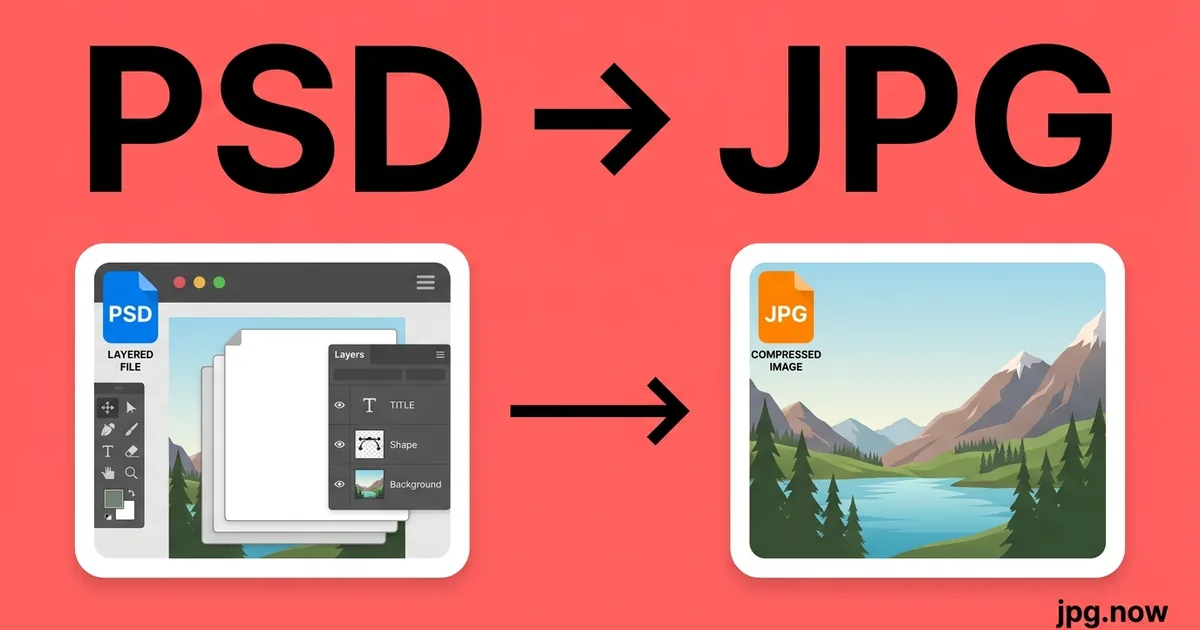
Convert PSD to JPG Online
Flatten and export Adobe Photoshop PSD files to JPG.


Drop your PSD file here
or click to select
How PSD to JPG works
Upload PSD
Drag & drop or click to select your PSD file.
Choose Options
Adjust quality, size, or other output settings if needed.
Download JPG
Click Convert and your JPG file downloads instantly.
About PSD to JPG conversion
PSD (Photoshop Document) is Adobe Photoshop's native project format. PSD files can contain dozens of layers, adjustment layers, smart objects, masks, and other Photoshop-specific data. When converting PSD to JPG, all layers are flattened into a single composite image, and any transparency is filled with white before JPEG compression is applied.
Converting PSD to JPG is a standard step in professional photo retouching and graphic design workflows: edit in Photoshop with full layer flexibility, then export to JPG for web delivery, client review, or social media sharing. The JPG is a compressed, universally viewable snapshot of the layered composition.
Where JPG comes from
PSD (Photoshop Document) shipped with Photoshop 1.0 in February 1990, written by brothers Thomas and John Knoll. Adobe acquired the tool that same year and PSD quickly became the agency-standard layered-image format. Across 30+ versions Adobe has extended PSD to carry vector layers, smart objects, video frames, 3D objects, adjustment layers, layer comps, slices and HDR data — far beyond a simple raster container. Although PSD is proprietary, Adobe has published parts of the specification, allowing Affinity Photo, GIMP, Krita, Pixelmator and many web converters to read PSDs and export them to portable formats like JPG.
PSD vs JPG at a glance
| PSD | JPG | |
|---|---|---|
| Compression | Optional RLE or ZIP per layer | Lossy DCT |
| Transparency | Full alpha plus layer masks | None (flattened) |
| Typical file size (12 MP photo) | 30-100 MB | 3-5 MB |
| Best for | Photoshop editing | Email, web, social |
| Animation | Yes (frame timeline) | No |
| Bit depth | 8, 16 or 32-bit per channel | 8-bit |
| Browser support | None | Universal |
Real-world workflow — Agency delivers approved hero image to a CMS team
- Art director approves the PSD comp with 40 layers
- Convert PSD to JPG, flattening all groups and adjustment layers
- Upload JPG to the WordPress media library
- Keep the PSD in the agency DAM for future variants
Recommended conversion settings
| Use case | Settings |
|---|---|
| Web upload (CMS) | Quality 80, 2000 px wide, sRGB |
| Social media post | Quality 75, 1080 px square, progressive |
| Print proof | Quality 95, 300 DPI, embed ICC |
| Email attachment | Quality 70, 1200 px wide, strip EXIF |
Where will your JPG file open?
| Platform | PSD | JPG |
|---|---|---|
| macOS Preview | ✓ | ✓ |
| Windows Photos | ✗ | ✓ |
| Outlook (desktop) | ✗ | ✓ |
| Gmail | ✗ | ✓ |
| iPhone Photos | ✗ | ✓ |
| Android gallery | ✗ | ✓ |
| Photoshop | ✓ | ✓ |
| Chrome/Safari/Firefox | ✗ | ✓ |
| Slack/Discord | ✗ | ✓ |
When to convert PSD to JPG
PSD is Photoshop's native working format, preserving layers, smart objects, masks, and adjustment data for ongoing editing. When a composition is finished and needs to leave the Photoshop environment - For delivery to a client, upload to a platform, or insertion into a document - The file must be flattened and exported as JPG. PSD files cannot be opened by browsers, viewed in standard photo apps, or uploaded to most online platforms, so the JPG export is the mandatory final step in any Photoshop production workflow.
Retouchers who process portrait, product, and architectural photography in Photoshop produce JPG deliverables sized and compressed to the exact specifications of the end platform - Amazon product image requirements, magazine bleed dimensions, website hero image limits. These platform-specific JPG exports are the primary production output of commercial retouching work, with the PSD kept on file only as the editable source in case revision requests arrive after delivery.
Print bureaus, photo labs, and large-format print operators that receive PSD files from designers convert them to JPG before feeding the image into their RIP or print management software. Most production print workflows are calibrated for JPEG input rather than layered Photoshop documents, and flattening the PSD to JPG at a specified DPI and colour profile ensures the file enters the print pipeline correctly without requiring the print operator to have Photoshop installed.
PSD to JPG tips
- Keep the original PSD file - Once flattened to JPG, the individual layers are permanently merged and cannot be recovered.
- Use quality 90–95% for professional PSD-to-JPG exports to preserve retouching and colour grading work.
- If your PSD uses a wide-gamut colour profile (ProPhoto, Adobe RGB), the colours will be converted to sRGB for JPG - Check the output colours if colour accuracy is critical.
Why use this PSD to JPG converter
Related tools
Formats involved
PSD – Adobe Photoshop Document
JPG – Joint Photographic Experts Group
PSD to JPG tips
- All Photoshop layers are flattened in the output — export separate layers from Photoshop if you need them individually.
- Set quality to 90+ for final artwork delivery; use 75–80 for web-optimized exports.
- Adjustment layers and Smart Objects are rendered before flattening, so the output reflects the final appearance.
PSD to JPG — frequently asked questions
Related guides & articles
Maybe you wanted something else?
- If you need a print archival master from JPG later → JPG to TIFF
- If you need transparency preserved on export → JPG to PNG (after PSD-to-PNG)
- If you want a modern web format → JPG to WebP
- If you want to compress the JPG output → Compress JPG
Articles you might like
Related conversions
 PNG → JPG
 WebP → JPG
 HEIC → JPG
 PDF → JPG
 RAW → JPG
 TIFF → JPG
 BMP → JPG
 SVG → JPG
 JPG → JPG
Embed this tool on your website