
How to Convert JPG to PDF and Keep Your Images Looking Professional
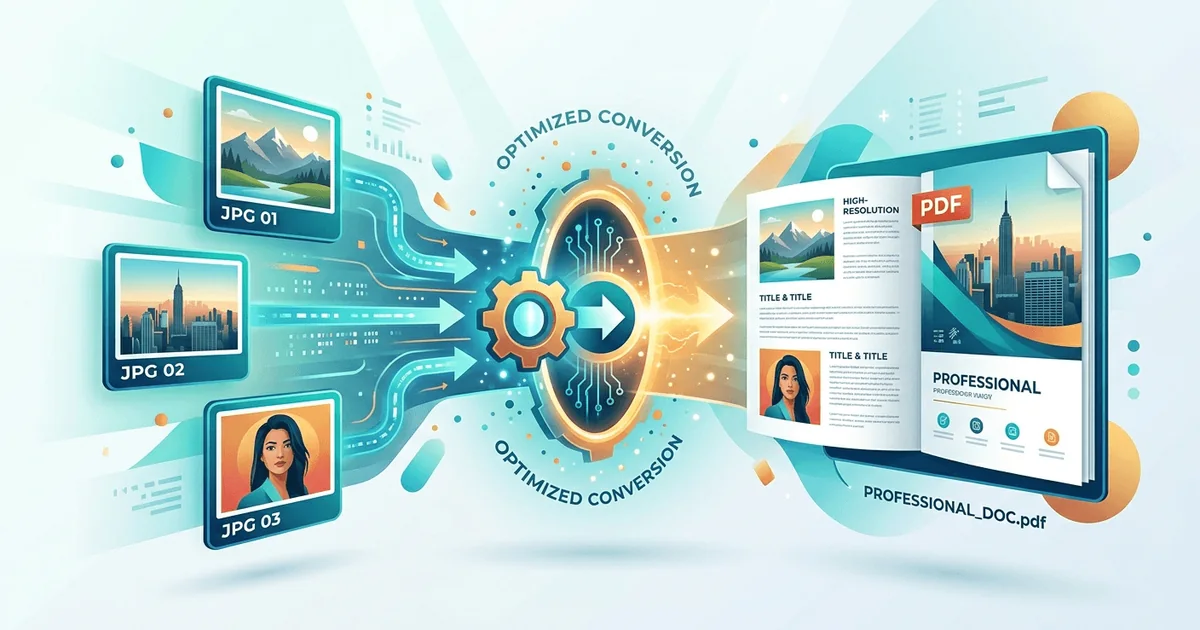
Sending a JPG file feels harmless until you see what happens on the other end. Colors shift slightly. Dimensions behave differently on different screens. And if you sent multiple images, the recipient now has a pile of separate attachments with no structure to guide them. For designers, photographers, and office workers who care about how their work is received, that gap between what you created and what someone else sees is a real problem. Converting your images to PDF before sharing closes that gap completely.
Key Takeaway:
- PDF files preserve image quality, layout, and dimensions exactly as you created them, making them far more reliable for professional sharing than loose JPGs.
- Converting JPGs to PDF is browser-based and requires no software downloads or technical knowledge.
- Once your images are bundled into a PDF, you can reduce the file size before emailing to keep everything deliverable and clean.
Why Loose JPGs Let You Down
When you attach a JPG to an email or upload it to a client portal, you have very little control over what happens next. The recipient's device, email client, or viewer application makes its own decisions about how to display the image. Resolution gets compressed automatically. Aspect ratios sometimes shift. Orientation can flip if the metadata is read differently by another app.
And if you sent five images for a portfolio review, the client now has to open five separate files and mentally piece them together into a coherent picture of your work. That is extra friction you created for them, even if unintentionally.
There is also the professionalism factor. A single, well-structured PDF communicates that you are organized and deliberate. A folder of loose JPGs, even beautiful ones, feels unfinished.
What PDF Was Built For
The PDF format was not created as a workaround or a convenience feature. Adobe designed the format specifically to present documents in a way that looks identical regardless of what device, operating system, or software the recipient uses. That core purpose, preserving the visual integrity of a document across any context, is exactly why PDF is the right container for your image files when professional presentation matters.
A JPG travels alone and hopes for the best. A PDF arrives as a finished, intentional document.
The Situations Where This Really Matters
Portfolios for Designers and Photographers
Creative professionals send their work to clients, agencies, and hiring managers constantly. When a designer sends a PDF portfolio, every page is exactly where it should be. The typography in your mockups stays crisp. The color gradients in your photography spread look exactly as they did on your screen. The recipient scrolls through a curated sequence instead of clicking through individual attachments.
This is especially important when you are sending your work to someone for the first time. That initial impression shapes whether someone takes you seriously before they even look at the content. A polished PDF says you put care into the presentation, not just the work itself.
Invoices and Business Documents
For office workers and freelancers, invoices are a particularly strong case for PDF conversion. An invoice is a formal financial document. Sending it as a JPG is technically possible but creates unnecessary friction. Accounting software, bookkeeping systems, and professional email clients all treat PDF as the expected format for invoices and receipts. Converting your image-based invoice to PDF before sending means it lands in exactly the right place in the recipient's workflow rather than sitting awkwardly in a photos folder.
Multi-Page Reports and Records
If you have scanned pages, photographed reference material, or a series of product images that need to go out as a single document, combining them into a PDF is the only sensible option. You control the order, the orientation, and the overall structure. The recipient gets one file, one download, and one clean document they can navigate properly.
Converting Your Files Without Installing Anything
The barrier to doing this has dropped to almost nothing. You do not need Photoshop, Acrobat, or any paid software. A browser is enough.
Tools that handle JPG to PDF conversion online let you upload one or multiple images, arrange them in whatever order you want, and download a finished PDF in seconds. The process is genuinely simple: upload your images, review the order, and download. No account required, no watermarks, no waiting through loading screens.
This is particularly useful when you are working across devices or helping a colleague who does not have design software installed. The same browser-based tool works on a desktop, a laptop, or a phone. If you want a convenient starting point, bookmarking a reliable image converter means it is always one click away when you need it.
What To Check Before You Convert
There are a few things worth verifying before you hit the convert button.
Resolution matters most if the PDF will be printed. For print output, your source JPGs should be at least 300 DPI. For screen use only, 96 to 150 DPI is generally sufficient. Getting this wrong before the conversion means the PDF inherits the problem, and it is harder to address after the fact.
Page order is the other detail to confirm, especially for multi-page documents. Most conversion tools let you drag and drop to reorder images before generating the PDF. Taking an extra thirty seconds to confirm the sequence is correct saves you from sending a client a presentation that starts on page four.
Handling File Size After Conversion
One natural side effect of combining multiple high-resolution JPGs into a single PDF is a larger file. A PDF with ten full-size photographs can easily run to 50 or 60 megabytes, which creates headaches for email attachments or client portals with upload limits.
The solution is to compress PDF after generating it. Compression tools reduce the file size significantly while keeping the images looking good at screen resolution. For most professional uses, including portfolios, invoices, and reports, the compressed version is visually indistinguishable from the original. For print projects, keep the high-resolution version and send the compressed one for reviews and approvals.
Making Conversion Part of Your Workflow
The people who benefit most from this habit are the ones who do it consistently, not occasionally. If you routinely share visual work, documents, or records with clients or colleagues, converting to PDF before sending should become as automatic as saving your file.
A simple approach: keep a browser-based conversion tool bookmarked so it is ready whenever you finish a batch of images. When you are ready to send, convert first, then send. The extra step takes under a minute and it changes how your work is perceived before a single image is even looked at properly.
The Difference Between Sending Files and Sending Documents
There is a meaningful distinction between dropping files in an email and sending someone a document. Files are raw material. Documents are finished products. A JPG is a file. A well-structured PDF of those same images is a document.
That distinction matters more than most people realize. Clients and colleagues form impressions based on how you deliver your work, not just what is in it. A photographer who sends a PDF contact sheet signals professionalism. A designer who sends a PDF portfolio shows they thought about the recipient's experience. An office worker who sends a PDF invoice shows they understand how paperwork actually moves through an organization.
The conversion itself is fast and free. The impact on how your work is received is worth far more than the time it takes.