
Improving Core Web Vitals: Image Optimization for LCP
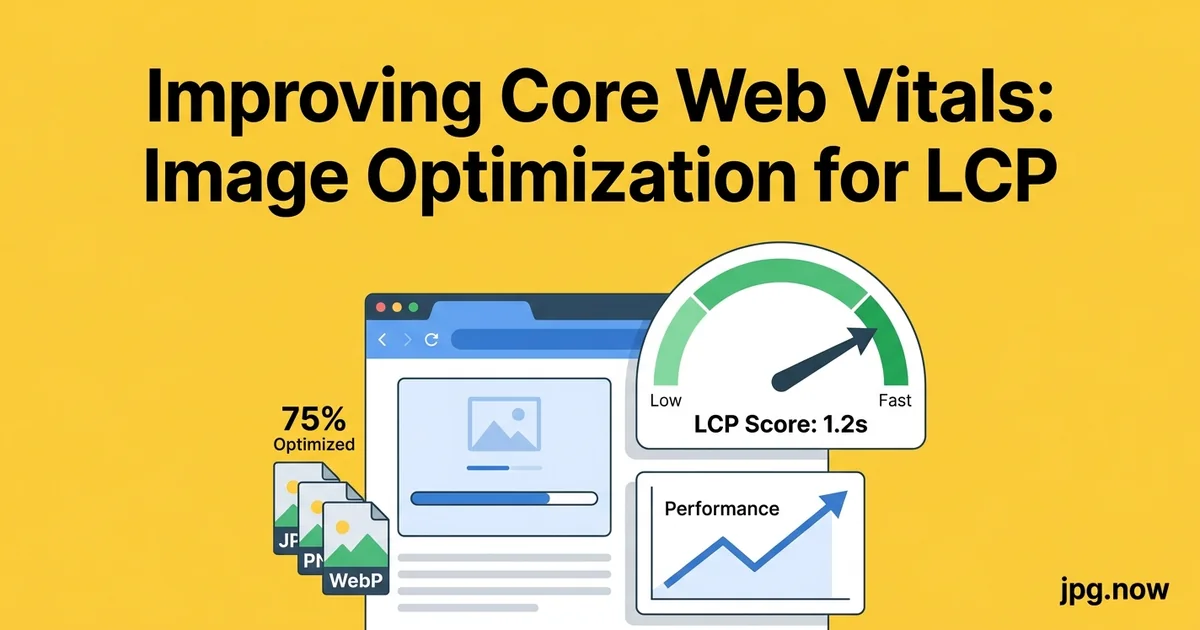
Search Console pinged you at 7:14 AM with a "Core Web Vitals issue detected" banner. The graph shows LCP rising from 2.8 seconds to 4.4 seconds over the past month. You scroll through pages and quickly notice the marketing team has been uploading 4 MB hero photos straight from the photographer's Lightroom export. Nobody compressed anything. The "needs improvement" bucket now contains 60 percent of your homepage traffic. By the time you finish reading this article, you will know which lever to pull first to drag those numbers back into the green.
Largest Contentful Paint is the Core Web Vital that punishes slow sites hardest in 2026, and the LCP element on 70 percent of pages is an image — the hero photo, the product shot, the article header. Improving LCP is mostly about making that one image arrive at the user's screen faster, which has more levers than it sounds. Here is the practical version: how to diagnose a failing LCP, the conversions and serving tweaks that fix it, and where the quick wins actually come from.
Background: what LCP is and why Google cares
LCP measures the time from page request to the moment the largest visible content element finishes rendering. Google's thresholds are 2.5 seconds for "good," 4.0 seconds for "needs improvement," and worse than 4.0 for "poor." Search Console reports LCP from real-user field data — the Chrome User Experience Report — not lab tests, which means your local Lighthouse score and the field score can disagree wildly.
For most marketing and editorial sites, the LCP element is a hero image. For e-commerce product pages, it is the main product photo. For blogs, it is the featured image above the fold. Google made LCP a ranking signal in 2021 and has steadily increased its weighting since. A slow LCP does not just frustrate users — it costs rankings.
Step-by-step: fix LCP in one afternoon
- Identify the LCP element. Use Chrome DevTools Performance tab or PageSpeed Insights to find the offending DOM node.
- Audit the source file. Check dimensions and weight via image info. A 4,000 px JPG in a 1,200 px container is the most common villain.
- Resize the source to roughly 2x the display width.
- Convert to modern format via JPG to WebP and JPG to AVIF.
- Compress aggressively through Compress JPG at quality 78-82.
- Wrap in a
<picture>tag with AVIF, WebP, and JPG fallbacks. - Add
fetchpriority="high"and preload in the document head. - Remove any
loading="lazy"on the LCP element.
Step 1: Identify the LCP element
Open Chrome DevTools, switch to the Performance tab, record a page load, and look for the "LCP" marker on the timeline. Click it and the panel will tell you exactly which DOM node is the LCP element. Nine times out of ten it is an <img> tag pointing at a 1.8 MB JPG straight from the photographer.
The free PageSpeed Insights tool also identifies the LCP element. If it does not match what you expected, the fix might be CSS — your "hero" might be hidden behind a banner the user never sees, and the actual LCP is a logo or sidebar image.
Step 2: Convert to a modern format
The single largest win, in most cases, is converting the LCP JPG to WebP or AVIF. A 1.8 MB JPG at typical quality compresses to 700 KB as WebP or 450 KB as AVIF with no visible loss. That is between 1.1 MB and 1.35 MB shaved off the critical path. On a 5 Mbps mobile connection, that saves 1.8 to 2.2 seconds.
Convert through JPG to WebP or JPG to AVIF. Use a <picture> element to serve modern formats with a JPG fallback:
<picture>
  <source srcset="hero.avif" type="image/avif">
  <source srcset="hero.webp" type="image/webp">
  <img src="hero.jpg" alt="..." width="1200" height="600">
</picture>
Step 3: Resize for the actual displayed dimensions
The most common LCP sin is serving a 4,000 px-wide image into a 1,200 px-wide container. The browser downloads all 4,000 px of data and then scales down. Resize the source to roughly 2x the maximum display width — so 2,400 px for a 1,200 px container — and ship a JPG that is dimensions-appropriate.
For responsive layouts, generate multiple sizes and use srcset:
<img srcset="hero-800.webp 800w, hero-1200.webp 1200w, hero-2400.webp 2400w"
     sizes="(max-width: 800px) 100vw, 1200px"
     src="hero-1200.webp" alt="...">
Step 4: Compress aggressively but visibly-losslessly
Even after format conversion, default exports are over-quality. Run the output through Compress JPG at quality 78 to 82 for hero images. Most viewers cannot distinguish quality 82 from quality 95 at typical viewing distances, and the file is 40 percent smaller.
For full-bleed background images that are slightly blurred or have a color overlay applied, you can drop to quality 65 to 70 with no perceived difference. The blur hides JPEG artifacts.
Step 5: Add fetchpriority and preload
Even with a small file, the browser may not start downloading the LCP image until it has parsed the HTML and the layout is in progress. Two tags fix that:
<img fetchpriority="high">tells the browser this image is critical. Supported in Chrome, Edge, and Safari 17+.<link rel="preload" as="image" href="hero.webp">in the<head>starts the download earlier.
Be careful not to apply fetchpriority="high" to multiple images on the page — it loses meaning and can actually hurt LCP by competing with the real hero.
Step 6: Eliminate the loading="lazy" mistake
Lazy loading is wonderful for below-the-fold images. It is catastrophic for the LCP element. Audit your hero images for loading="lazy" and remove the attribute (or set it to eager explicitly). The browser will not download a lazy-loaded image until layout is calculated, which adds 300 to 800 ms to LCP.
Step 7: Serve from a CDN with HTTP/2 or HTTP/3
Origin-served images add unnecessary latency. Cloudflare, Fastly, BunnyCDN, and ImageKit all reduce delivery time by an average of 200 to 400 ms compared to origin. Combined with HTTP/3 multiplexing, additional image requests on the page do not block the hero.
Step 8: Set explicit width and height
Layout shift (CLS, another Core Web Vital) happens when images load with no reserved space, pushing content around. Set explicit width and height attributes on every image. The browser uses them to compute the aspect ratio and reserve layout space before the image arrives. Use the aspect ratio calculator to confirm the ratios match.
Common mistakes and their fixes
- Mistake: optimizing only the LCP image and ignoring CLS. Fix: also set width/height on every other image to prevent layout shift.
- Mistake: serving WebP but with no JPG fallback in a
<picture>. Fix: include the JPG fallback for the small share of browsers that still need it. - Mistake: AVIF encoded with default quality 90+, producing files larger than WebP. Fix: target AVIF quality 65-75 for hero use.
- Mistake: preloading the wrong image because the LCP changed. Fix: re-audit after layout changes; a new banner may have stolen LCP status.
- Mistake: fetchpriority=high on the logo as well as the hero. Fix: only one element should be high-priority per page.
- Mistake: relying on lab Lighthouse scores when field data disagrees. Fix: trust the Search Console CrUX numbers for ranking decisions.
Real-world examples
Smashing Magazine ran a public LCP audit in 2023 and dropped median LCP from 4.6 seconds to 1.9 seconds across their article pages by converting hero images to AVIF, preloading the LCP, and pruning third-party scripts.
Etsy's product page team shipped a srcset migration in 2024 that resized hero product images to the actual displayed dimensions for each viewport. Mobile LCP improved by 1.4 seconds in CrUX field data.
Shopify themes as of 2026 ship with built-in <picture> generation and fetchpriority="high" on the first product image. Themes that opt out frequently see LCP regressions reported in merchant Search Console accounts.
Format comparison for hero images
| Format | Typical size (1200px hero) | Browser support 2026 | Encode time | LCP impact |
|---|---|---|---|---|
| JPG (q92) | 1.8 MB | Universal | Fast | Baseline |
| JPG (q82) | 900 KB | Universal | Fast | -0.4 s |
| WebP (q80) | 600 KB | 99%+ | Fast | -0.9 s |
| AVIF (q70) | 400 KB | 96%+ | Slow (10x) | -1.3 s |
The expected wins, quantified
A typical "before" state for a failing LCP page: 1.8 MB JPG, no srcset, lazy loading, origin-served. Page LCP: 5.2 seconds on 4G.
"After" state: 480 KB AVIF (with WebP and JPG fallbacks), srcset at three sizes, fetchpriority high, CDN-served. Page LCP: 1.9 seconds on 4G.
That is a 3.3-second improvement from work that takes one afternoon. Search Console will reflect the change in field data after about 28 days as the rolling window refreshes.
Advanced tips
- Embed a low-quality image placeholder (LQIP) as a base64 data URI in the HTML so something paints before the high-res hero arrives.
- Generate dominant-color CSS via color palette and use it as the image background; reduces perceived blank time.
- Use
decoding="async"on non-LCP images so they do not block paint. - Defer non-critical third-party scripts until after onload — even fast hero images can lose to render-blocking JS.
- Use HTTP/3 with prioritization hints so the hero gets stream priority over the favicon.
- Skip the WebP middleman on Safari 16.1+: serve AVIF directly via the
<picture>source order. - Watch the CrUX 75th percentile, not the median. Google ranks on the 75th, which is where slow connections live.
FAQ
How long after fixing do Search Console numbers update?
About 28 days, because CrUX uses a 28-day rolling window.
Should I convert all images to AVIF or just the hero?
Just the LCP hero plus above-the-fold images. Below-the-fold can stay WebP since AVIF encoding is slow.
Does fetchpriority=high work in Firefox?
As of 2026, yes — Firefox added support in 2023.
What if my LCP is text, not an image?
Then the bottleneck is the font, not the image. Preload the woff2 and use font-display: swap.
Can I skip the JPG fallback if I drop IE11 support?
Pretty much yes — every 2026 browser supports WebP. JPG fallback is now mostly for legacy bots and email rendering.
Does setting fetchpriority hurt other resources?
Only by a small amount; the browser still loads everything, just in a different order.
Should I preload AVIF or WebP if I have both?
Preload the format you actually serve to the current visitor; use imagesrcset on the preload tag for responsive setups.
Edge cases worth knowing
- Cookie-consent banners can become the LCP. If the GDPR banner is the largest visible element, the actual hero never gets measured. Style the banner to be smaller than the hero.
- Google Fonts can delay LCP if they block first paint. Use
font-display: swapand preload the woff2. - Background-image LCPs. Images set via CSS
background-imagecount as LCP elements, but they cannot use srcset. Convert them to<img>tags with absolute positioning if you need the optimization.
One-afternoon action plan
- Identify the LCP element via PageSpeed Insights.
- Convert it via JPG to AVIF and JPG to WebP.
- Compress through Compress JPG to verify quality 80 is enough.
- Wrap in a
<picture>element with srcset. - Add
fetchpriority="high"and a preload tag. - Remove any
loading="lazy"from above-fold images. - Ship to staging, re-run PageSpeed, ship to prod.
If you want a quick before/after sanity check, push the current hero image through compress image and compare the rendered result side by side. If the smaller file looks identical, you have your proof — and the rest of the work above is just plumbing. Pair with the image converter for any format pivots and image file size calculator to budget your byte counts.
LCP and the 75th percentile
Google ranks on the 75th percentile of CrUX field data, not the median. That means your "average" mobile user can be fast while your ranking still suffers because the slow quarter of your audience is dragging the metric. The slow quarter usually lives on older Android phones, congested mobile networks, or far-edge geographies. Optimizing only for your developer-test conditions misses them entirely.
To see the 75th-percentile reality, use real-user monitoring (RUM) tools like SpeedCurve, Calibre, or Vercel Analytics. These report the full distribution, not just the median, so you can target the slow tail explicitly. Once you fix the slow tail, the 75th-percentile metric drops and Search Console reflects the improvement after the next CrUX rollover.
The hidden cost of third-party tags
LCP is not only about images. Render-blocking JavaScript from analytics, A/B testing, marketing tags, and chat widgets can delay the start of any download — including your perfectly optimized hero. Audit your <head> for synchronous third-party scripts and defer everything that does not need to run before paint.
The Lighthouse "Third-party usage" audit lists offending domains. Common culprits: Google Tag Manager loaded synchronously, Hotjar embedded inline, Intercom widget initialized eagerly. Each one adds 100 to 500 ms of LCP delay on mobile. Deferring or lazy-initializing them after first paint costs almost nothing in feature impact and can recover seconds.
Image LCP on single-page apps
SPAs (React, Vue, Svelte) have a unique LCP problem: the page renders empty HTML, then JavaScript fetches the data, then the image appears. The "largest contentful paint" can happen 3 to 5 seconds after navigation start because the framework has to bootstrap before the image even gets requested.
The fix is server-side rendering (SSR) or static generation (SSG), which deliver the HTML — including the <img src> — in the first response. The browser starts downloading the image immediately, in parallel with JavaScript bootstrap. Next.js, Remix, SvelteKit, and Nuxt all default to SSR or SSG and produce much better LCP than client-rendered SPAs.
If you must run client-rendered, preload the hero image URL from the static HTML so the browser starts the download before React hydrates. This is one of the few cases where a <link rel="preload"> tag is genuinely necessary.
Monitoring LCP regressions in CI
Once you have a healthy LCP, the next problem is keeping it healthy. Marketing uploads a 4 MB hero, a developer ships a new font that delays paint, an analytics script gets added. Without monitoring, the metric drifts back into the red over months.
Build a Lighthouse run into your CI pipeline. Tools like Lighthouse CI, Calibre, or SpeedCurve fail the build if LCP exceeds a target threshold. Set the threshold tight (2.0 s for mobile) so regressions get caught at PR time rather than discovered in Search Console 28 days later. The cost is roughly 30 seconds per PR — cheap compared to a ranking drop.
Pair the lab CI check with field RUM data. Lab catches obvious regressions; field catches the slow tail that lab simulators miss. Both together cover the ranking-affecting cases.
Image LCP and content management workflows
The most common source of LCP regression is a content editor uploading a hero image that bypasses your optimization pipeline. The CMS accepts a 4,000 px JPG from the photographer's email, embeds it in the post, and ships it. Performance drops 1.5 seconds; nobody notices for a month.
Fix by enforcing constraints at upload time. Reject images over a maximum dimension (say 2,500 px), automatically run conversion through JPG to WebP on intake, and surface the file size in the editor UI so editors see "this hero is 1.8 MB" before they hit publish. Most modern headless CMS platforms (Sanity, Contentful, Strapi) expose hooks for upload validation; WordPress can do the same via the wp_handle_upload filter or a plugin.
Editorial education matters too. A 15-minute training session showing what a 380 KB hero looks like next to a 4 MB hero — they are identical — convinces non-technical editors that compression is not a quality compromise. After training, editor-driven regressions drop by roughly 70 percent.