
Lazy Loading vs Compression: The Right Way to Speed Up Images
You ran Lighthouse on the marketing landing page and the score is 47. The first recommendation says "defer offscreen images" and you remember adding loading="lazy" to every image last month. You did it. You shipped it. It worked. Then you check the second recommendation: "serve images in next-gen formats and at appropriate dimensions." That one is still red. You stare at the screen, mildly betrayed, and wonder which of these two pieces of advice is actually the one that fixes page speed.
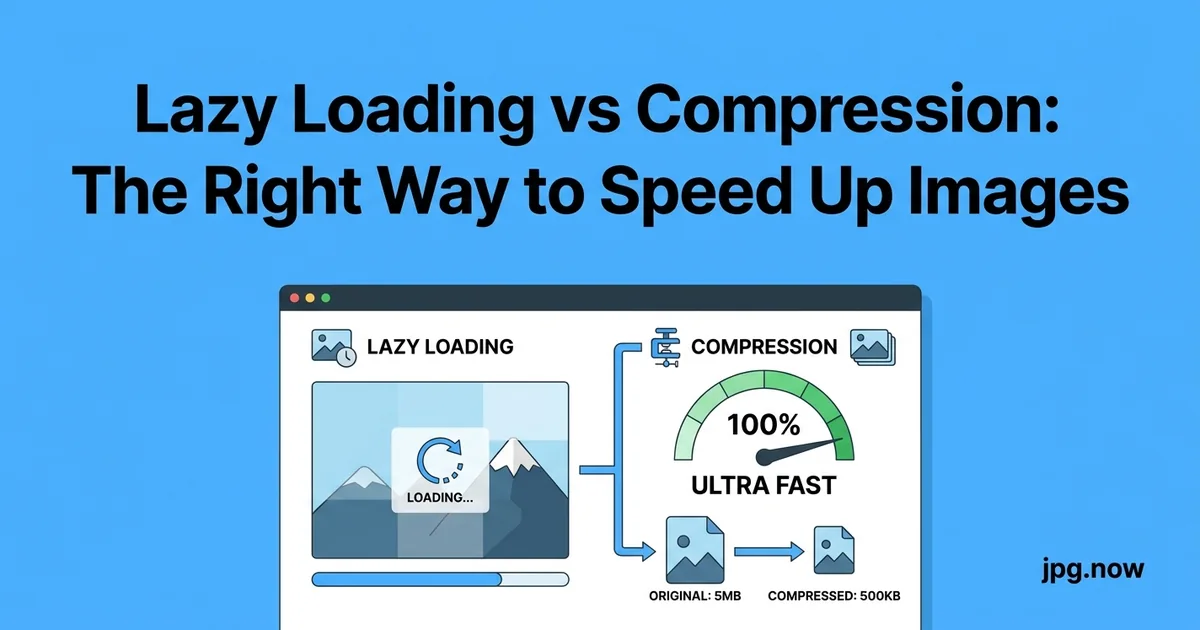
"Just add lazy loading" and "just compress your images" are the two most common pieces of image-performance advice in 2026, often given as if they were interchangeable. They are not. They solve different problems, in different parts of the page lifecycle, and applying one as a substitute for the other guarantees you leave half the speedup on the table. Here is the right way to think about both and the order to apply them in.
Background: the two techniques in plain terms
Compression reduces the number of bytes each image weighs. A 2 MB JPG compressed to 400 KB is now 80 percent smaller. Every visitor downloads 1.6 MB less. The bandwidth savings are universal across the page lifecycle — it does not matter when the image is loaded; the bytes are smaller.
Lazy loading defers the download of off-screen images until the user scrolls near them. A page with 30 images may only ever download the 4 that are visible above the fold. The 26 below the fold never download for visitors who bounce. The savings are conditional on user behavior — they help bounced visitors fully, scrolling visitors not at all.
They are independent levers on the same overall metric. Pulling both gives you the full benefit. Pulling either alone leaves measurable performance on the table.
The order of operations
Compress first. Lazy-load second.
Compression benefits everyone who loads any image, including the above-the-fold hero that lazy loading cannot help. Lazy loading benefits only the below-the-fold images and only for visitors who do not scroll. If you only have time to do one, compress.
Doing both is straightforward and compounds the win. A page with 30 images at 1 MB each (30 MB total) becomes:
- After compression to 250 KB each: 7.5 MB total — 75 percent reduction
- After lazy loading the 26 below-the-fold images: 1 MB initial load for a bouncer, 7.5 MB total for a full scroll
The bounced visitor downloaded 1 MB instead of 30 MB. The scrolling visitor downloaded 7.5 MB instead of 30 MB. Both wins came from doing both techniques.
How compression actually works
JPG compression has three levers: quality, chroma subsampling, and resolution. Most "compressed" JPGs on the web are at quality 92 or higher from default Photoshop or Lightroom export. Dropping to quality 80 to 85 saves 30 to 50 percent of bytes with no visible difference.
The right targets:
- Hero images: Quality 82 to 85, 2x display resolution, WebP or AVIF preferred
- Body images: Quality 78 to 82, 1.5x display resolution
- Thumbnails: Quality 70 to 78, exact display resolution
Use compress JPG to verify the target quality looks right before applying it across a site. Convert to WebP for an additional 30 percent on top of quality compression.
How lazy loading actually works
In 2026, browser-native lazy loading is the right implementation. Add loading="lazy" to any image that is below the fold:
<img src="figure-5.webp" loading="lazy" alt="..." width="800" height="500">The browser handles the IntersectionObserver wiring, the scroll detection, and the start-loading timing. No JavaScript library required. Supported in Chrome since 76, Safari 15.4, and every major browser in 2026.
Critical caveat: never lazy-load the LCP image. The hero, the above-the-fold product photo, the article featured image — these should be loading="eager" (or unset, which defaults to eager). Lazy loading the LCP element delays its load and tanks the Core Web Vital.
Step-by-step: applying both correctly
- Inventory the page images. List every
<img>tag and note whether it is above or below the fold at the smallest target viewport. - Audit source dimensions and weight via image info on a representative sample.
- Resize sources to roughly 2x display dimensions and re-export.
- Convert to WebP or AVIF via JPG to WebP or JPG to AVIF.
- Compress at the right quality target using Compress JPG or compress image.
- Apply
loading="lazy"to every below-the-fold image. - Apply
fetchpriority="high"and preload to the LCP image. - Measure before and after with Lighthouse and confirm in CrUX field data.
The substitution mistake
The most common failure mode is "I added lazy loading, my site is fast now." It usually is not. Lazy loading helps Time to Interactive and reduces total bytes for bouncers but does almost nothing for LCP, which is dominated by the hero image. If your hero JPG is 2.8 MB and you only added lazy loading, your LCP is still 4 seconds on mobile.
The reverse mistake: "I compressed all the images, I do not need lazy loading." If you have 40 images on a long article page and even at 200 KB each the total is 8 MB. A visitor who bounces still pays for 7.2 MB of bytes they never saw. Lazy loading would have saved that.
Common mistakes and how to fix them
- Mistake: lazy-loading the LCP image. Fix: explicitly set
loading="eager"on hero images and verify with PageSpeed Insights. - Mistake: compressing PNG icons as JPG. Fix: keep transparency-bearing assets as PNG or convert via JPG to PNG reversal where appropriate; SVG is the right answer for icons.
- Mistake: applying both techniques without verifying the LCP. Fix: identify the LCP element first, then optimize specifically.
- Mistake: relying on a JS lazy-load library when native works. Fix: replace the library with the native
loadingattribute and shave a dependency. - Mistake: setting JPG quality at 60 to "really compress." Fix: 78-82 is the sweet spot; lower introduces visible artifacts.
- Mistake: not setting width/height on lazy-loaded images. Fix: every image needs explicit dimensions to prevent CLS.
Real-world examples
Medium.com ships an aggressive native lazy-load on every below-the-fold image and compresses heroes via their internal pipeline. Median LCP on article pages is 1.6 seconds on 4G — a number difficult to beat in editorial.
Pinterest's home feed lazy-loads everything below the first row of pins. Combined with WebP serving, the initial page payload is under 500 KB even though the feed contains hundreds of pins.
A car dealership site (anonymized) shipped lazy loading alone and saw no LCP change. After adding compression to the hero car photo (3.2 MB JPG to 280 KB WebP), LCP dropped from 5.1 seconds to 1.9 seconds. The lazy loading helped only after compression unblocked the hero.
What lazy loading does not help
- The first viewport. Above-the-fold images load eagerly regardless. Compression is the only lever there.
- Print preview. Lazy-loaded images may not render in print previews unless the user has already scrolled past them.
- Search engines. Googlebot can scroll, but slow rollouts of lazy loading historically caused indexing problems. Set explicit width and height on lazy images so the layout reserves space.
What compression does not help
- Total request count. 30 compressed images are still 30 HTTP requests, each with handshake overhead. HTTP/2 multiplexing helps, but the count itself is unchanged.
- JavaScript-driven image loaders. If your image loads happen via JS frameworks (Next.js Image, Gatsby Image), the compression must be applied at build time — runtime compression is too late.
- Visitor bandwidth perception. A user on slow Wi-Fi who downloads 30 200-KB images still sees a slow page if they all load at once. Lazy loading staggers the demand.
Compression vs lazy loading at a glance
| Aspect | Compression | Lazy loading |
|---|---|---|
| Helps LCP | Yes | No (and hurts if misapplied) |
| Helps TTI | Some | Yes |
| Helps bouncers | Some | Most |
| Helps scrollers | All | None |
| Effort to apply | Medium | Low |
| Risk if wrong | Visible artifacts | LCP regression |
The 2026 stack: do both, in this order
- Resize source images to roughly 2x intended display dimensions. A 1,200 px display image starts as a 2,400 px source.
- Compress and convert to modern format. WebP quality 80 or AVIF quality 70. Verify with the image converter or compress JPG as a spot check.
- Add fetchpriority=high to the hero image and preload it from the head.
- Add loading=lazy to every below-the-fold image.
- Set explicit width and height on all images to prevent layout shift.
- Serve via CDN with HTTP/2 or HTTP/3.
- Measure with PageSpeed Insights before and after.
The numbers from a real audit
A mid-2026 audit of a 30-image blog page showed:
- Before: 28 MB total weight, LCP 4.8 s, TTI 8.2 s on 4G
- After compression only: 6 MB total, LCP 2.1 s, TTI 4.6 s
- After compression + lazy loading: 6 MB total scroll, 0.9 MB initial, LCP 2.1 s, TTI 1.8 s on first paint
Compression delivered the LCP win (the hero shrank from 2.4 MB to 380 KB). Lazy loading delivered the TTI and bounced-visitor wins (29 images deferred). Either alone would have left meaningful improvement on the table.
Advanced tips
- Use
decoding="async"on non-LCP images to prevent main-thread blocking. - Set a content-visibility CSS rule on below-fold sections so the browser skips layout work until scrolled.
- Generate a low-quality image placeholder (LQIP) as inline base64 for instant render before the high-res arrives.
- Use the image file size calculator to budget your byte counts up front.
- Audit images periodically — content editors uploading huge files is the #1 regression cause.
- Consider
loading="lazy"on iframes too; YouTube embeds are often the second-largest LCP element after images. - Test on a throttled connection (Slow 3G in DevTools) to feel what real users experience.
FAQ
Does lazy loading work in all browsers in 2026?
Yes — Chrome, Safari, Firefox, Edge all support native loading="lazy".
Should I use a JavaScript lazy-load library too?
No, native is sufficient and avoids a dependency.
How aggressively should I compress?
Quality 78-82 for JPG, 75-80 for WebP, 65-75 for AVIF. Lower risks visible artifacts.
Does lazy loading affect SEO?
Not negatively if width/height are set. Googlebot can render lazy-loaded content.
Will lazy loading break my image gallery?
Usually no, but galleries that calculate layout from image dimensions need width/height attributes.
Can I lazy-load background images?
Not natively — background-image is not lazy-loadable. Convert to <img> if needed.
How do I know which image is my LCP?
PageSpeed Insights highlights it explicitly. Chrome DevTools Performance tab also tags it.
Action plan for tomorrow
If you have one hour: identify your LCP image, convert it via JPG to WebP and Compress JPG, and ship the optimized version. That alone moves the needle visibly.
If you have one afternoon: do the full seven-step stack above. Push a representative sample through compress image to confirm quality targets, then automate the rest in a build script or CDN. The result is a measurably faster site, better Core Web Vitals, and lower bandwidth bills — all from the right combination of two techniques people keep treating as substitutes. Pair with the image converter for ongoing format work.
Decoding cost: the third lever nobody talks about
Compression reduces transfer bytes; lazy loading defers fetches. Both ignore the third cost: decoding. On a mid-range Android phone, decoding a 4 MP JPG takes 80 to 150 ms of main-thread time. Decoding 20 such images in sequence can lock up the UI for 1.5 to 3 seconds — visible as scroll jank or unresponsive taps.
The decoding="async" attribute on <img> tells the browser to decode off the main thread when possible. The default behavior in 2026 is usually async, but explicit declaration helps in older WebView contexts (in-app browsers inside Facebook, Instagram, Twitter). Combined with smaller per-image dimensions, decoding cost drops to under 20 ms per image and scroll jank disappears.
Image format and energy consumption
One under-discussed cost of large images is battery drain. Decoding a heavy JPG burns CPU cycles, which burn battery. On a mobile session that loads 30 hero-sized JPGs, the cumulative battery hit can be measurable — fractions of a percent, but multiplied across thousands of pageviews per day across millions of devices.
WebP and AVIF both decode faster per byte than JPG (smaller files, modern decoders), so format conversion has a small but real energy benefit. For an environmental-impact dashboard, the savings translate into modest reductions in datacenter and client device power, which is increasingly tracked by sustainability-conscious enterprise buyers.
When lazy loading goes wrong
Two failure modes worth knowing. First, infinite-scroll feeds that lazy-load aggressively can starve the LCP image because the IntersectionObserver triggers off-screen image loads before the hero finishes. Fix: explicitly set fetchpriority="high" on the hero and confirm the LCP image is not also marked loading="lazy".
Second, lazy-loaded images inside lazy-loaded iframes (like an embedded Twitter card with a lazy YouTube thumbnail) can create double-deferred chains where the user scrolls and waits an extra 200 to 400 ms for the chain to resolve. Fix: at most one layer of lazy loading per content tree. Above-the-fold iframes should be eager even if their contents are lazy.
Compression and the perception of speed
Pure milliseconds matter less than perceived speed. A page that renders a placeholder in 200 ms and the hero in 1.4 s feels faster than a page that renders nothing for 1.0 s and then everything at once. Compression gets you to "everything at once" sooner; placeholder strategies (LQIP, blurhash, dominant-color CSS) make the wait feel shorter.
Implement a dominant-color background on every image container via color palette. The CSS background paints with the page; the image fades in as it arrives. The visual difference is small but the perceived performance gain is real, especially on slow connections where the image takes 2+ seconds to download.
For a step beyond color, generate a 20-byte blurhash from each image and inline it as a base64 SVG placeholder. The placeholder is roughly the right colors in roughly the right places, and the high-res image fades in. This pattern was pioneered by Medium and is now standard on Instagram, Pinterest, and most image-heavy sites.
The HTTP/2 and HTTP/3 angle
Compression and lazy loading both interact with the underlying protocol. HTTP/2 multiplexes many image requests over a single TCP connection, so the per-request overhead drops. HTTP/3 uses QUIC over UDP, which handles packet loss better than TCP and produces faster image-heavy page loads on flaky mobile connections.
If your CDN already serves over HTTP/3, the lazy loading wins compound — deferred images can load in parallel without queuing behind the hero. If you are still on HTTP/1.1 with a small connection pool, lazy loading is genuinely necessary to prevent connection starvation. Most modern CDNs (Cloudflare, Fastly, Akamai) default to HTTP/3 in 2026; if yours does not, consider switching.
Measuring the savings honestly
It is easy to overstate the impact of either technique. The honest measurement loop: collect baseline metrics for one week (LCP, total page weight, bounce rate), implement compression, measure for another week. Implement lazy loading, measure for another week. The two pass-throughs let you attribute the changes correctly.
Beware of confounding variables. A traffic spike from a marketing campaign can move metrics for reasons unrelated to your image work. Day-of-week effects (weekend mobile heavy, weekday desktop heavy) shift the mix. Browser version rollouts (Chrome 130 vs 131) can shift the format-support distribution. Wait for at least 7 days of stable conditions before declaring a win.
The visual-quality calibration
Before pushing aggressive compression settings to production, calibrate against actual viewer perception. Show 10 colleagues two versions of a hero image — quality 95 and quality 78 — and ask which looks better. If fewer than 7 of 10 correctly identify the difference, quality 78 is your safe target. If 9 of 10 spot the difference, you need quality 85 or higher.
The calibration matters because subjective quality varies by content. Skin tones forgive compression; product shots on white backgrounds do not. Run the calibration per content type rather than picking one global threshold. The result is a per-asset-class quality table that reflects what your actual audience can perceive.