
OCR Workflows: Extract Text from Screenshots and Scans
It is Wednesday evening. You just got back from the client lunch with a stack of business cards, a photo of the whiteboard from the brainstorming session, and a receipt for the $87 meal that needs to be expensed by tomorrow. You have a choice. Type all of it manually for 30 minutes, or run each through OCR and have it copy-paste-ready in 90 seconds. The 2026 version of OCR makes the second option not just faster but more accurate than your typing.
OCR, or optical character recognition, used to be a punchline. The 2012 version turned every "I" into "l" and every "O" into "0" and required a clean black-and-white scan to function. The 2026 version transcribes handwritten lecture notes from a smartphone photo with 95 percent accuracy. This guide walks through the real use cases where OCR replaces typing, the pre-processing steps that double accuracy on borderline inputs, and the privacy considerations for sensitive documents.
Background: how OCR got good
Classic OCR (1990s-2010s) was rule-based pattern matching. It recognized characters by comparing pixel patterns to template letters in a database. Any variation (rotation, font change, fade) broke the match. Modern OCR is deep-learning-based, trained on hundreds of millions of text samples in dozens of languages, scripts, and handwriting styles. It does not match templates; it predicts characters in context, like a language model with image inputs.
The shift happened around 2018-2020 with the integration of transformer architectures into vision models. Google Cloud Vision, Microsoft Azure Computer Vision, AWS Textract, and Apple's built-in Vision framework all crossed the threshold where they outperform careful human typing on clean printed input.
OCR for archival research
Genealogists and historians lean heavily on OCR for old newspaper archives, census records, and handwritten letters. Quality varies dramatically by source: typewritten 20th-century material works well, hand-pressed 19th-century newspapers vary. Specialized historical-OCR services like Transkribus handle pre-1900 handwriting better than general-purpose tools.
What modern OCR is genuinely good at
Printed text on a flat surface, photographed in good light, in a common font, in a major language: flawless. A receipt from Whole Foods, a business card, a printed boarding pass, a screenshot of a webpage — all transcribe to copy-paste-ready text in under 3 seconds. The accuracy on this class of input routinely exceeds 99 percent.
Handwritten print (block letters, not cursive) in a notebook works at 90 to 95 percent accuracy. Cursive remains harder. Accuracy drops to 70 to 80 percent depending on legibility. Mixed math and text, code with non-ASCII operators, and chemical formulae still trip even premium services.
Step-by-step: getting clean text from any image
- Capture or load the source. Phone camera for receipts and physical documents; screenshot for digital text.
- Pre-process for accuracy. Crop tight to text, deskew, convert to grayscale, boost contrast.
- Up-resolution if borderline. Use the AI upscaler on anything under 300 ppi at print size.
- Run OCR. Use the image-to-text tool for one-off jobs, Adobe Acrobat for batch document digitization, Apple Live Text for iOS captures.
- Verify the output. Quick scan for numerical fields and proper nouns. Names, dollar amounts, and dates need 100 percent accuracy.
- Save structured output. Paste to expense system, CRM, notes app. Tag with source date.
- Archive the source image. Keep the original photo in case re-extraction is needed.
Real-world OCR speed improvements
A medical practice digitizing 15 years of paper charts used a combination of high-speed scanning (Fujitsu ScanSnap fi-7180 at 80 pages per minute) and Adobe Acrobat batch OCR. 200,000 pages digitized in 6 weeks. The same project manually transcribed would have taken 18 months. Searchable PDF output integrated with the EHR system; staff now find patient history in 5 seconds instead of pulling chart binders.
A law firm running OCR on deposition transcripts and exhibits accelerated case prep by 60%. Searching across 10,000 pages of discovery for specific keywords used to take a paralegal a week; with OCR-indexed PDFs, it takes 30 seconds.
The five use cases where OCR genuinely saves time
- Receipt and expense capture: Photograph the receipt, OCR extracts merchant, total, date, and line items. Apps like Expensify and Wave do this automatically.
- Business card digitization: Snap the card, OCR pulls name, company, phone, email, address into contacts. CamCard and Microsoft Lens have made this a one-tap workflow.
- Lecture slide notes: Photograph slides during class, OCR converts to searchable text that integrates with your note-taking app.
- Document digitization: Scan a contract, OCR makes it searchable PDF instead of an image-of-a-document PDF.
- Whiteboard photos: Capture the meeting whiteboard, OCR transcribes the bullet points into a meeting note.
Use the right tool for the right input
For one-off text extraction from any image, the image-to-text tool handles screenshots, photos, and scans without an account. For batch document digitization, Adobe Acrobat's OCR engine remains the gold standard. For mobile-first capture, Microsoft Lens and Google Lens are both free and embedded in their respective ecosystems. For multilingual or right-to-left scripts, Mathpix and ABBYY FineReader outperform free tools.
OCR tool comparison
| Tool | Best for | Cost | Privacy |
|---|---|---|---|
| jpg.now image-to-text | One-off extraction, no signup | Free | Cloud processing |
| Apple Live Text | iOS/macOS captures | Free | On-device |
| Microsoft Lens | Mobile capture to OneNote/Word | Free | Microsoft cloud |
| Google Lens / Photos | Mobile capture to Google ecosystem | Free | Google cloud |
| Adobe Acrobat Pro | Batch PDF digitization | $20/month | Local + optional cloud |
| ABBYY FineReader | Multilingual, complex layouts | $200 one-time | Local |
| Mathpix | Math, scientific, code | $5/month | Cloud |
| Tesseract (open source) | Self-hosted, automation | Free | Local |
Bounding boxes and structured extraction
Beyond plain text, modern OCR APIs return structured data: bounding boxes around each word, confidence scores, paragraph and table detection. For automated workflows (invoice processing, form parsing), the structured output is the actual deliverable. Google Cloud Vision's "DOCUMENT_TEXT_DETECTION" mode and AWS Textract both return JSON with full position information.
Pre-processing that doubles accuracy
OCR engines like high contrast, straight lines, and minimal background noise. Five quick fixes that improve accuracy:
- Crop tight to the text. Removing irrelevant background reduces false positives.
- Convert to grayscale. Color information is irrelevant for text and can confuse engines.
- Boost contrast. A 15 to 25 percent contrast bump separates ink from paper.
- De-skew. Rotate the image so text lines are horizontal. Even a 3 degree tilt costs accuracy.
- Up-resolution if too small. Anything under 300 ppi at the printed size struggles; use the AI upscaler to add usable resolution to a borderline image.
Where OCR still gets confused
Cursive handwriting under 90 percent legibility. Heavily stylized fonts (calligraphy, gothic blackletter, decorative display faces). Text on curved surfaces (wine labels, can labels). Faded carbon-copy receipts. Mixed-script text where the engine cannot detect the language correctly. Mathematical formulae with superscripts and subscripts (use Mathpix specifically). Tables with merged cells. The engine extracts the text but loses the layout.
Anything where the input is genuinely ambiguous to a human is still ambiguous to OCR. If you cannot read it, the OCR cannot either.
Real-world OCR examples
The lunch receipt. Photo of a thermal-printed Whole Foods receipt with 14 line items. Microsoft Lens extracted total, date, merchant, and 12 of 14 line items correctly. Two illegible items were faded ink. Total time: 45 seconds, including manual verification.
The handwritten interview notes. Spiral notebook with 6 pages of block-letter notes from a candidate interview. Photographed each page, ran through the image-to-text tool. Accuracy ~94 percent. Cleanup time: 5 minutes for 6 pages of notes that would have taken 30 minutes to retype.
The contract digitization. 47-page scanned contract from 2008. Ran through Adobe Acrobat OCR to produce a searchable PDF. Now searchable for specific clauses by keyword. Conversion time: 4 minutes. Recovered value: countless future legal-research hours.
Privacy: where the text goes
Free OCR services almost always send the image to a cloud server for processing. That is fine for a screenshot of a webpage, problematic for a passport scan or a medical record. For sensitive documents, use local-processing tools: Tesseract (the open-source engine), Apple's built-in Live Text on macOS and iOS, or Microsoft OneNote's local OCR. The accuracy is lower than cloud services on hard input but adequate for clean printed text, and the document never leaves your device.
Multilingual OCR and translation
The 2026 generation of OCR handles dozens of languages and scripts. Detection is usually automatic; specify the language manually only if the engine guesses wrong. Combined OCR-and-translation workflows (Google Lens, Microsoft Translator) turn a photo of foreign-language signage or menus into readable English in 5 seconds. Useful for travel, international document review, and accessibility.
For documents in mixed languages (English with embedded Arabic, Spanish with code-switched English), specify both languages explicitly or use a multilingual model. ABBYY FineReader handles mixed scripts better than free tools.
Automation: OCR as part of a larger workflow
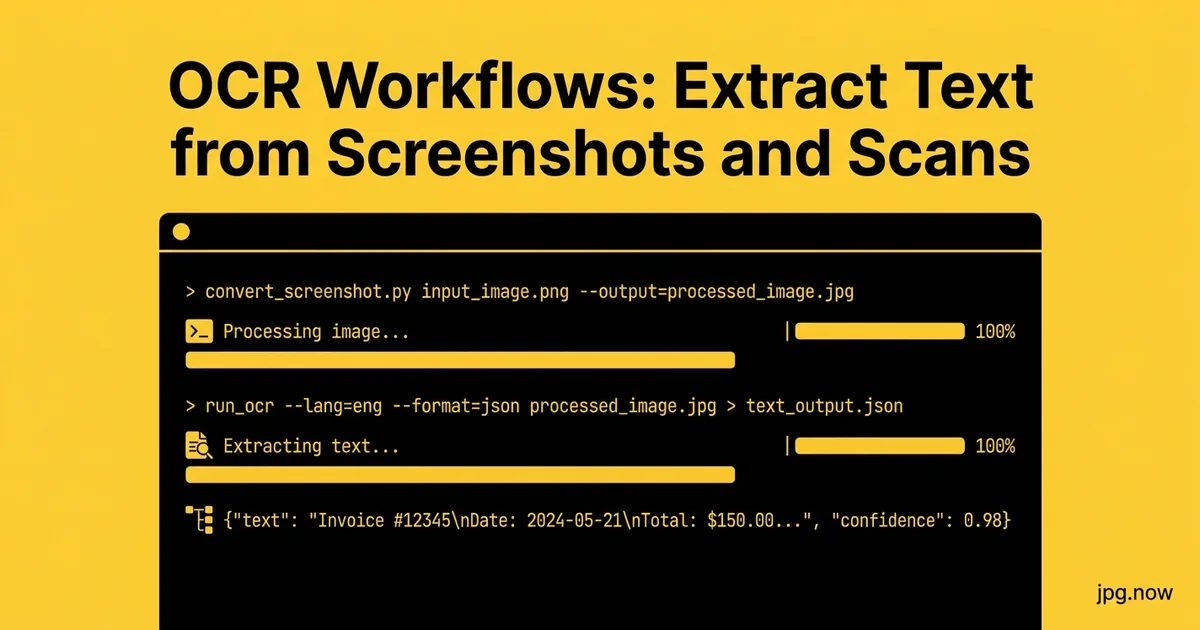
Tesseract on the command line processes a folder of images in a script. Combined with file-naming and JSON output, you can build pipelines that scan a folder of receipts and produce a structured expense ledger automatically. The same approach works for invoice processing, contract digitization, and any high-volume document workflow.
For Python developers, the pytesseract library wraps Tesseract with a one-line OCR call. For shell scripters, the tesseract CLI takes an input image and produces a text file in one command. Both integrate easily into existing automation.
Common OCR mistakes
- Skipping pre-processing. A 10-second crop and contrast boost halves errors.
- Trusting numerical fields without verification. "8" and "B" still get confused. Always eyeball the totals.
- Running cloud OCR on sensitive documents. SSN, passport, medical: local OCR only.
- Skipping language detection. Multi-language documents confuse default engines. Specify the language manually.
- Not preserving the source. The original photo is the source of truth if the OCR is wrong later.
- Treating tables as text. OCR extracts the text but mangles the layout. Use a table-aware tool for complex grids.
Advanced OCR tips
- Train custom dictionaries for jargon. ABBYY FineReader accepts custom word lists for industry-specific terms.
- Batch with automation. Tesseract from the command line processes a folder of 1,000 images overnight.
- Use OCR on logo-heavy PDFs. Logos with stylized text often miss in OCR. Pre-extract logos as images, OCR the text-only pages.
- Combine OCR with translation. Google Lens chains OCR and translation for foreign-language signage and menus.
- Capture in landscape for wide receipts. Landscape phone orientation matches the receipt aspect ratio and avoids cropping.
- Use flash for low-light receipts. Thermal receipts are dim. A direct flash improves contrast for OCR.
- Verify OCR against the source for legal documents. The OCR text is not the legal record; the original scan is.
Searchable PDFs: the most useful OCR output
For scanned documents, "searchable PDF" is the killer output format. The visible page looks identical to the original scan, but underneath the image is an invisible text layer that any PDF reader can search. Adobe Acrobat, ABBYY FineReader, and many free tools generate searchable PDFs from image-only PDFs in a single batch.
Once a document is searchable, archive it as such. Run the JPG scans of pages through OCR, then merge into a single searchable PDF using a tool that preserves the text layer. The result is a document you can grep through, copy from, and search by keyword years later.
A 5-minute OCR receipt workflow
Snap the receipt on your phone immediately after a meal. Crop to just the receipt body. Run through the image-to-text tool or a dedicated expense app. Verify the total and date. Paste into your expense report or accounting system. Total time per receipt: under 60 seconds, including verification.
FAQ
Which OCR is best for cursive handwriting?
Google Lens performs best on cursive in our testing, followed by Microsoft Lens. Both handle modern cursive at 70 to 85 percent. Older cursive (pre-1950 letters) is still hard for any tool.
Can OCR read text in photos taken at an angle?
Yes, modern OCR auto-detects skew and rotation. Performance drops on angles greater than 30 degrees or where text wraps around curves.
How accurate is OCR on multi-column layouts?
Major engines handle 2-column newspaper-style layouts correctly. 3+ column or complex magazine layouts may scramble reading order. ABBYY FineReader handles these best.
Can I OCR a PDF that is already a PDF?
If the PDF is image-only (scanned), yes, with Adobe Acrobat or similar. If the PDF already has a text layer, you do not need OCR; just select and copy the text directly.
Does OCR work on text in screenshots of videos?
Yes. Apple Live Text and Google Lens both extract text from video frames. Useful for capturing slide content from a recorded lecture.
What languages does OCR support?
Major tools cover 50+ languages including all European, Asian (CJK), Arabic, Hebrew, Cyrillic, and Indic scripts. Niche languages may require specialized tools.
How do I integrate OCR into my own application?
Google Cloud Vision API, AWS Textract, Azure Computer Vision all offer pay-per-call APIs at $0.001 to $0.005 per image. Tesseract is the free self-hosted option.
Building a digitization Saturday
For a household paper purge, batch the workflow: scan or photograph every document, run OCR to produce searchable PDFs, file by year and category, recycle the originals (except legal documents and certificates). A few hundred documents take 4 to 6 hours and produce a fully searchable archive that ends shoebox storage forever.
The unlock is making the documents searchable. Pre-OCR, "I know I have that receipt somewhere" was a 30-minute hunt. Post-OCR, full-text search across years of receipts finds the right one in 5 seconds. The time investment pays back the first time you need to find a warranty document for a 4-year-old appliance.
OCR for accessibility
OCR is fundamental to making image-based content accessible to screen readers. Any image of text on your website (infographic, screenshot, scanned document) is invisible to assistive technology unless the text is extracted and provided as alt text or a transcript. Run web images through OCR and add the extracted text as alt attributes; accessibility improves and SEO benefits as well.
Integrating OCR into note-taking apps
Notion, Obsidian, Evernote, and Apple Notes all support image attachments with automatic OCR text extraction. The captured text becomes searchable alongside typed notes. The result: a unified knowledge base where business cards, whiteboard photos, and meeting screenshots are first-class search results, not buried in image attachments.
For users of paper notebooks (Moleskine, Leuchtturm, Field Notes), photograph each page after writing and let your notes app's OCR make the handwritten content searchable. The combined system gives you the tactile satisfaction of paper and the searchability of digital.
Try OCR on three things today
The last receipt in your wallet, a business card you have been meaning to add to contacts, and a photo of a slide from a recent meeting. Run them through the image-to-text tool and copy the result into your notes app. If the input is too low resolution, run it through the AI upscaler first and try again. The 5 minutes spent will tell you exactly where OCR fits in your weekly workflow. Pair the workflow with the photo editor for pre-processing and the image compressor for archival of the source photos. For multi-page document digitization, the JPG to PDF converter assembles per-page scans into searchable PDFs. See the tools directory for the complete OCR-ready imaging kit.