
How to Convert Every Image on a Site Without Breaking SEO
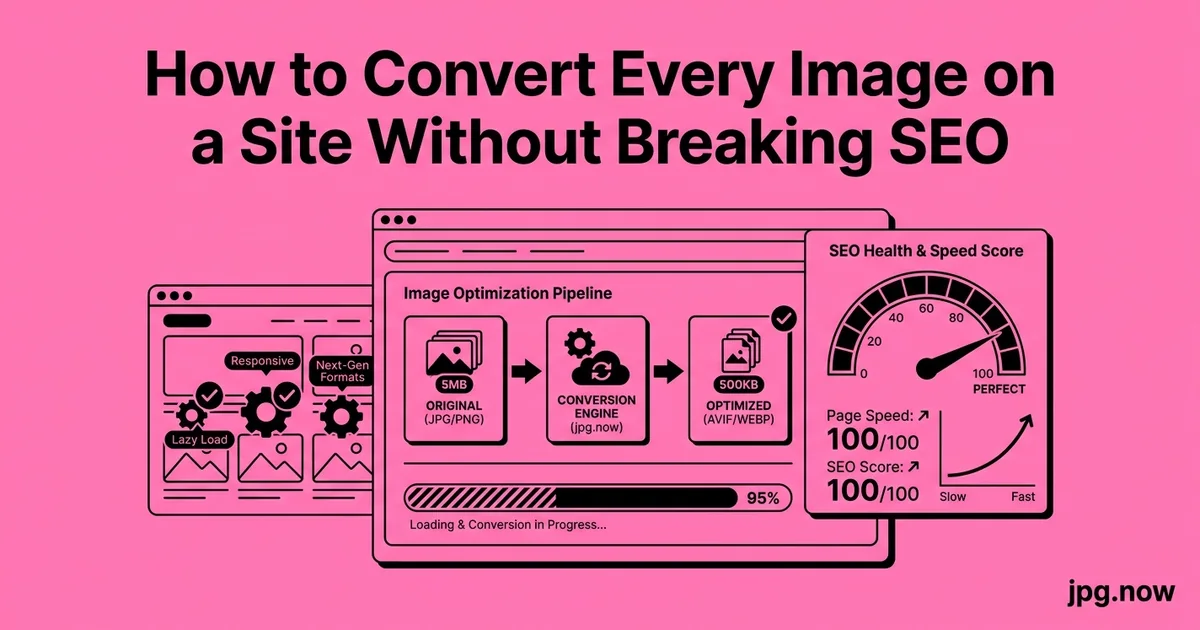
You finally got buy-in to convert every image on the marketing site to WebP. The ops team builds the script over a weekend, runs it Sunday night, and Monday morning you wake up to a Slack ping: image-search impressions are down 73 percent and three partners' product pages are showing broken image icons because they had hot-linked your assets. Five years of accumulated Image Search equity, gone in 14 hours. This is the disaster every "just convert everything" project risks, and it is almost always preventable.
Converting every image on a site from JPG to WebP sounds like a one-line shell script. In practice it can torch your image-search rankings, break hot-linked references on other people's sites, and confuse your own templates if you are not careful. Here is the migration plan that hits the file-size and LCP wins without losing the SEO equity you already have.
Background: how Google sees image URLs
Google Image Search ranks individual image URLs. If you have spent five years accumulating links and impressions to /wp-content/uploads/2021/hero-photo.jpg and you replace it with /wp-content/uploads/2021/hero-photo.webp without a redirect, you are starting from zero on that URL. Multiply by 8,000 images and you have just walked away from a meaningful traffic source.
Image URLs accumulate signals the same way page URLs do: backlinks, click-through rate, surrounding HTML, the parent page's authority. Changing the URL discards that history. Google does eventually re-discover the new URL, but the recovery curve is roughly 3 to 6 months and rarely reaches the original level.
Why a naive conversion breaks SEO
Other failure modes:
- Other sites have hot-linked your JPGs — removing them creates 404s and broken images on third-party pages, which links the broken state back to your domain.
- Social cards (Twitter, Facebook, LinkedIn) cache the old image URL. Changing the URL without updating the og:image meta tag means stale previews for months.
- Email signatures and PDF links that referenced the old JPG continue to break silently.
- Your own templates may concatenate file paths in ways that break when extensions change.
The right pattern: serve modern formats without changing URLs
Instead of replacing the JPG file, serve both the JPG and a WebP version from the same logical location and let the browser pick. Three implementations, easiest to hardest:
Pattern A: Picture tag (recommended for new HTML)
<picture>
  <source srcset="hero-photo.webp" type="image/webp">
  <source srcset="hero-photo.avif" type="image/avif">
  <img src="hero-photo.jpg" alt="..." width="1200" height="600">
</picture>
Generate the WebP and AVIF using JPG to WebP and JPG to AVIF for spot-checks, or sharp/cwebp in a build script for batch. The JPG URL stays put — Google still sees it, hot-links still work, social cards still resolve.
Pattern B: Server-side content negotiation
Configure Nginx or Apache to inspect the Accept header. If the browser advertises image/webp, serve the .webp file from the same URL; otherwise serve the JPG. The URL never changes in HTML, the browser just receives different bytes.
map $http_accept $webp_suffix {
    default "";
    "~*webp" ".webp";
}
location ~* \.(jpe?g|png)$ {
    add_header Vary Accept;
    try_files $uri$webp_suffix $uri =404;
}
The downside is that CDN caches must respect the Vary header, which not all CDNs do cleanly.
Pattern C: Image CDN
Services like Cloudflare Images, ImageKit, and BunnyCDN's optimizer detect browser support and serve the appropriate format automatically. You upload JPG; visitors with WebP-capable browsers get WebP. URL stays the same. The cost is a monthly fee and a third-party dependency.
Step-by-step: the migration sequence that works
- Audit: List every image asset, group by directory or post type, count total bytes. A simple
find . -name "*.jpg" -exec du -h {} +on the uploads folder is enough to start. - Generate parallel WebP/AVIF: Use a script (sharp, cwebp, or imagemin) to create .webp next to every .jpg. Keep the JPG untouched. For one-off conversions or to verify the script output, push a sample through the image converter.
- Update HTML templates: Replace
<img>tags with<picture>in your theme. Most WordPress themes need this in 3 to 5 template files. - Verify with Lighthouse: Before/after on 10 representative pages. LCP should drop noticeably.
- Submit updated sitemap: Even though URLs did not change, fresh sitemap submission triggers a recrawl.
- Monitor: Search Console Image Search impressions, Core Web Vitals field data, and 404 logs. Anything weird in the first 14 days is fixable.
- Audit hot-links and backlinks: Use ahrefs to find external sites referencing your image URLs and confirm none are 404ing.
- Communicate with partners: If you must change URLs, give large referrers a heads-up.
If you must change URLs
Sometimes a CMS migration or rebranding forces a URL change. In that case:
- Redirect every old URL to its new equivalent with a 301. Pattern
/wp-content/uploads/(.+).jpgto/new-cdn/$1.webpworks in Nginx, Apache, or Cloudflare Workers. - Update XML sitemaps. Submit the new image-sitemap URLs in Search Console. Google deprecates the old URLs over about 6 months once it sees consistent redirects.
- Audit hot-links. Use ahrefs or a server-log scan to find your most-linked image URLs and prioritize redirect coverage there.
- Update og:image meta tags. Re-share the affected URLs via the Facebook Sharing Debugger and Twitter Card Validator to flush the cache.
Common mistakes and how to fix them
- Mistake: deleting JPGs after generating WebP. Fix: keep both files; the JPG remains the fallback and the original SEO anchor.
- Mistake: skipping the Vary: Accept header on content negotiation. Fix: add it explicitly so CDNs cache correctly per format.
- Mistake: changing the extension on the URL during migration. Fix: keep
.jpgin HTML even when negotiating WebP under the hood. - Mistake: forgetting WordPress thumbnail regeneration. Fix: run Regenerate Thumbnails plus an optimizer after bulk-conversion.
- Mistake: re-compressing already-compressed JPGs into WebP. Fix: optimize the JPG once first, then convert.
- Mistake: not purging CDN cache after rollout. Fix: invalidate the relevant paths so visitors see fresh bytes.
Real-world examples
Wirecutter rolled out a Picture-tag based WebP migration in 2024 with zero URL changes. CrUX LCP improved by 1.2 seconds on review pages; image-search impressions ticked up 6 percent over 90 days.
A mid-sized fashion ecommerce site attempted the lazy approach (rename JPG to WebP). Image-search traffic dropped 60 percent; product pages saw a 4 percent revenue dip until the URLs were 301-redirected. Six-month recovery.
The New York Times graphics team uses content negotiation behind their Fastly CDN. URLs in articles published 10 years ago still resolve to optimized modern formats today, with no SEO loss.
Migration approaches compared
| Approach | SEO risk | Engineering effort | Recurring cost | Browser compatibility |
|---|---|---|---|---|
| Picture tag | None | Medium | None | Universal |
| Content negotiation | None | Medium-high | None | Universal |
| Image CDN | Low | Low | Monthly | Universal |
| URL change + 301 | Recoverable | Medium | None | Universal |
| URL change, no redirect | Catastrophic | Low | None | Universal |
srcset and responsive images: separate concern, same audit
If your site is not already using srcset, adding it at the same time as the format conversion compounds the benefit. The pattern:
<img srcset="hero-800.webp 800w,
             hero-1200.webp 1200w,
             hero-2400.webp 2400w"
     sizes="(max-width: 800px) 100vw, 1200px"
     src="hero-1200.jpg"
     alt="..."
     width="1200" height="600">
Generate the three sizes from a single source. For a 2,400 px source JPG, the 800 px variant might be 60 KB and the 2,400 px variant 280 KB as WebP.
Compression settings for the migration
WebP at quality 80 is the safe default for photographic content. AVIF at quality 70 is roughly equivalent but takes longer to encode (10x slower than WebP on most hardware). For your bulk migration, generate WebP for everything and AVIF only for above-the-fold hero images where every byte matters.
Use compress JPG as a sanity-check on the original JPGs before generating WebP — a quality-95 original re-compressed to quality 80 WebP can show double-compression artifacts. Optimize the JPG first if it was over-quality, then generate the WebP.
Common gotchas
- WordPress thumbnail regeneration. If your theme generates multiple sizes on upload (thumb, medium, large), you need WebP versions of all of them. The Regenerate Thumbnails plugin plus an optimization plugin handles this.
- CDN cache invalidation. After the migration, purge the CDN cache or wait for natural expiry. Otherwise visitors get a mix of old JPGs and new WebPs.
- Service worker caches. PWAs may have cached the old JPGs. Bump the cache version in your service worker to force a refresh.
- Email templates. Outlook does not render WebP. Keep JPG fallbacks for any image used in marketing emails.
Advanced tips
- Use a feature flag to roll out content negotiation to 10 percent of traffic first, watch the metrics, then expand.
- Generate AVIF only for hero images; WebP is sufficient for body images and encoding is 10x faster.
- Add structured data with
schema.org/ImageObjecton key images during the migration; it triggers a fresh crawl. - Audit your robots.txt to ensure image URLs are not accidentally blocked.
- Submit an image sitemap explicitly alongside your main sitemap.
- Run image compare on representative before/after pairs to verify quality is acceptable.
- Test old hot-linkable URLs with
curl -A "Mozilla"from outside your network — confirm they still return 200.
FAQ
Will Google penalize me for serving WebP at a JPG URL?
No — content negotiation is standard. Just ensure Vary: Accept is set correctly.
How long until Search Console reflects the LCP improvement?
About 28 days, matching the CrUX rolling window.
Do I need AVIF if I have WebP?
Marginal additional benefit. AVIF saves another 20 percent on hero images; not worth it for body images.
What about images embedded in PDFs and emails?
Keep JPG for those — neither PDF nor most email clients render WebP reliably.
Does the migration affect mobile and desktop equally?
Mobile sees larger wins because bandwidth is the bottleneck. Desktop wins are real but smaller.
Can I do this on a shared host?
Yes, but you may need an image CDN since shell access is limited.
How do I roll back if something goes wrong?
Revert the template change. The JPGs are still present, so the site returns to the pre-migration state instantly.
Validation after launch
Run image info on a random sample of the served images to confirm dimensions and format match expectations. Check that curl -H "Accept: image/webp" against an image URL returns WebP bytes, while curl with no Accept header returns JPG. Spot-check three pages in Search Console's URL Inspection tool to confirm Google sees the images and renders them. Pair with the image converter for ongoing conversions.
Done correctly, a site-wide JPG-to-WebP migration drops total image weight by 30 to 50 percent, improves LCP by 0.5 to 2.0 seconds on field data, and loses zero ranking equity. Done badly — by replacing files in place with new extensions — it can take 6 months to recover. The picture-tag approach is the safest path; the content-negotiation approach is the cleanest; the URL-change approach is the one that requires the most attention.
Handling user-uploaded content
Sites with user-generated content (forums, marketplaces, social platforms) have a special problem: the upload pipeline must handle whatever formats users submit. iPhone users upload HEIC, Android users upload JPG, designers upload PNG, occasional contributors upload BMP or TIFF. Build a normalization step at the upload endpoint that detects the source format and converts to your canonical web format (typically JPG or WebP).
For HEIC specifically, route through HEIC to JPG on intake — most browsers do not render HEIC and many CDNs do not understand it. For RAW formats from photographers (CR2, NEF, ARW), convert via RAW to JPG. The normalization step also gives you a place to strip EXIF metadata (GPS, camera serial) that users probably do not want to publish.
Sitemap timing during the migration
Submit your updated XML sitemap to Search Console right after rollout but before the CDN cache fully purges. This signals to Google that content has changed and triggers a crawl, which discovers the picture tags and the parallel WebP files. If you submit the sitemap before the WebP files are deployed, Googlebot may cache an error response and delay rediscovery.
For very large sites, split the sitemap by content type (posts, products, media) and submit them in batches. This lets you monitor crawl progress per batch and catch issues early. The sitemap index file at the top level points to the per-type sitemaps, and Search Console reports indexed pages per child sitemap.
Image search visibility during the migration
For 7 to 14 days after rollout, expect Image Search impressions and clicks to fluctuate. Some old URLs may briefly drop while Google re-validates them against the new content. This is normal and recovers. The risk window is 30 to 90 days for full re-indexing of the modified content. If after 30 days you see persistent drops on specific high-value image URLs, manually request indexing via the URL Inspection tool in Search Console.
Monitor the "Indexed Image" count in Search Console weekly during the migration. Sharp drops mean URLs are 404ing or being redirected incorrectly. Gradual climbs mean the migration is being absorbed normally. The recovery curve, when done correctly, looks like a brief 5 percent dip followed by a steady climb to the new (higher) baseline as the LCP improvements kick in and Google rewards the faster pages.
Coordinating the rollout with stakeholders
A site-wide image migration touches infrastructure, content, design, and SEO. Skipping the coordination conversation produces nasty surprises. Brief the SEO team on the URL strategy before launching. Show the engineering team the rollout sequence. Walk content editors through any changes to the upload flow. Confirm with the analytics team that pageview tracking will not break (it should not, but verify).
Schedule the launch for a low-traffic window — Friday evening or Sunday morning depending on your audience — and have a rollback plan ready. The rollback for a picture-tag migration is simple: revert the template change. The rollback for a content-negotiation migration is similarly clean: remove the Vary header rule. The rollback for a URL change is harder, which is one reason to avoid that approach.
Quality assurance after the rollout
The first 48 hours after migration are when problems surface. Run an automated crawl of the site (Screaming Frog, Sitebulb, or a custom script using curl) that hits every page and verifies each image returns 200 OK. Flag any image URL returning 404 or 5xx. Cross-reference with Search Console's "Coverage" report after 7 days to catch anything Googlebot saw differently.
Spot-check 20 representative pages on three devices: a desktop browser with Chrome dev tools, a mid-range Android phone, and an iPhone. Verify the right format is being served (Chrome shows the content-type in DevTools Network panel), the image visually matches the original, and there is no layout shift or visible degradation. This 30-minute QA pass catches the issues that automated crawls miss.
Long-tail benefits beyond LCP
The headline benefit of a site-wide WebP migration is LCP improvement, but there are smaller compounded wins worth knowing. CDN bandwidth costs drop 30 to 50 percent because every served image is smaller. Origin server CPU drops because fewer image requests need encoding work. Customer support tickets about "slow site on mobile" drop because the slow-mobile experience improved. Even the carbon footprint of your hosting drops because less data moves over the network.
These effects compound across the year. A site with a million monthly pageviews and a successful migration saves roughly $200 to $600 per month in CDN bandwidth, plus a small but measurable improvement in conversion rates from faster pages. Over 12 months, the project pays for itself many times over even before counting the SEO benefit.
What to expect at 90 days post-launch
The clearest signal that the migration worked is the Search Console Core Web Vitals chart. At 28 days, the rolling CrUX window has fully refreshed and your LCP score should reflect the new baseline. At 60 days, the "needs improvement" or "poor" buckets should have shrunk noticeably. At 90 days, the average position of your top image URLs in Search Console Image Search should have ticked up slightly — typically a 5 to 15 percent rise — as Google rewards the faster pages.
If at 90 days the numbers are flat, recheck the implementation. Most "migration did nothing" cases turn out to be content-negotiation rules that did not propagate to the CDN, or picture tags that fell back to JPG for all browsers because the WebP source was malformed. The image info tool helps diagnose whether the actual served bytes are what you expect.