
TIFF vs JPG: Why Print Shops Still Demand TIFF
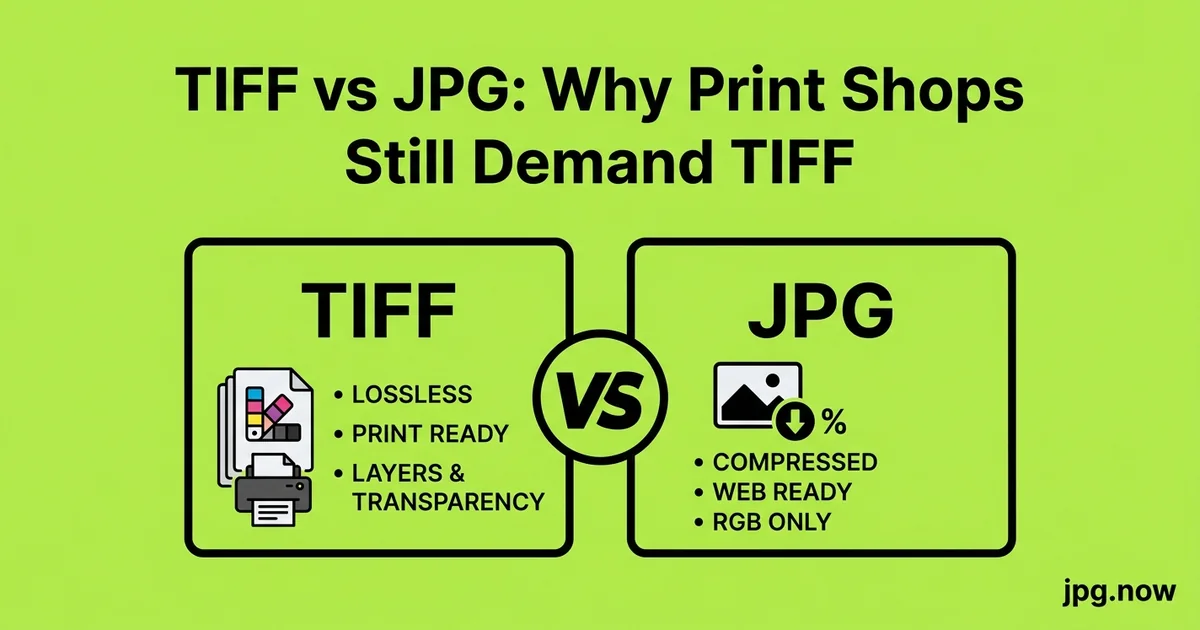
Walk into a professional print shop with a 24-megapixel JPG of a landscape photograph and ask them to make a 30-inch print. About half of them will accept it. The other half will look at you with the patient expression of someone who has had this conversation a thousand times and ask if you have a TIFF instead. The reason is not snobbery. It is that TIFF preserves three things JPG fundamentally cannot: 16-bit color depth, lossless compression, and full embedded ICC profile fidelity.
For high-end print, those three things matter. For everything else, they do not. This article unpacks when TIFF actually wins, when JPG is fine, and the practical conversion workflow when a print lab asks for TIFF and you only have JPG, or when you have TIFF and need to share JPG.
Background and context
TIFF was created in 1986 by Aldus (later Adobe) as a standard format for desktop scanner output. The "Tagged" in Tagged Image File Format refers to its extensible metadata structure — each piece of image data is wrapped in a tag that describes what it is, allowing the format to evolve over decades without breaking compatibility. That extensibility is why TIFF is still the dominant format in professional printing, scientific imaging, and document archival 40 years later. JPG, by contrast, was designed in 1992 for one specific job: shrinking photographic images for transmission over slow networks. Both formats are still the best at what they were designed for.
What TIFF actually is
TIFF (Tagged Image File Format) is a container format that supports multiple internal compression methods, including no compression at all. It supports 1-bit, 8-bit, 16-bit, and even 32-bit color depth per channel. It supports CMYK natively, alongside RGB and Lab. It supports embedded layers, alpha channels, multiple pages within a single file, and arbitrary metadata.
A typical 24-megapixel TIFF, 16-bit RGB, LZW compressed, lands at 130 to 180 MB. The same image as JPG at quality 95 is 8 to 12 MB. TIFF is roughly ten times the file size, and that storage cost is the price of preserving editing latitude through multiple processing passes.
Format comparison
| Attribute | TIFF | JPG |
|---|---|---|
| Color depth | 8, 16, or 32-bit per channel | 8-bit per channel only |
| Compression | Lossless (LZW, ZIP) or none | Lossy (DCT) |
| File size (24 MP) | 130-180 MB | 8-12 MB |
| Color spaces | RGB, CMYK, Lab, others | RGB (CMYK uncommon) |
| Re-save degradation | None | Yes, cumulative |
| Layers / alpha | Supported | Not supported |
| Browser support | None (server conversion required) | Universal |
| Print lab acceptance | Universal | Most consumer labs |
| Editing latitude | Massive | Limited |
The three things JPG cannot do
16-bit color. JPG is 8-bit only. 8 bits per channel gives you 256 levels per color, or 16.7 million total colors. That is plenty for display on any current monitor. But if you make heavy adjustments — pulling shadows up 4 stops, smoothing a gradient sky — 8-bit color shows banding. The discrete steps between colors become visible as stripes in smooth tonal transitions. 16-bit color gives you 65,536 levels per channel and effectively unlimited tonal smoothness through any number of editing passes.
Lossless compression. Every save of a JPG re-encodes the file and loses information. Open a JPG in Photoshop, make a small adjustment, save it. Open it again, make another adjustment, save it again. After ten such cycles the image is visibly degraded — softer, with more compression artifacts, with shifted colors. TIFF with LZW or ZIP compression is lossless. You can open, edit, and save a TIFF 1,000 times with no degradation.
Embedded ICC profiles that print labs honor. Print shops use color-managed workflows where the ICC profile of the image is read, mapped to the printer's profile, and rendered with intent (perceptual, relative colorimetric, etc.). JPG can carry an ICC profile, but the JPG compression already discarded color information that the profile would otherwise have preserved. TIFF carries the profile and the original full-fidelity color data together.
When the print shop genuinely needs TIFF
- Fine art reproduction prints over 20 inches on the long edge
- Anything destined for a giclee or pigment printer at a museum-grade lab
- Commercial printing requiring CMYK conversion done by the lab
- Multi-page documents intended for offset printing
- Archival prints with expected lifespans over 50 years
When JPG is actually fine for print
- Personal photo prints up to 16x20 inches
- Photo book printing through consumer services (Shutterfly, Mixbook, Apple Photos)
- Standard 4x6 and 5x7 prints from any drugstore or kiosk
- Canvas prints under 24 inches
- Anything where the source was a phone or a JPG-only camera
For these cases, exporting at JPG quality 95 in sRGB is indistinguishable from TIFF on the final print. The print process itself introduces more variation than the JPG compression does. Use the JPG to TIFF converter only when the print shop specifically asks for TIFF.
Step-by-step walkthrough: RAW to print-ready TIFF
- Shoot RAW. Necessary for the 16-bit headroom TIFF preserves.
- Process in Lightroom or Capture One. Apply all corrections in 16-bit working space.
- Export as TIFF. 16-bit, Adobe RGB or ProPhoto RGB (per lab spec), LZW compressed.
- Verify the export. Open in Preview or Photoshop, confirm dimensions and color profile.
- Check file size sanity. 24 MP at 16-bit RGB should be ~140 MB LZW; deviation suggests something is wrong.
- Inspect metadata. Use the image info inspector to confirm bit depth and color profile.
- Upload to the lab. Or burn to a USB stick for walk-in delivery.
- Provide a JPG preview alongside. Convert the TIFF to JPG with the TIFF to JPG converter for the lab's order-confirmation system.
The conversion workflow
If your source was RAW and your destination is a high-end print, the correct workflow is RAW to TIFF to print. Process the RAW in Lightroom or Capture One. Export as 16-bit TIFF in Adobe RGB or ProPhoto RGB, depending on the lab's stated profile preference. Hand the TIFF to the lab. They handle the CMYK conversion and the final output rendering.
If your source is already JPG and the lab demands TIFF, you can convert with the JPG to TIFF converter. This does not magically add 16-bit color depth or recover lost JPG compression data — the TIFF inherits whatever quality the JPG had. But it satisfies the lab's submission requirement and lets them apply their color-managed workflow without re-encoding.
Going the other direction
You may receive TIFF files from a scanner, a medical imaging system, or a graphic designer, and need to share them on the web or send them in an email. TIFF in a browser does not work — browsers do not render TIFF natively. The TIFF to JPG converter handles the conversion. Set quality 90 for general use, then optionally pass through the JPG compressor to trim file size further.
The DPI question
Print shops talk about DPI obsessively, and the confusing thing is that DPI is just a number stored in the file — it has no effect on the pixel data. A 6,000 x 4,000 pixel image is 6,000 x 4,000 pixels regardless of whether its DPI tag is 72 or 300. The DPI value tells the print software what physical size to print the image at. For a 20-inch print, you need 6,000 pixels across at 300 DPI, or 4,000 pixels across at 200 DPI, or some other combination that lands at your target size.
If a print shop says "needs to be 300 DPI," they really mean "needs to have enough pixels for the print size at 300 DPI." The DPI converter handles the metadata update if a lab insists, and the image info inspector tells you exactly what is in any given file.
Real-world examples
Theo, the landscape photographer. Sells 24x36 inch prints. Delivers 16-bit TIFFs in Adobe RGB to his gallery's print partner. The partner's specific Epson SureColor profile expects 16-bit input; JPG would have shown banding in the sky gradient.
Mira, the wedding photographer. Delivers consumer-size prints (up to 11x14) via Shutterfly's photo book service. Uploads JPG at quality 95 in sRGB. Indistinguishable from TIFF on the final book, and Shutterfly only accepts JPG anyway.
The architectural firm. Submits CMYK TIFFs to a commercial offset printer for brochure runs. The printer's RIP software expects CMYK at 300 DPI in TIFF format. JPG would require re-conversion and color shift.
The recommendation
Ask the print shop what they want. If they say TIFF, give them TIFF. If they accept JPG, save the disk space and give them JPG at quality 95 in sRGB. The lab knows their pipeline. For your own personal printing through consumer services, JPG is always fine.
Use the JPG to TIFF converter and TIFF to JPG converter as needed, and pre-compress web copies of large prints with the JPG compressor for portfolios and online galleries.
Common mistakes and how to avoid them
- Sending an 8-bit JPG when the lab wanted 16-bit TIFF. Cannot be rescued — color depth is lost. Fix: keep RAW masters, export TIFF when needed.
- Repeatedly re-saving the same JPG during editing. Quality degrades each save. Fix: work in TIFF or PSD, export JPG only at the end.
- Uploading ProPhoto RGB to a sRGB-expecting service. Colors shift visibly. Fix: match the lab's stated color space.
- Believing the DPI tag matters. It is just metadata. Fix: ensure the pixel count is sufficient for the print size.
- Converting JPG to TIFF and expecting better quality. The data is already lost. Fix: keep the original RAW for true quality.
- Sending uncompressed TIFF when LZW would have been fine. Wastes bandwidth and storage. Fix: use LZW compression — it is lossless.
Advanced tips
- For gallery-quality prints, soft-proof in Photoshop against the lab's specific printer profile before exporting.
- For multi-page TIFFs (rare but useful), Photoshop and ImageMagick both support them.
- Use the image info inspector to verify bit depth and color profile before delivery.
- For web portfolio versions of print-quality TIFFs, export sRGB JPG at quality 88 with the JPG compressor.
- For batch RAW-to-TIFF, Lightroom's export presets handle dozens at once.
- For scanner output, TIFF is the right archive format — JPG loses too much fine detail in scanned documents.
- For long-term storage, TIFF is a more durable format than proprietary RAW.
FAQ
Can I save TIFF in 8-bit?
Yes — TIFF supports 8-bit too. But the main reason to use TIFF is 16-bit headroom; 8-bit TIFF is mostly a niche format.
Does TIFF support transparency?
Yes — via alpha channels. JPG does not.
What about CMYK JPG?
Technically possible, rarely used in practice. Most workflows use CMYK TIFF.
Is PSD better than TIFF for editing?
PSD preserves more Photoshop-specific features (smart objects, layer effects). TIFF is more portable across apps.
Can a print lab read a JPG and produce a quality print?
Yes — quality 95 sRGB JPG works for most consumer print sizes. TIFF matters only for high-end or large-format work.
What about DNG for print?
DNG is RAW. Print labs want processed output — TIFF or JPG, not DNG.
Does TIFF compression always lose quality?
No — LZW and ZIP compression in TIFF are lossless. The file gets smaller without any data loss.
Color profile decisions for print labs
Print labs typically specify one of three working color spaces: sRGB (consumer labs, online services), Adobe RGB (mid-tier professional labs, photo book printers), or ProPhoto RGB (high-end fine art labs, museum-grade printers). The color space affects what gamut of colors your file can represent. sRGB covers the smallest gamut; ProPhoto RGB covers the largest.
For most consumer printing, sRGB is correct and matching it is straightforward. For Adobe RGB labs, you need to either work in Adobe RGB throughout (calibrated monitor required) or convert at export time with explicit profile conversion. ProPhoto RGB is only worth using if your monitor supports the wide gamut and you are working with high-end fine art prints.
Bit depth and where it actually matters
8-bit color has 256 levels per channel. 16-bit has 65,536. The visible benefit of 16-bit shows up in two places: smooth gradients (skies, skin) where 8-bit shows banding, and aggressive shadow/highlight recovery where 8-bit introduces posterization. For prints that include neither extreme gradients nor heavy editing, 8-bit is fine.
For prints over 20 inches where the eye can resolve fine tonal detail, 16-bit is the safer choice. For typical 4x6 or 8x10 prints, the limit is the printer's dot pattern, not the file's bit depth.
The CMYK conversion question
RGB images contain all the color information; CMYK is a subset that the printer's ink system can reproduce. The conversion from RGB to CMYK is non-trivial — different printers (offset press vs. inkjet vs. dye-sub) use different CMYK profiles, and the conversion needs to account for the specific output device.
The right answer is almost always: let the lab handle CMYK conversion. They know their printer's exact profile and the rendering intent (perceptual vs. relative colorimetric) that works best for their output. Send them RGB TIFF and let their RIP do the conversion.
TIFF for scanning
TIFF is the standard output format for high-end scanners. Flatbed scanners (Epson V850, V600), film scanners (Plustek OpticFilm, Hasselblad X1), and document scanners (Fujitsu ScanSnap, Canon imageFORMULA) all produce TIFF as their lossless output. For long-term scan archives, keep the TIFF — never JPG.
For sharing scanned photos casually, convert with the TIFF to JPG converter. For archival scans, keep TIFF and convert to JPG only at delivery time.
The page-per-TIFF feature
TIFF supports multi-page files — a single .tif file can contain multiple images, navigated like pages in a PDF. This is used in legal document scanning, medical imaging series (CT slices, MRI scans), and some publishing workflows. Adobe Photoshop, Preview, and IrfanView all handle multi-page TIFFs. Most browsers do not.
For sharing multi-page TIFFs with non-TIFF-equipped recipients, convert each page to JPG and bundle them into a PDF with the JPG to PDF converter.
Archive considerations
TIFF is a more durable archive format than JPG for one reason: it can be lossless. A TIFF saved with LZW compression today will decode identically in 50 years, with no cumulative loss from re-saves. A JPG re-saved over 50 years will progressively degrade.
For professional photographers and institutions building permanent collections, TIFF is the right archive format. For consumer photo archives where the originals are rarely revisited, JPG at quality 92 is a reasonable compromise that uses 10x less storage.
Common print sizes and required pixel counts
| Print size | Pixels at 300 DPI | Pixels at 240 DPI | Pixels at 180 DPI |
|---|---|---|---|
| 4x6 inches | 1,200 x 1,800 | 960 x 1,440 | 720 x 1,080 |
| 5x7 inches | 1,500 x 2,100 | 1,200 x 1,680 | 900 x 1,260 |
| 8x10 inches | 2,400 x 3,000 | 1,920 x 2,400 | 1,440 x 1,800 |
| 11x14 inches | 3,300 x 4,200 | 2,640 x 3,360 | 1,980 x 2,520 |
| 16x20 inches | 4,800 x 6,000 | 3,840 x 4,800 | 2,880 x 3,600 |
| 24x36 inches | 7,200 x 10,800 | 5,760 x 8,640 | 4,320 x 6,480 |
If your file does not have enough pixels for the target print size at 300 DPI, you have two options: print at lower DPI (240 is generally indistinguishable to most viewers; 180 is acceptable for large prints viewed at a distance), or upscale with an AI tool like the AI upscaler before delivery.
Closing
Ask the print shop. If they say TIFF, use the JPG to TIFF converter. If you receive TIFF and need to share or upload, use the TIFF to JPG converter. For web previews of print-quality files, run through the JPG compressor.
Related tools: universal image converter, DPI converter, image info inspector, AI upscaler for prints from undersized sources, JPG to PDF converter for multi-page scan deliverables.