
Designer's Daily Workflow: PSD to JPG Deliverables
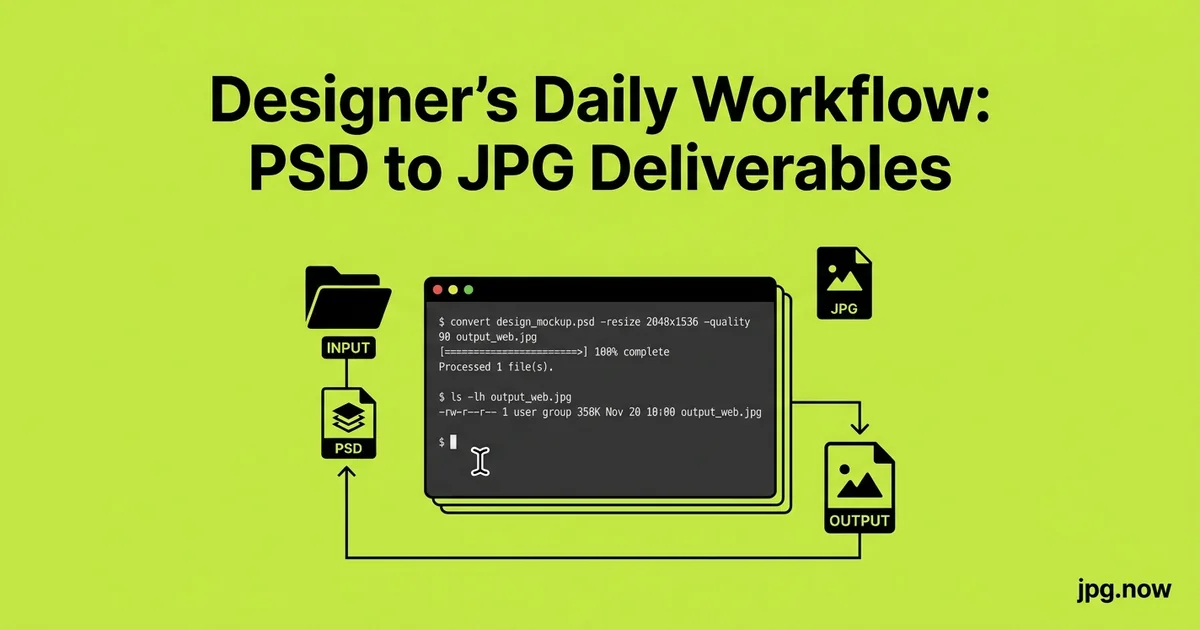
It is Friday at 4:47 PM. The client emails: "Can you send the homepage hero one more time? Different size for Instagram? And the print shop says they need it as a JPG, not a PSD?" You open the PSD, realize the merged layers are not flat, the smart objects need to be rasterized, and the Instagram-sized export requires a new crop. You glance at the clock. Three exports, three sizes, three filenames, all by 5 PM if you want to start the weekend on time. This is the workflow problem that costs every designer 30 minutes per project, multiplied across a dozen projects a week.
Every client wants a JPG. Every designer keeps the PSD. The gap between source file and final deliverable is where 30 minutes per project disappears, multiplied across a dozen projects a week. This guide lays out the export presets, naming conventions, and folder structures that work across Photoshop, Affinity Photo, Figma, and Sketch, and that let you re-deliver in 60 seconds when the client asks for "just one more version."
Background: why the deliverable layer is its own discipline
Design tools optimize for the creative process: nested layers, smart objects, adjustment masks, vector shapes. Delivery formats optimize for the consumer: a single flat raster of pixels, often at multiple sizes and color spaces. The translation between the two is where time gets lost, and where errors compound. A mis-exported JPG can lose color accuracy, ship with embedded paths the client should not see, or arrive at a size the destination cannot use.
Building a consistent deliverable layer is the difference between freelancers who charge $50/hr and consultancies that charge $200/hr. The deliverables look more professional because the workflow that produces them is professional.
The deliverable problem in one paragraph
You finish a design in Photoshop. The client wants it for their website, their Instagram, their print shop, and their executive PowerPoint. Each destination needs a different size, color space, and file format. Naive export means rebuilding the same image four times. Smart export means clicking once and getting all four variants in correctly named folders.
Step-by-step: setting up the production-grade deliverable pipeline
- Define the standard variant set. Web hero, social square, print preview, presentation. Document the spec for each.
- Build the export preset in your primary tool. Photoshop's Export As, Affinity's Export Persona, Figma's Export.
- Establish the naming convention. client_project_variant_v##_YYYYMMDD.jpg.
- Set up the folder structure. /01-source, /02-assets, /03-wip, /04-deliver, /05-archive.
- Convert legacy PSDs as needed. Use the PSD to JPG converter when client sends a PSD without you opening Photoshop.
- Generate all variants in one click. Multi-scale export produces all four variants simultaneously.
- Pre-flight before delivery. Verify dimensions and color space with the image info tool.
- Compress for delivery method. Email-attachment variants through the JPG compressor.
Photoshop: export presets that travel
Photoshop's "Export As" dialog supports multi-scale export. Set up one PSD with the master design at full resolution, then export simultaneously to multiple sizes and formats. The configuration:
- Web hero: 1,920 px wide, sRGB JPG, quality 80, suffix _web
- Instagram square: 1,080x1,080 sRGB JPG, quality 85, suffix _ig
- Print preview: Full resolution sRGB JPG, quality 95, suffix _print
- PowerPoint: 1,280x720 sRGB JPG, quality 80, suffix _ppt
Save the configuration as a preset and apply with one click. For batch processing across multiple PSDs, the Image Processor script (File > Scripts > Image Processor) runs the same export across a folder of PSDs in one operation.
Affinity Photo: the persona-based export
Affinity Photo's Export Persona lets you set up multiple slices in a single document, each with its own format and resolution. Designers moving from Photoshop find it more flexible than Export As, and the lack of subscription is a meaningful win for freelancers.
The same four-variant preset works: web hero, square social, print preview, presentation. Affinity exports all slices simultaneously, including transparent PNG for logos that need to live on different backgrounds.
Figma: the framework for flat deliverables
Figma exports per-frame, which means the structure of your file determines the deliverables. Create a "Deliverables" page with frames sized for each destination, design once in a master frame, and use Auto Layout or component instances to keep variants in sync.
Export selected frames as JPG at 1x, 2x, or 3x scale. For client deliverables that need to be JPG specifically (most do), set the format to JPG with quality 80 to 95. If you need transparency, export PNG instead and convert later with the PNG to JPG converter if a flat background is acceptable.
Tool comparison for deliverable workflows
| Tool | Multi-variant export | Color management | Best for |
|---|---|---|---|
| Photoshop | Export As + Image Processor | Full ICC support | Photo retouching, mixed deliverables |
| Affinity Photo | Export Persona slices | Full ICC support | Subscription-free Photoshop alternative |
| Figma | Per-frame export, 1x/2x/3x | sRGB only | UI/UX, web design |
| Sketch | Slice + export presets | sRGB only | Mac-based UI design |
| Illustrator | Export for Screens | Full ICC support | Vector deliverables |
| InDesign | Export PDF/X then convert | Full CMYK + ICC | Print-focused projects |
Illustrator: vector-first deliverable workflows
For logo and brand-identity work originating in Illustrator, the deliverable layer needs both vector (SVG, PDF, EPS) and raster (PNG, JPG) variants. Set up an "Export for Screens" preset with PNG at 1x and 2x, JPG at quality 90, and SVG with embedded fonts. One click generates the full client kit.
For legacy AI files, the same conversion path applies: open in Illustrator, export as needed, archive the AI master. For converting flat reference assets, the EPS to JPG converter handles legacy vector logos that need raster preview.
The PSD-to-JPG conversion for legacy files
When a client sends you a 2015 PSD and asks for a JPG, opening Photoshop just for the export is overkill. Use the PSD to JPG converter to flatten and export in one step. The conversion respects the document's color profile and merges visible layers. Text, shapes, and adjustment layers all render correctly.
For PSDs where you need to control which layers are visible, open in Photoshop, toggle layer visibility, save a working copy, and then run through the converter for the final flat output.
Sketch: the Mac-first variant
Sketch, despite Figma's market dominance, remains popular among Mac-focused UI designers. Its export workflow centers on slices and export presets per artboard. Configure slice presets for JPG at 1x and 2x with quality 85 for client deliverables. Sketch's Cloud sharing handles version-controlled deliveries; the JPG export is for snapshot-in-time deliverables that live outside the cloud.
Naming conventions that survive the client's "where is the file" email
The naming convention should encode project, version, variant, and date. The format that works:
client_project_variant_v##_YYYYMMDD.jpg
Example: acme_homepage_hero_v03_20260519.jpg
This sorts naturally in a file browser, makes version progression obvious, and survives email forwarding without context. Avoid spaces, special characters, and ambiguous abbreviations.
Folder structure for active client work
- /01-source — PSD, AI, Figma export
- /02-assets — Logos, fonts, brand reference
- /03-wip — Working files mid-project
- /04-deliver — Final JPG/PNG/PDF for client
- /05-archive — Compressed package after sign-off
The /04-deliver folder is the only one the client should ever see. Everything else is your internal workspace.
Real-world deliverable examples
Brand refresh for a small business. 1 master logo in Illustrator, 8 variants exported in one batch (full color, monochrome, white, square avatar, horizontal lockup, plus PNG and JPG of each). Total export time: 4 minutes. Client received a single ZIP file with everything they could ever need.
Weekly newsletter graphic. Figma template with master frame, 3 export variants (header banner 1200x600, mobile 800x400, social share 1200x630). Generated every Monday in 90 seconds by the marketing intern.
Real estate listing photos. 20 photos per listing, 4 variants each (MLS-sized, web-sized, social square, print flyer). Photoshop Image Processor automation runs the batch in 6 minutes. 1,600 deliverables per week without manual work.
When the client asks for "just one more"
The client always asks for "one more variant" two days after sign-off. If your export preset is set up correctly, the response time is the difference between a 3-minute email reply and a 30-minute rebuild. Open the PSD or Figma file, change the one parameter (size, color, copy line), re-run the export preset, drag the new file into the email. Done in under 5 minutes.
Brand-color verification on every deliverable
Brand colors drift across software unless explicitly enforced. Before every export, verify the hex code of key brand elements matches the official brand guide. The 10-second check prevents a 2-day re-delivery cycle when the client notices the logo is "wrong red." Use the color palette tool to extract dominant colors from finished deliverables and compare against brand standards.
The transparent-PNG-to-JPG conversion trap
When the client asks for a JPG of a logo with a transparent background, JPG cannot preserve transparency. It has to flatten to a solid color. Always confirm what background color the client wants before exporting. Default to white. If the destination is a colored web page, ask, then deliver both the JPG-on-white and the original transparent PNG. For the conversion itself, the PNG to JPG converter handles the flatten with explicit background-color control.
Going the other direction: JPG to PNG
When a client sends a JPG and asks for a "PNG version," what they usually mean is "I want to put this on a colored background." That requires re-creating transparency, which is impossible from a flat JPG. Set expectations early. For the simple format conversion without transparency reconstruction, the JPG to PNG converter handles it in one click.
Common deliverable mistakes
- Sending raw PSD when client asked for JPG. Eliminates the gap they hired you to bridge.
- Not embedding the color profile. Client opens on a different machine and the colors shift.
- Filenames with spaces and special chars. Breaks URL handling, breaks shell scripts, breaks search.
- Single variant when multiple are needed. Client comes back in 24 hours asking for the social-sized version.
- Compressing too aggressively for web. Quality 60 looks fine in preview, ugly at 100% zoom.
- Not testing on the destination platform. Instagram's recompression eats badly compressed JPGs.
Advanced deliverable tips
- Maintain a master design system. Color palettes, type scales, component library. Use the color palette tool to extract palettes from existing brand assets.
- Version everything. v01, v02, v03 in the filename plus git for source files if you are technical enough.
- Use the aspect ratio calculator for new variants. Confirm dimensions before designing.
- Build a "deliverables checklist" template. Forces you to verify color space, dimensions, naming, and folder placement before sending.
- Send through a CDN, not email. Dropbox, Google Drive, WeTransfer beat 25 MB email attachments.
- Compress aggressively for proof, lightly for final. Proof variants at 60-70 quality; final at 85-95.
- Maintain a project archive. Once signed off, zip the entire project folder and store on cold archive. The PSD will outlive the contract.
Color management across tools
Designers using a mix of Photoshop, Illustrator, and Figma run into color drift when the same brand red looks different in each tool. The fix: standardize on sRGB across the entire workflow. Set Photoshop and Illustrator's working space to sRGB IEC61966-2.1, configure Figma's color settings to match, and embed sRGB profiles in every exported JPG. Color drift disappears.
For print-bound projects, do the same with a single CMYK profile (typically GRACoL 2013 or US Web Coated SWOP v2). Convert from sRGB to CMYK once, at export, with soft-proofing enabled. The brand red lands consistently on screen and on press.
Compression for email delivery
Most email systems cap attachments at 25 MB. A full-resolution print JPG can hit 30 to 50 MB easily. Run the email-delivery copy through the JPG compressor to drop under the cap without visible quality loss. Keep the uncompressed master in /04-deliver for download links or shared-drive delivery.
FAQ
What is the best JPG quality for client deliverables?
Quality 85 for web display, quality 95 for print or any context the client may zoom into. Quality 80 is fine for thumbnails and email previews.
Should I always include source PSDs in deliverables?
Depends on contract terms. If the client paid for "buyout" rights, include source files. If retainer-based, source files stay with you and clients receive flat deliverables only.
How do I handle clients who keep asking for tiny tweaks?
Build the workflow that makes tweaks trivial (smart objects, organized layers, named export presets). Then either include 2-3 revision rounds in scope or bill hourly for additional changes.
Is PSB (large document) different from PSD?
PSB is Photoshop's format for files over 2 GB. Same content, larger size limit. Convert to JPG the same way: Save As or Export As. Some legacy tools cannot open PSB; convert to PSD first if needed.
How do I export TIFFs for print deliverables?
Photoshop: File > Export As, format TIFF, LZW compression. Or use the JPG to TIFF converter if starting from a JPG. Print shops prefer TIFF over JPG for hero images.
What if my client uses Canva or PowerPoint and needs editable files?
Deliver both: the flat JPG/PNG for the editor's image slots, plus an editable source (PowerPoint .pptx, Canva template) for ongoing client edits. Add 20-30% to your fee for the dual format.
How do I price the deliverable layer?
Build it into hourly or project rates. The first project costs you 2-3 hours to set up; subsequent projects cost 30 minutes. Charge for the value, not the time.
Client communication around deliverable formats
Half the deliverable problem is technical, half is communication. Clients ask for "the high-res version" without specifying dimensions, color space, or use case. A 5-minute scoping conversation at project start prevents 20 minutes of back-and-forth later. The questions to ask:
- Where will this image appear? Web, print, social, internal deck.
- What dimensions does the destination require? Often the answer is "I don't know," in which case you decide.
- Will it have text overlaid? Affects composition (need negative space) and color (need contrast).
- Do you need source files? Affects fee.
- Will you reuse it for future projects? Affects licensing terms.
Build these questions into your project intake form. The 5 minutes per project saves hours of revision.
Long-term deliverable archival
Client work tends to outlive the relationship. A campaign from 2020 may need re-delivery in 2026 when the client changes ad platforms. Archive each project as a zipped folder with source PSD/AI files, fonts used, brand reference, and the original deliverables. Store the zip in cloud cold storage (Backblaze B2 archive tier, AWS Glacier) for under $1 per project per year.
The 5-year-old project you can re-deliver in 10 minutes generates referral business and goodwill. The 5-year-old project you cannot find generates the awkward "I'll have to rebuild that" email.
Build the preset library this week
Set up your four-variant preset in your primary tool, name your folders, write your naming convention into a single text file, and pin it to your design app. Convert a legacy PSD with the PSD to JPG converter to verify your pipeline, and run a sample through the JPG to PNG converter for the transparency-reconstruction conversation you will have with your next client. The first project that uses the new pipeline saves 30 minutes; the tenth saves a full workday. Pair the workflow with the image info tool for pre-delivery verification and the JPG compressor for email-friendly variants. For brand-color extraction during identity work, the color palette tool pulls dominant tones from reference assets. See the tools directory for the complete designer kit.