
School Yearbook Bulk Processing: From 1,200 Portraits to Print PDF
Naming conventions, color-correction passes for mixed studio lighting, and the batch JPG-to-PDF export that yearbook printers like Jostens and Walsworth actually expect, with a downloadable checklist for the yearbook adviser.
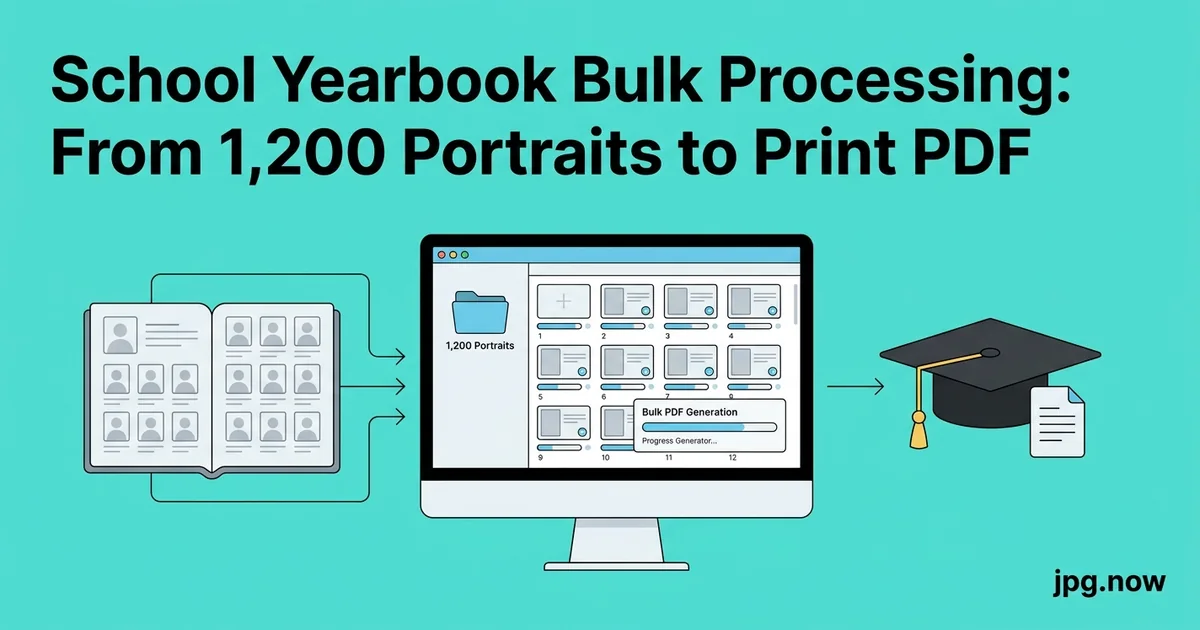
You are the yearbook adviser for a school of 1,200 students, the photography day produced 1,200 individual portraits plus 380 candid shots from sports and clubs, and the printer's deadline is six weeks out. The actual yearbook design happens in Adobe InDesign or the Jostens / Walsworth / Herff Jones template, but the bulk JPG processing — naming, color-correcting, exporting, bundling — is what eats the adviser's life. This is the workflow that gets 1,200 portraits onto the printer's server without three Saturdays of overtime.
Talk to any veteran yearbook adviser and they will tell you the same thing: the design is the fun part, the bulk image pipeline is the part that ages you. A single misspelled student last-name, a single batch that ships at the wrong resolution, a single homeroom of portraits with a yellow cast — any one of these forces a reprint or a printer rejection. The system below is the result of dozens of yearbooks getting it wrong before getting it right.
Background: how yearbook printing actually works
Jostens, Walsworth, and Herff Jones each run their own portal where the adviser uploads named portrait files matched to a roster CSV. Their backend software places the portraits into homeroom grids by filename. Get the filename wrong and the placement breaks. Get the dimensions wrong and the grid blurs. Get the color profile wrong and the printed batch comes out with hue shifts across pages.
Candid photos go through a different upload — typically into the InDesign template the adviser builds, or into a layout app the printer provides. These are higher-touch placements where each shot lives on a specific page next to a specific caption.
The naming convention that prevents disaster
Every yearbook printer expects student portraits to match a roster CSV exactly. The convention is LastFirst_Grade.jpg or StudentID.jpg depending on the printer. Jostens prefers Student ID. Walsworth prefers Last_First_Grade. Herff Jones accepts either. Get this wrong on a single portrait and the printer kicks back the entire bulk upload.
The photographer typically delivers files with names like IMG_4382.jpg or JonesEmily_2026.jpg. Run those against the school roster CSV using a rename script or — for smaller schools — a manual two-tab spreadsheet that maps the photographer's filename to the printer's expected filename. The Apple Finder and Windows File Explorer both have batch rename functions that work for runs of 50 to 100, but for full-school batches a Python script saves hours.
Step-by-step yearbook image pipeline
- Receive photographer delivery. Confirm count matches expected enrollment minus absentees.
- Export roster CSV from SIS. Columns: StudentID, LastName, FirstName, Grade, Homeroom.
- Map photographer filenames to printer convention. Spreadsheet or script.
- Batch rename portraits. macOS Finder, Windows PowerToys, or a Python script for 1,000+ files.
- Color-correct in homeroom batches of 30-50. Lightroom or Capture One, sync white balance from a neutral reference.
- Export at printer spec. 1,200 x 1,600 minimum, sRGB embedded, JPG quality 92.
- Build contact sheet PDF. Use the JPG to PDF converter with 24 thumbnails per page.
- Principal and adviser review. Mark missing students, retakes, duplicates.
- Compress digital edition. Run final batch through the JPG compressor at quality 80 for the e-book version.
- Upload to printer portal. Match against CSV once more before submitting.
Mixed studio lighting and the color-correction pass
Portrait day photographers usually shoot in two or three lighting setups across the day — one in the morning when daylight leaks into the gym, one at noon under harsh window light, one in the afternoon as the windows shade over. The result is a yearbook where Mrs. Chen's homeroom portraits have a yellow cast and Mr. Patel's homeroom is cool blue. The fix is a per-batch color correction in Lightroom or Capture One: select the batch, sync white balance from a neutral reference, then export.
If the photographer delivered raw files, this happens before JPG export. If the delivery was JPG-only, you can still neutralize the cast but with less latitude. Limit batch corrections to 30 to 50 photos at a time to avoid syncing a correction onto one outlier that does not need it.
Exporting to printer-spec JPG
Yearbook printers spec portrait files at 300 DPI at the printed crop size — typically around 1.2 x 1.6 inches per portrait. That means 360 x 480 pixels minimum, but most printers ask for 1,200 x 1,600 pixels to allow for any in-template cropping. Color space sRGB, JPG quality 90 to 95. Walsworth specifically asks for the embedded sRGB profile, not just sRGB color values. Use the image info tool to verify on a sample file before pushing the full batch.
The bulk PDF for proof review
Before sending the 1,200-portrait batch to the printer, the adviser and the principal want to scan all 1,200 thumbnails for missing students, duplicate students, blurry shots, and the inevitable student wearing the dress-code-violating t-shirt that the photographer did not catch. Bundle the entire batch into a single contact sheet PDF using the JPG to PDF converter with 24 thumbnails per page. The whole school fits on 50 pages and the principal can mark it up with sticky-note PDF annotations in an hour.
Common mistakes and fixes
- Mistake: trusting photographer filenames. Fix: always rename to printer convention; never assume the delivery is correct.
- Mistake: color-correcting the whole batch at once. Fix: 30-50 photo batches per lighting condition.
- Mistake: skipping the contact-sheet review. Fix: 60 minutes of review prevents 60 hours of reprints.
- Mistake: uploading TIFF or HEIC. Fix: convert to JPG; printers do not accept TIFF for portraits, and HEIC support is spotty.
- Mistake: forgetting embedded sRGB profile. Fix: convert and embed before upload. Verify with the image info tool.
- Mistake: keeping uncompressed digital edition. Fix: separate compressed batch for the PDF distribution version.
Real-world yearbook examples
A 1,400-student high school in suburban Chicago built a six-week pipeline: week one for photographer delivery and roster matching, week two for color correction, week three for contact sheet review, week four for candid integration in InDesign, week five for proof review, week six for final upload. The adviser worked 8 to 12 hours per week instead of frantic weekends.
A 380-student private school in Vancouver uses a single MacBook with Apple Photos and a Smart Album per homeroom. Portrait files dropped into the right album auto-rename via a Shortcuts automation. The whole school processes in 14 hours of adviser time across two weeks.
A 2,200-student magnet school in Atlanta uses three student editors (a senior, a junior, a sophomore) trained on the rename and color-correct steps. The adviser focuses on final review and printer communication. The students get a yearbook-staff portfolio piece; the adviser gets a sustainable workload.
Candid photos: a different pipeline
The 380 candid shots from football games, drama performances, science fair, and prom run through a separate workflow. These are higher-resolution shots from a parent volunteer's mirrorless camera or the journalism teacher's DSLR, and they go into the yearbook at larger sizes — sometimes a full page. The same color correction pass applies but the export is at 3,840 px on the long edge to give the designer flexibility.
If the photographer delivered TIFF for archival reasons, run the candids through the TIFF to JPG converter at quality 95 for the printer.
Yearbook printer comparison
| Printer | Filename convention | Portrait spec | Color profile | Upload portal |
|---|---|---|---|---|
| Jostens | StudentID.jpg | 1200x1600, 300 DPI | sRGB embedded | YearbookAvenue |
| Walsworth | Last_First_Grade.jpg | 1200x1600, 300 DPI | sRGB embedded | Online Design |
| Herff Jones | Either accepted | 1200x1600, 300 DPI | sRGB | eDesign |
| Pictavo (Jostens subsidiary) | StudentID.jpg | 1200x1600 | sRGB | Pictavo |
| Friesens (Canada) | Last_First.jpg | 1200x1600 | sRGB | YearTech |
Compression for digital yearbook copies
Most schools now sell or distribute a PDF version of the yearbook alongside the print copy. The print-resolution PDF is 600 to 1,200 MB and too large to email. Run the print-ready JPGs through the JPG compressor at quality 80 for the digital edition. The compressed PDF drops to 60 to 110 MB — emailable, downloadable on the school portal, and indistinguishable from the print version at typical screen viewing.
Resolution conversions when the photographer messes up
About one in six portrait shoots ships with files at 200 DPI when the printer wants 300. The image data is identical, but the printer's automated check kicks back the upload. Use the DPI converter to re-tag the embedded resolution. The pixel count does not change; only the metadata does, and the printer accepts the batch.
Advanced tips that save Saturdays
- Negotiate the photographer contract. Specify file delivery format, naming convention, and lighting setup in writing. A clean delivery saves 15 hours of remediation.
- Use the aspect ratio calculator to verify candid crops. A full-page candid wants 8.5x11 ratio; a half-page wants 8.5x5.5.
- Build a candid tagging system. Tag each candid with event, date, and grade level in a sidecar CSV. Designers find what they need without browsing 380 files.
- Maintain a year-over-year template. Reuse the InDesign master, swap photos and copy. Pages 1 through 6 (cover, intro, table of contents) stay nearly identical.
- Use the photo editor for spot fixes. A student with a hair across their face on portrait day can be cleaned up without reshooting.
- Generate a thumbnail master file. A small JPG of every portrait at 200 x 270 pixels, packed into a contact sheet, prints out for the photo-day-make-up list.
- Archive the year's full pipeline. Photographer delivery, roster CSV, renamed batch, contact sheet PDF, final upload — all in a single archive folder. Next year's adviser inherits a working system.
The yearbook-day checklist
- Roster CSV exported from the SIS, matched against the photographer's filename list
- Batch rename pass to printer convention
- Per-homeroom color-correction pass
- Export to printer-spec JPG (1,200 x 1,600, sRGB, quality 92)
- Contact sheet PDF generated for principal review
- Compressed digital edition prepared
- Upload to Jostens / Walsworth / Herff Jones portal
Common rejections and how to avoid them
- Filename mismatches. Always run the post-rename batch against the printer's CSV one more time before upload.
- Embedded color profile missing. Use a converter that preserves or embeds sRGB.
- Wrong DPI tag. The pixel count is fine but the printer checks the tag first.
- Mixed orientations. Portrait shoots should be portrait orientation; the printer will not auto-rotate.
FAQ
What if a student is absent on portrait day?
Make-up day is standard with every yearbook photographer. Keep a running list of absentees; the photographer returns 2-3 weeks later.
How do we handle students who do not want their photo in the yearbook?
Maintain an opt-out list checked against the upload batch. Some districts require parental written opt-out; check your local policy.
Can we use phone photos for candids?
For full-page candids, no — phone photos at standard zoom are usually too low-resolution. For thumbnail-sized candids in collage layouts, yes, after a pass through the HEIC to JPG converter.
Does the printer accept WebP or AVIF?
Not yet. Convert to JPG before upload. The WebP to JPG converter handles the case where you sourced from a web export.
How do we preserve archive copies for future alumni access?
Save the print-resolution PDF and the digital edition PDF to the school's permanent archive. Cloud storage with version history (Google Workspace, OneDrive) is fine.
Can the yearbook be sold or distributed as a web app?
Yes. Upload the digital edition PDF to a school portal; many schools also use Issuu or FlippingBook for web-friendly flip-through editions.
What about social media teasers before the print run ships?
Export 4-6 sample spreads as JPG, compress with the JPG compressor, and post at the social media platform's recommended sizes.
Photographer vendor selection and contract terms
The yearbook photographer relationship is one of the most consequential vendor decisions an adviser makes. Annual contracts typically run between 3 and 8 dollars per student depending on the depth of services (basic portraits, retouching, parent-portal proofs, group photos, candids). Beyond price, the contract terms that matter: file delivery format, naming convention, color correction included or extra, retake policy, copyright assignment, and turnaround time.
Specify in writing that the photographer delivers JPG at minimum 1,200 x 1,600 pixels, sRGB, with embedded color profiles. Specify the filename convention matching your printer. Specify a retake guarantee for any portrait the school rejects. Without these terms, you spend the next four weeks doing remediation work that the photographer should have done.
Switching photographers between years is disruptive but sometimes necessary. The transition costs roughly 20 adviser-hours: new vendor onboarding, new pipeline calibration, new printer-portal mapping. Plan switches in advance, not mid-year.
Edge cases: students with FERPA opt-outs and absent students
FERPA (Family Educational Rights and Privacy Act) gives families the right to opt out of directory information disclosures, including yearbook publication. Maintain a current opt-out list checked against the upload batch. When a parent submits a mid-year opt-out, remove that student's photo from the upload and notify the printer if the batch already went out.
Absent students from photo day require make-up coordination. Most yearbook photographers offer a make-up session 2-3 weeks after the original date. Track which students missed the first session, follow up with parents, and ensure the make-up batch follows the same naming convention and pipeline as the main batch. A late portrait dropped into the existing flow at the printer's portal usually slots correctly if the filename matches the roster CSV.
New students who enroll after photo day get either a make-up appointment or a placeholder ("Camera Shy") entry. Some schools photograph new arrivals quarterly to keep the directory current; others accept that mid-year arrivals miss the yearbook.
Going deeper: senior portraits versus underclassman portraits
Senior photos and underclassman photos follow different pipelines. Senior portraits are usually higher resolution (often delivered as 4K JPGs from a professional outdoor shoot), reproduce at larger sizes in the yearbook (often a full quarter-page each), and are subject to dress-code and pose negotiations between students, parents, and the yearbook staff.
The pipeline difference: senior portraits get individual color correction (not batch sync), individual placement in the InDesign template, and per-student final approval. Underclassman portraits get the bulk pipeline described earlier. Budget twice the per-portrait time for seniors and plan accordingly.
Group photos: clubs, sports, and homerooms
Group photos go through yet another pipeline. The photographer delivers high-resolution shots (often 6,000+ pixels wide) of each team or club. Each photo gets minor color correction, a caption with names and titles, and placement in the relevant section of the yearbook. The names matter: misspelling a senior captain's name on the soccer team photo is the kind of error that produces emails for months.
Use the photo editor to clean up obvious distractions (a stray water bottle in the foreground, a banner that crops awkwardly). Keep the original high-resolution shot archived for any future re-crop or reuse.
Sponsor and ad page handling
Yearbooks fund themselves partly through sponsor ads — local businesses, supportive parents, and the school's foundation. Each ad arrives as a JPG, PDF, or InDesign file at varying quality and dimensions. Standardize the spec: 300 DPI JPG at the ad's actual dimensions (full page, half page, quarter page), sRGB color space, embedded fonts in any PDF.
Reject undersized or low-quality submissions early. A blurry half-page ad reflects on the yearbook quality even though the sponsor paid for it. The DPI converter verifies the submission meets spec.
The yearbook is one of the highest-stakes deadlines in the school calendar. Build the pipeline once and reuse it every year — the names change but the conversion steps do not. Push a sample portrait through the image converter to confirm dimensions and color, verify with the image info tool, then scale the workflow to the full 1,200. The image compressor trims the digital edition, and the tool index covers the cover-design, sponsor-ad, and signature-page exports that round out the production.