
Archiving Family Photos for the Next 50 Years
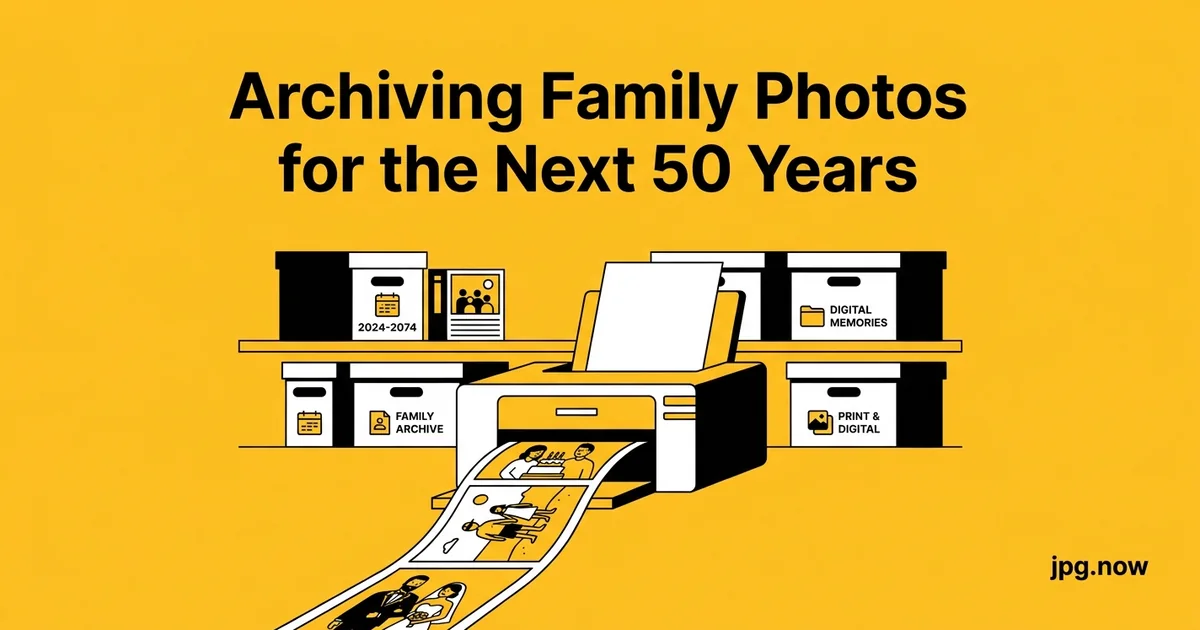
It is the Saturday after Thanksgiving. Your aunt hands you a shoebox of curled prints from the 1970s, half of which already have a magenta cast that was not there 20 years ago. Your cousin texts you a Google Drive link with 2,400 photos from your grandmother's iPhone, mostly HEIC, mostly unsorted, mostly named IMG_0001 through IMG_2400. Your sister mentions that the external hard drive with your parents' wedding scans clicks when she plugs it in. The family archive, all of it, has landed in your lap.
You have a shoebox of prints from the 1970s, a stack of CDs from the 2000s, an external hard drive from 2014 with a click of death, and 47,000 photos on your phone. The goal is to have all of it still be readable when your grandchildren are deciding what to do with it in 2076. This guide lays out the conservative archival strategy that actually maximizes the chance of long-term survival, with a maintenance calendar that fits on one page and a format strategy that survives the next four decades of software change.
Why archival is different from backup
A backup protects against accidental deletion and recent hardware failure, on a timeline of weeks to a few years. An archive protects against everything else: bit rot, format obsolescence, vendor disappearance, fire, theft, divorce, and the death of the person who knew where everything was stored. The strategies differ. Backups are short-term and frequent; archives are long-term and deliberate.
Most families never make the distinction. They treat iCloud or Google Photos as if it were an archive, then discover after a billing lapse or a policy change that the "archive" is gone. An actual archive is owned by you, stored in multiple places, in formats your operating system has supported for decades, and reviewed on a schedule.
Background: the formats and media that have survived
JPG was standardized in 1992 and remains universally readable. TIFF dates to 1986 and is the de facto preservation format for libraries and museums. PNG is from 1996. PDF is from 1993. These formats have outlived dozens of competitors (PCX, BMP, JPEG 2000, Apple QuickTake, Kodak Photo CD) and are the conservative choice for any photo you want readable in 2076.
Storage media has a much shorter half-life. CD-R and DVD-R were sold as "100-year archival" and routinely fail at 15. Hard drives spin down and seize. SSDs lose charge when unpowered. The strategy is rotation across multiple media, not faith in any single medium.
The 3-2-1 rule is the floor, not the ceiling
Three copies, two different media, one off-site. For family archives that need to last 50 years, extend to 3-2-1-1-0: three copies, two media, one off-site, one offline (immutable), zero unverified backups. The zero is the most important part. Every copy needs to be checksum-verified at least annually, because silent bit rot will eat a percentage of any disk you forget about.
Step-by-step: setting up the 50-year archive
- Inventory what you have. Walk through every room and list every device, drive, disc, and shoebox containing photos. Write down formats and approximate counts.
- Consolidate to a single working drive. Copy everything to one external SSD or NAS volume. Do not delete originals yet.
- De-duplicate and triage. Use a tool like PhotoSweeper or simple file-hash matching to remove exact duplicates. Manual review weeds out near-duplicates.
- Convert non-archival formats. Run all HEIC through the HEIC to JPG converter, all RAW through the RAW to JPG converter, and all unusual formats to JPG.
- Generate TIFF masters for the priority set. Use the JPG to TIFF converter for wedding, baby, and other irreplaceable photos.
- Tag with embedded metadata. Date, location, people, photographer. Use Lightroom, Bridge, or ExifTool.
- Mirror to three destinations. Primary working drive, second drive (different brand), cloud archival service.
- Schedule the maintenance calendar. Add recurring calendar reminders for monthly, quarterly, annual, and 5-year tasks.
Format choice: JPG is fine, but not alone
JPG is the most widely supported image format in human history. Any operating system released in the last 30 years opens it without help. That universality is its single biggest archival asset, and it is unlikely to disappear before 2076. The conservative move is to use JPG as your primary access copy and TIFF as your preservation master.
For every photo that matters, the wedding, the new baby, the family reunion, keep two files: a quality-95 JPG for everyday viewing and sharing, and a TIFF master for absolute fidelity. Convert your existing files with the JPG to TIFF converter and store the TIFFs on your archival drives only. The JPG copies travel; the TIFFs stay home.
iPhone HEIC is a problem you should solve now
Apple's HEIC format is more efficient than JPG but dramatically less universal. Windows 10 needs a paid codec, many web platforms still reject it, and your future grandchild's photo-viewer app in 2056 has no obligation to support it. Run every HEIC in your archive through the HEIC to JPG converter as part of your annual archive maintenance and store the JPG alongside the original. You are not deleting the HEIC. You are adding a 50-year insurance policy in the form of a universally readable copy. The same logic applies to HEIF and AVIF files from Android devices.
Format-by-format archival comparison
| Format | Year introduced | 50-year readability bet | Archive role |
|---|---|---|---|
| JPG | 1992 | Very high | Primary access copy |
| TIFF | 1986 | Very high | Preservation master |
| PNG | 1996 | High | Screenshots, line art |
| HEIC | 2017 | Uncertain | Convert to JPG |
| AVIF | 2019 | Uncertain | Convert to JPG |
| Camera RAW | varies | Low (vendor-specific) | Convert with CR2, NEF, ARW converters |
| DNG | 2004 | Medium | Adobe-managed open RAW |
| PSD | 1990 | Medium | Adobe lock-in risk |
The physical-media problem
Hard drives fail. SSDs lose data when unpowered for 1 to 2 years. CD-Rs and DVD-Rs delaminate after 10 to 20 years of typical home storage. M-Disc Blu-ray claims 1,000-year longevity but is unproven in real-world conditions past 20 years. The honest answer is that no single physical medium gets you to 50 years. The strategy is rotation, not preservation.
Plan to migrate the archive to fresh media every 5 to 7 years. Buy two new drives, copy the archive forward, verify checksums, retire the old drives to a backup-of-backup role, and update your inventory list. Cloud storage like Backblaze B2, AWS S3 Glacier, and iDrive handles this rotation for you in exchange for an ongoing fee around $6 to $12 per TB per year.
The metadata that makes photos findable
A perfectly preserved JPG is useless if your great-grandchild does not know who is in it. Embed the basics in EXIF and IPTC fields: date taken, location, subject names, photographer. Most editing software writes the first two automatically; the last two need manual entry. Spending 30 minutes per year tagging the year's most important shots produces a searchable archive that survives any software change.
Store a plain-text inventory file alongside the photos. A simple CSV with filename, date, people, place, and event provides a human-readable backup of the metadata that lives independently of any embedded EXIF that might get stripped during a future format migration. Verify embedded data with the image info viewer.
Real-world archival examples
The Smithsonian model. National photographic archives store TIFF preservation masters at 600 ppi on enterprise tape (LTO-8/9), refresh tapes every 7 years, and maintain JPG access copies on disk for staff and public access. Total cost per photo over 50 years: roughly $0.25.
A genealogy hobbyist's home archive. One 8 TB NAS, mirror to a second 8 TB external, plus Backblaze cloud subscription at $99/year. Total cost over 50 years: about $7,000 in hardware refreshes plus subscription. Stores around 200,000 family photos with TIFF masters for the priority 5,000.
A new parent's modern setup. Apple Photos with iCloud Photos library, plus monthly export to a home NAS, plus an annual encrypted backup mailed to a sibling in another state on a fresh SSD. Covers the 3-2-1 rule end-to-end for under $200 per year.
Common archival mistakes
- Treating cloud sync as a backup. If you delete a file from iCloud, it deletes everywhere. Sync is not backup.
- Storing the only off-site copy with the family member most likely to lose it. The off-site copy needs to be with someone reliable, ideally in a different climate zone.
- Letting drives sit unpowered for years. SSDs lose charge in 1-2 years unpowered. Spin up every drive at least once a year.
- Trusting a single proprietary format. Apple Photos library, Adobe Lightroom catalog, Google Photos. Each is a vendor lock-in. Always export originals to plain JPG/TIFF.
- Never running a restore test. Backups that have never been restored may not be restorable. Test annually.
- Skipping metadata because "I will remember." You will not. Your kids definitely will not.
Advanced archival tips
- Use checksums (SHA-256) on every file. A tool like rhash or par2 detects silent bit corruption that file managers do not.
- Maintain a written archive playbook. A one-page document describing where everything is, what the password is, and how to restore. Store with your will.
- Pick storage that uses ZFS or Btrfs. These filesystems detect and correct bit rot automatically. A Synology NAS with Btrfs is the consumer-friendly option.
- Print the top 100 photos. Acid-free paper in an album survives software change indefinitely. Use the image compressor to prepare print versions without touching masters.
- Date your storage devices. A label on every drive with purchase date and contents survives the eventual "what's on this drive?" mystery.
- Diversify cloud providers. One major cloud plus one independent (Backblaze or iDrive) protects against vendor disappearance.
- Inherit a plan. Decide now who takes over archive maintenance if you are not around. Document it.
The off-site copy
The off-site copy protects against fire, theft, flood, and tornado. Options in order of reliability: cloud storage you pay for, a USB drive at a relative's house in another city, a safety-deposit box, a USB drive at your office. Whichever you pick, refresh it on the same 5 to 7 year schedule as your home archive.
What to do with old scanned prints
Scan once at the highest reasonable resolution. 600 ppi for snapshots, 1,200 ppi for slides and negatives. Save as TIFF. Export a JPG sidecar from each TIFF for daily viewing. The scanning is the bottleneck step; do not redo it five years from now because you saved at JPG quality 80 the first time.
Consolidating phone exports
Phones produce a chaotic mix of JPG, HEIC, PNG screenshots, and live-photo motion files. Once a year, dump the camera roll to your computer, run the HEIC files through the HEIC to JPG converter, compress oversized files with the image compressor if you are storage-constrained, and organize by year and event into folders. Your future self will thank you.
FAQ
How much storage do I really need for 50 years of family photos?
Plan for 100 GB per family member per decade. A family of four over 50 years lands at roughly 2 TB. Triple that for the 3-2-1 rule and add headroom for TIFF masters: budget around 8 TB across all copies.
Is Google Photos a viable long-term archive?
No, on its own. Google has discontinued products with archival data before (Google+, Picasa Web Albums). Use Google Photos for sharing and search, but always maintain an independent export. Google Takeout makes the export easy.
Should I scan negatives or prints when I have both?
Scan the negatives. They contain 3 to 5x more detail than the prints made from them, and they have not faded the way the prints have. Use an Epson V600 or V850 with the transparency unit.
What about videos?
Same strategy applies. H.264 MP4 is the JPG equivalent for video: universal, well-supported, will be readable in 2076. Convert proprietary formats (MOV variants, AVCHD) to MP4 for the archive copy while keeping originals.
How do I handle photos I want to keep private?
Encrypt the archive copies. VeraCrypt for full-disk encryption, or 7-Zip with AES-256 for individual folders. Document the password in your written archive playbook stored with your will.
Is "archival" cloud storage worth the extra cost?
For most families, no. Standard cloud storage (Backblaze B2, AWS S3 Standard, iDrive) is reliable enough at much lower cost than archival tiers (Glacier, Deep Archive). The archival tiers shine for write-once, retrieve-rarely petabyte workloads, not 1 TB family archives.
What is the single most important thing to do this weekend?
Pick your top 100 photos, convert any HEIC files with the HEIC to JPG converter, copy to two separate drives plus one cloud destination. That alone protects 90 percent of the irreplaceable value while you plan the rest.
A 50-year maintenance schedule that fits on one page
- Monthly: Phone camera roll exports to home archive.
- Quarterly: Verify cloud backup is current and accessible.
- Annually: HEIC-to-JPG conversion pass, metadata tagging session, checksum verification on home drives.
- Every 5-7 years: Migrate archive to fresh media, retire old drives, update inventory.
- Every 10 years: Re-evaluate format choices and storage providers based on what is still mainstream.
Building a written archive playbook
The archive that survives is the one your heirs can navigate without you. A one-page written playbook stored with your will or in a safe deposit box covers: where the archive lives (drive labels, cloud account names), how to access it (passwords or password manager master key), what is on it (CSV inventory by year), and what to do with it (suggested heirs, or instructions to donate to a local historical society for orphan archives).
Update the playbook every time you change cloud providers, replace a drive, or add a new annual batch. The five minutes per year saves your heirs from the "where did Dad keep the wedding photos?" crisis that strikes 60-70% of estates.
The role of historical societies and university archives
For families with notable history (a grandfather who served in WWII, a great-grandmother who emigrated from a specific village), your local historical society or a university's special collections department may accept donations of digital archives. Some will scan and digitize physical photos at no cost in exchange for the donation. Worth a phone call before discarding what looks like "just family stuff."
Compression for daily-use sharing copies
Archive masters are large by design. For sharing with family in WhatsApp or Messenger, generate compressed JPG copies via the JPG compressor at quality 80, long-edge 1920px. The result is 200-400 KB instead of 25 MB, sends instantly over cellular, and looks identical on a phone screen.
Build a "share" subfolder under each year folder with the compressed versions. Sharing becomes a drag-and-drop, the masters never travel, and the family group chat stays fast.
Start the migration this weekend
Pick the 100 photos that would devastate you to lose. Convert any HEIC files with the HEIC to JPG converter, generate TIFF masters with the JPG to TIFF converter, and copy the resulting bundle to two separate drives plus one cloud destination. Use the image info viewer to verify EXIF dates and orientations survived the trip. The other 46,900 phone photos can wait. The 100 that matter cannot. For ongoing cleanup, the image compressor and image file size calculator help you balance archive footprint against quality. For RAW archives, the DNG, CR2, and NEF converters generate access copies without disturbing the originals. See the tools directory for the complete archival kit.