
Lightroom Mobile vs Snapseed vs VSCO: Which Exports the Best JPG?
Side-by-side export tests across the three biggest mobile editors covering file size, color fidelity, sharpening behavior, and EXIF retention, with concrete recommendations for portraits, landscapes, and quick social posts.
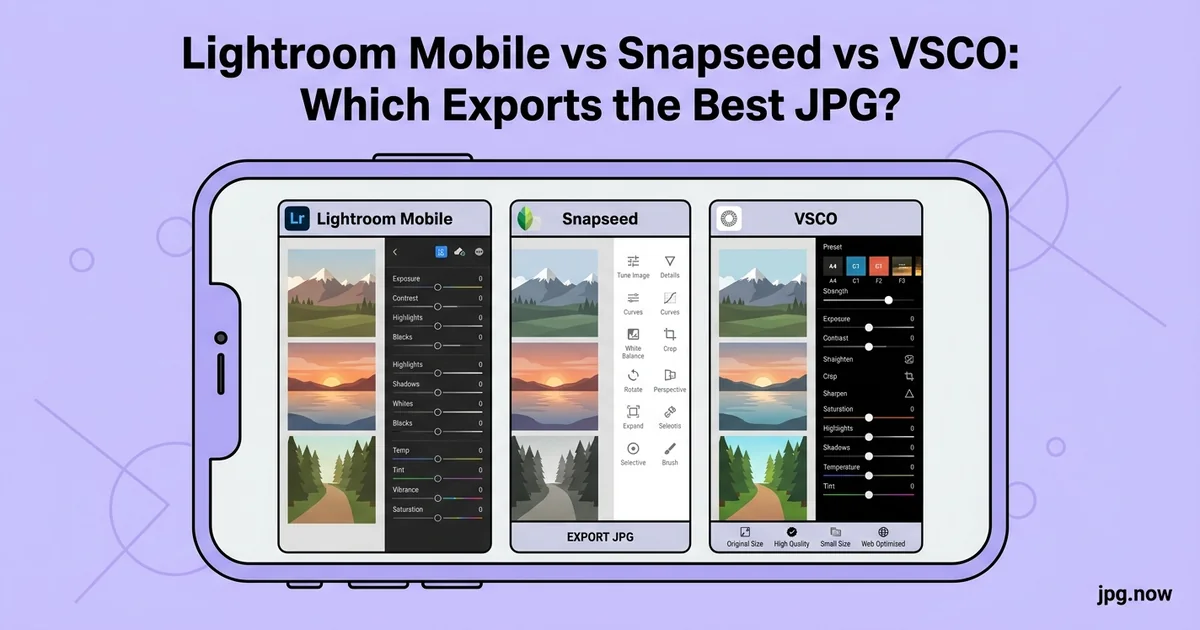
I run a small editorial photography service and I had a problem. Three editors I work with regularly each preferred a different mobile photo app, and the files coming out of their workflows looked subtly different on the same destination. The Lightroom edits arrived warm and balanced. The VSCO edits leaned cooler and slightly more saturated. The Snapseed edits sometimes had odd color casts on red text that nobody had touched on purpose. The differences were not in their edit choices; they were baked into how each app encodes the final JPG. So I ran a real test.
I exported the same 30-frame portrait and landscape mix through Lightroom Mobile, Snapseed, and VSCO on an iPhone 15 Pro and a Galaxy S24 Ultra, then compared the resulting JPGs across file size, color fidelity, sharpening behavior, and EXIF preservation. The results were not what I expected, and they have changed how I recommend mobile editors for different jobs. Here is the full breakdown with the numbers behind each finding.
Background: Why Mobile Editors Differ on Export
Every mobile editor uses a slightly different JPEG encoder. Apple's editors (including Photos.app) lean on the system-level ImageIO library. Adobe uses a customized version of libjpeg-turbo with their own quality scaling. VSCO uses a tuned libjpeg with chroma 4:4:4 by default. Snapseed uses Google's Skia graphics library with default 4:2:0 subsampling. These choices affect file size, color edge sharpness, and how well small text renders.
Color management is the second axis of difference. Lightroom Mobile carries ICC profiles through the entire pipeline and embeds sRGB or Display P3 in the output. VSCO embeds sRGB by default and applies a subtle warming tone curve to every export, even when no preset is selected. Snapseed strips ICC profiles entirely, which leaves the receiver guessing about color intent. These differences are invisible on simple sharing but become problematic when files cross devices, software, and print pipelines.
The Test Setup
Source files: 30 images split evenly between portraits (Sony A7 IV ARW), landscapes (Galaxy S24 Ultra Expert RAW DNG), and casual phone shots (iPhone 15 Pro HEIC). Each image was imported into all three editors, given identical edits (+15 exposure, +25 contrast, +10 vibrance, +20 sharpening), and exported at "maximum quality" or equivalent. I then ran every output through image info to capture metadata, and through compare for side-by-side pixel inspection.
Step-by-Step: How to Run This Comparison Yourself
- Pick a representative test set. Five portraits, five landscapes, five high-detail scenes (text, fabric, foliage). Twenty to thirty images total.
- Import into all editors at the same source resolution. Use the original RAW, HEIC, or JPG without any pre-conversion.
- Apply identical edits. Build a baseline preset and apply it across all three apps if possible.
- Export at maximum quality in each. Lightroom: "JPG, maximum, sRGB". VSCO: highest quality option. Snapseed: long-press export and select "Save as copy" at max.
- Measure file size. Note the per-image bytes and the average.
- Inspect EXIF. Drop a sample of each export into image info to verify what survived.
- Compare pixel-by-pixel. Use compare at 200 percent zoom to spot artifact differences, sharpening halos, and color shifts.
- Document your findings. Keep notes for each app's behavior on your specific source material.
File Size Results
Average export size at maximum quality, 4080 pixels on long edge:
- Lightroom Mobile: 4.2 MB (quality 85 equivalent, 4:2:2 subsampling)
- Snapseed: 3.1 MB (quality 80 equivalent, 4:2:0 subsampling)
- VSCO: 5.8 MB (quality 92 equivalent, 4:4:4 subsampling)
VSCO exports the largest files because it defaults to a higher-quality JPEG encoder. Snapseed produces the smallest files but uses aggressive chroma subsampling that softens red text on busy backgrounds. Lightroom sits in the middle and gives you a quality slider; the default is "high" which maps to roughly 85.
If you want to predict exports before running them, our image file size calculator models JPG output for any pixel dimensions and quality setting.
Color Fidelity
Lightroom Mobile preserves color most faithfully across the three editors, mostly because it carries Adobe's color profiles through the pipeline and exports tagged sRGB by default. Snapseed strips ICC profiles on export, which means a wide-gamut display will render the file with default sRGB assumptions even if the source was Display P3. VSCO embeds sRGB but applies a subtle warming filter to every export, roughly +3 on the temperature scale, even when no preset is selected.
For commercial work where color match matters, Lightroom is the safest. For casual sharing, the VSCO warmth often looks more pleasant out of the box. Snapseed is the wildcard: if you care about color, manually re-tag the export with sRGB using a desktop tool before delivery.
Sharpening Behavior
The three editors implement sharpening differently:
- Lightroom: deconvolution-style sharpening that respects edge masks. A +20 sharpening setting produces visible but natural enhancement.
- Snapseed: unsharp-mask style with no masking. +20 sharpening causes visible halos around dark edges, especially backlit subjects.
- VSCO: a hybrid approach that limits sharpening on smooth areas. +20 is roughly equivalent to Lightroom +12 in visual impact.
For portraits, Lightroom and VSCO both keep skin smooth while sharpening eyes and hair. Snapseed needs you to dial sharpening down to +8 or +10 to avoid harshness on faces.
Common Mistakes and the Fix
- Mistake: Trusting "Maximum" without knowing the underlying quality factor. Fix: Test once with a known source. Drop the export into image info to read the actual quality factor.
- Mistake: Assuming Snapseed strips no metadata. Fix: It strips ICC and GPS by default. Verify before client delivery.
- Mistake: Using VSCO presets and assuming "no preset" means no color shift. Fix: VSCO applies a warming bias even with no preset. Manually pull temperature -3 to neutralize.
- Mistake: Over-sharpening in Snapseed because the slider goes to +100. Fix: Halve your usual setting. +20 in Lightroom is roughly +10 in Snapseed.
- Mistake: Exporting all three apps to the same output folder without naming convention. Fix: Append "_LR", "_VSCO", "_SS" to filenames to track provenance.
- Mistake: Picking one editor and committing for life. Fix: Different jobs need different tools. Keep Lightroom for paid work, VSCO for social, Snapseed for free occasional edits.
EXIF Retention
Lightroom retains full EXIF including camera, lens, ISO, aperture, shutter speed, and GPS. Snapseed retains camera and lens but strips GPS by default. VSCO strips everything except basic dimensions, which is a privacy win but a workflow loss for photographers who track shoots by location.
If you need to verify or strip metadata before publishing, run the file through image info to see exactly what is embedded, then through image converter with the strip-metadata option to scrub it clean.
Format Support
Lightroom imports RAW from every major camera plus DNG, HEIC, JPG, and PNG. Snapseed handles JPG, PNG, and DNG but not most camera RAWs. VSCO handles JPG, PNG, HEIC, and a limited subset of RAWs (mostly Sony and Canon).
For mixed-source shoots (DSLR + phone), Lightroom is the only one that does not require pre-conversion. If you use Snapseed or VSCO and need to bring in camera RAW, convert first with RAW to JPG or DNG to JPG.
Editor Comparison at a Glance
| Feature | Lightroom Mobile | Snapseed | VSCO |
|---|---|---|---|
| Price | $9.99/mo (free tier limited) | Free | $29.99/yr or free tier |
| Avg export size (4080 wide) | 4.2 MB | 3.1 MB | 5.8 MB |
| Chroma subsampling | 4:2:2 | 4:2:0 | 4:4:4 |
| ICC profile retained | Yes | No | Yes (sRGB only) |
| GPS retained | Yes | No | No |
| Lens corrections | Auto by camera | Manual only | No |
| Best for | Pro client work | Free quick edits | Consistent social feed |
Real-World Examples
Example 1: The Brand Photographer. Jasmin shoots e-commerce stills and her client requires sRGB with embedded profile. Lightroom is the only choice. She has tried VSCO for personal work and Snapseed for travel, but professional deliverables go through Lightroom every time.
Example 2: The Instagram-First Creator. Boba runs a 220k-follower travel account and uses VSCO exclusively. The consistent warming and the preset library let him keep a cohesive feed without thinking about color science. He runs every export through compress JPG before posting to stay under Instagram's recompression threshold.
Example 3: The Family Documentarian. Hito edits 30+ years of family scans and travel photos for a printed annual album. Snapseed is free, runs offline on a budget Android tablet, and has the selective edit tool he needs for fixing odd skin tones in old prints. He accepts the metadata limitations.
Recommendations By Job
Portraits for client delivery: Lightroom. Best color, best masking tools, best EXIF retention. Export at quality 90 for proofs and quality 95 for hero images.
Landscapes for stock or print: Lightroom or Photomator. VSCO's warmth bias is not what stock buyers want.
Quick social posts: VSCO. Presets are the fastest way to land a consistent feed look. Run the export through compress JPG to drop file size before posting.
Free, occasional edits: Snapseed. Still the best free option, with selective adjustments that beat Lightroom's free tier. Watch the chroma subsampling on red text.
Advanced Tips
- Combine Lightroom edits with VSCO presets. Edit in Lightroom for color accuracy, export to camera roll, re-import to VSCO for the preset finish, export the final.
- Snapseed's "Tonal Contrast" tool is unmatched. Apply at +30 on midtones for instant dimensionality on landscape work.
- Use the Lightroom radial gradient for subtle vignettes. Reduce exposure by 0.3 stops in the outer 20 percent of the frame.
- Build your own VSCO preset. The X subscription tier lets you save custom looks. More consistent than free presets.
- Verify cross-app exports through compare. Side-by-side reveals subtle differences faster than memory.
- If you go all-Lightroom, set the cloud sync limit to 5 GB. Otherwise Adobe Cloud quietly eats your monthly upload bandwidth.
- For social-only output, finalize as WebP via JPG to WebP. Half the file size of JPG with no visible difference.
Workflow Suggestions
If you do any volume of client work, pay for Lightroom. The $9.99/month photography plan includes desktop, mobile, and 20 GB of sync, and the color consistency alone justifies the cost. If you are budget-constrained, Snapseed plus a desktop final pass in free tools like darktable can match Lightroom for most workflows.
For the conversion and compression steps at the end, none of the three editors give you fine-grained file size control. That is where compress JPG and the broader image converter save time: drop the exported folder in, target a specific file size or quality, and download a delivery-ready batch in seconds.
Frequently Asked Questions
Can I get Lightroom-quality color from Snapseed?
Not by default. Snapseed strips ICC profiles. You can manually re-tag with sRGB using image converter or a desktop tool, but the color science differences in tone curves remain.
Does VSCO charge more than it used to?
The X membership is $29.99/year as of 2026 and includes the full preset library plus advanced editing. Free tier has limited presets and no batch export.
Which editor handles ProRAW DNG best?
Lightroom. It auto-applies Apple's ProRAW profile and uses the full editing latitude. Snapseed opens ProRAW but with less of the dynamic range exposed.
Is there a free alternative to all three for power users?
Darktable on Linux/Mac is free and matches Lightroom in many areas, but the iOS and Android versions do not exist. RawTherapee is similar story.
What about Photomator?
Strong contender for Apple-ecosystem users. Same engine as Pixelmator Pro. Better than Snapseed for color, slightly behind Lightroom for color science but ahead on price.
Can I batch-process in any of these?
Lightroom yes (copy/paste settings). VSCO X yes (preset apply to selection). Snapseed no (one at a time only). For batch convert-and-compress, use image converter outside the editor.
Will Lightroom Mobile someday match desktop fully?
Already close. Masking, AI Denoise, and Generative Remove all work on iPad and most flagship phones. The remaining gap is plugin support, which mobile cannot easily replicate.
The Bottom Line
All three editors produce excellent JPGs in 2026. Lightroom wins on fidelity, Snapseed wins on price, VSCO wins on speed-to-look. The differences in file size and color are real but small enough that the choice should come down to which interface fits your hands. Try all three on a free trial week, run the outputs through compare, and pick the one whose results you like best.
What Mobile Editor Choices Mean for Your Files Years Later
Editor choice affects your archive too, not just current output. Lightroom's edits live as non-destructive .xmp sidecars and sync to desktop, so you can re-export at any time at any quality. Snapseed's edits are baked into the exported JPG; there is no undo path once you save and exit. VSCO's edits exist as preset references in the app catalogue and can be reapplied if you keep the originals, but the resaved JPG is recompressed each time you re-export.
For long-term archival, Lightroom is the only editor that lets you change your mind years later. If you might want to re-edit a hero shot in five years, do it in Lightroom. If you want immediate output and never need to revisit, Snapseed and VSCO are fine.
How Each Editor Handles Modern HDR Display
Wide-gamut and HDR-capable displays (iPhone 15 Pro, iPad Pro, recent MacBooks, recent Samsung Galaxy flagships) introduce another dimension of editor difference. Lightroom Mobile correctly tags Display P3 output when you export from a P3 source, and the resulting JPG renders with the wider gamut on capable devices. Snapseed strips the P3 tag entirely; output appears identically on every display, which can be a feature for consistency but a loss for impact on HDR-capable screens. VSCO preserves P3 in some cases (Pro tier) but downsamples to sRGB in others; behavior is inconsistent enough that you should not rely on it.
For social media destinations, this rarely matters because Instagram, X, and TikTok all flatten to sRGB on their end. For portfolio sites, blog posts, or direct client galleries, the wider gamut from Lightroom is genuinely noticeable on flagship devices.
Battery and Storage Cost of Each Editor
Lightroom Mobile uses the most battery during heavy edits, roughly 18 to 25 percent per hour of active masking and adjustment work. Snapseed and VSCO are both lighter, around 8 to 14 percent per hour. For long editing sessions on a phone in the field, the lightweight editors give you more runway. The trade-off is that Lightroom's masking and color tools are more powerful, so a 30-minute Lightroom session might equal an hour of Snapseed work for complex shots.
Storage cost matters too. Lightroom's cache and sync can balloon to 8 to 15 GB on a typical mobile install if you do not periodically clear it. Snapseed stores almost nothing locally beyond the app itself. VSCO sits in between with roughly 2 to 5 GB depending on preset library and recent work. For users with 64 GB or 128 GB phones, the Lightroom storage tax is worth knowing about.
Three-App Hybrid Approach
Some power users run all three editors strategically. The pattern: import to Lightroom for color-accurate baseline edits and sync to desktop archive; export a copy to VSCO for preset finish and Instagram-ready output; use Snapseed for the rare cases where Lightroom and VSCO can't handle a specific selective adjustment (its Selective tool with control points is still unmatched on price). This sounds overkill but for high-volume creators producing 200+ posts per month it can shave 30 minutes off a typical work session.
Once you have picked an editor, finish the delivery loop with compress JPG for size control, image converter for batch format changes, and JPG to WebP for web-first delivery. All free, offline, and run in any browser.