
JFIF vs JPG vs JPEG: Same File, Three Names, One Real Difference
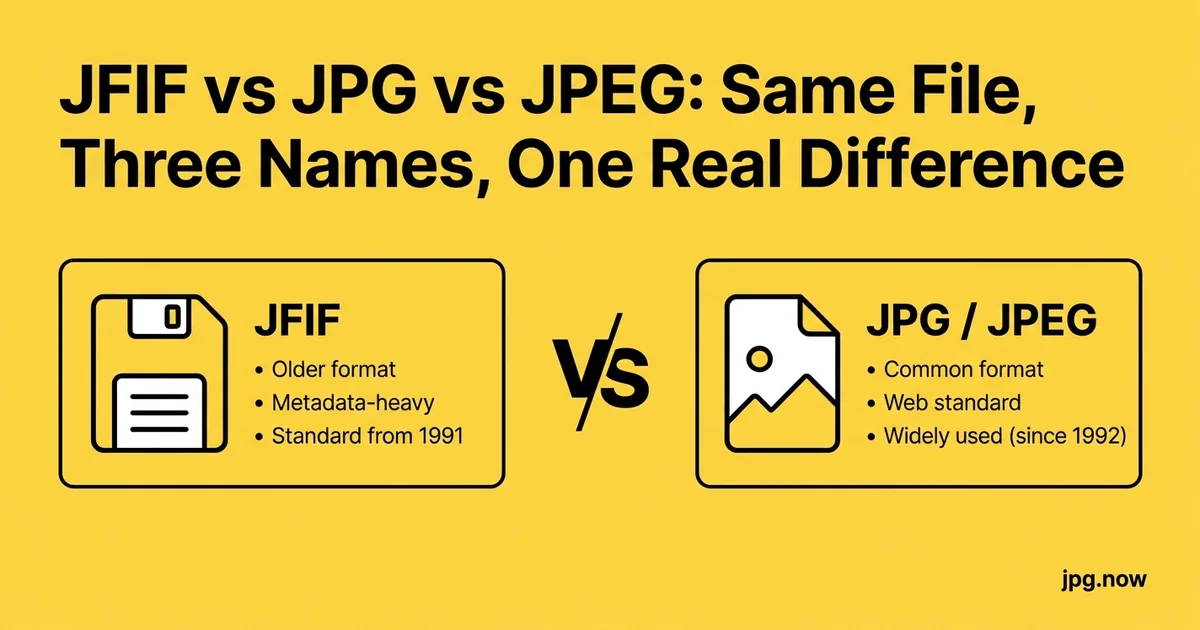
You just downloaded a hero image from a client's website to drop into a Word doc and the file came down as `IMG_2493.jfif`. Word refuses to embed it. The CMS upload form says "JPG or PNG only" and rejects the file even after you try renaming. You spend 20 minutes Googling "what is .jfif" while the project clock keeps ticking. By the time you find the answer, you have read three articles that contradict each other, two registry-edit tutorials, and a Stack Overflow thread that ends in "just rename it."
This is the definitive answer, with the registry context, the byte-level explanation, and the workflow that handles a JFIF in 15 seconds without losing any image quality. JFIF and JPG are the same file format with different extensions. The fix is almost always a rename. The remaining 5 percent of cases need a real re-export because the destination software inspects the file header in unusual ways. By the end of this article you will know which case you are in and how to fix it.
Background: where the JFIF extension came from
JFIF stands for JPEG File Interchange Format. It is a container specification, written in 1992, that describes how to wrap JPEG-compressed image data inside a file so that any program can read the pixel dimensions, color space, and aspect ratio without guessing. When you save a JPEG, the bytes on disk are almost always JFIF-wrapped. The extension `.jfif`, `.jpg`, `.jpeg`, `.jpe`, and the rarer `.jif` all describe the same byte structure. The only difference is the three or four characters after the dot.
The reason you suddenly started seeing `.jfif` is a Windows registry change Microsoft made around Windows 10 build 1809. Before that change, Windows associated the MIME type `image/jpeg` with the extension `.jpg` by default. After the change, the registry-default mapping became `.jfif`. Chrome, Edge, and Outlook all read the registry when assigning an extension to a downloaded file whose URL does not include one, so suddenly downloads that used to land as `.jpg` started landing as `.jfif`. The pixel data is identical; only the four-character extension changed.
The honest answer: JFIF and JPG are the same thing
This deserves repeating because every other guide makes it more complicated than it is. JFIF, JPG, JPEG, JPE, and JIF describe the same byte format. A program that reads JPEG opens any of them. A program that fails on `.jfif` is filtering by extension, not by content. The fix is to change the extension to one the destination program recognizes.
Step-by-step: handling a JFIF file
- Confirm it is really JFIF. Drop the file on our image info inspector. Look for the JFIF marker (FFE0) in the header. If present, the file is a standard JPEG with the wrong extension.
- Try the rename approach first. In Finder or Explorer, hit F2 (or right-click > Rename) and change `.jfif` to `.jpg`. No re-encoding, no quality loss.
- Test the rename in the destination. Try uploading or embedding the renamed file. 95% of the time it just works.
- If rename fails, run a real re-export. Send the file through our image converter and download a clean baseline JPG.
- For bulk renames, use a script or batch tool. A one-line PowerShell or Bash command handles a folder of 500 JFIFs in seconds.
- Fix the registry on Windows so it stops happening. Change the `Extension` value at `HKEY_CLASSES_ROOT\MIME\Database\Content Type\image/jpeg` from `.jfif` to `.jpg`.
- Verify the result. Reopen the file in your destination and confirm everything looks correct.
So why does Windows ever use the .jfif extension?
Around Windows 10 build 1809, Microsoft changed a registry key that controls how Chrome, Edge, and Outlook decide which extension to assign to a downloaded JPEG. If the MIME type in the HTTP response or email header reads `image/jpeg` but the URL has no extension or an unusual one, Windows falls back to the OS-registered extension for that MIME type, which became `.jfif`. The fix is a one-line registry edit, but most users just rename the file.
The byte-level structure
Open any JPG or JFIF in a hex editor and you will see the same two marker bytes at the start: `FF D8` for "Start of Image." Bytes three and four are `FF E0`, which marks an APP0 segment, and bytes seven through ten spell "JFIF" in ASCII. The image data that follows is identical regardless of extension. There is no JFIF-specific compression. You can rename a `.jfif` to `.jpg` and every program that reads JPEG will open it without complaint, because nothing has changed in the file itself.
The safe way to rename: no re-encoding
If you only need to change the extension, drag the file in Finder or Explorer, hit rename, and replace `.jfif` with `.jpg`. The pixels are untouched. This is the only "conversion" that loses zero quality, because there is no encoding step. Compare that to opening the file in Photoshop and resaving, which always re-encodes and shaves a small amount of quality. For bulk renames, a one-line PowerShell or Bash command handles a whole folder in seconds.
Comparison: the JPEG extension family
| Extension | Same bytes as .jpg? | Where you see it | Notes |
|---|---|---|---|
| .jpg | Yes | Everywhere | The conventional Windows-friendly form |
| .jpeg | Yes | macOS, Unix, web | The historically correct form (8-char file systems shortened it) |
| .jfif | Yes | Modern Windows downloads | The container standard's actual name |
| .jpe | Yes | Rare, older Windows | Legacy DOS short form |
| .jif | Yes | Very rare | Earliest extension, almost extinct |
| .jp2 | No | Archives, cinema | JPEG 2000, completely different codec |
| .jxl | No | Modern browsers | JPEG XL, new codec, not JPEG-compatible |
When you actually need a real conversion
Renaming works for almost every case, but a few systems sniff the file header rather than trust the extension and may still refuse a renamed file. More often, the issue is metadata: some JFIF files carry odd color profiles or non-standard APP segments that confuse older software. In those cases, run the file through our image converter to re-export a clean baseline JPEG. The image info inspector shows you exactly what segments and markers exist in the file before you decide whether a real conversion is needed.
EXIF, ICC, and metadata survival
JFIF technically does not require EXIF metadata, while many `.jpg` files from cameras include extensive EXIF blocks. If you rename a JFIF that originated as a screenshot, do not expect to find camera make, model, or GPS data. If the file came from a camera and was renamed somewhere along the way to JFIF, the EXIF block usually survives untouched. Our image info tool reveals exactly what is embedded.
Common mistakes (and how to fix them)
- Mistake: opening in Photoshop and resaving as JPG to "convert." This re-encodes and loses quality. Fix: just rename the extension.
- Mistake: relying on the file system extension instead of checking the bytes. Some files are mislabeled. Fix: inspect with our image info tool to confirm the underlying format.
- Mistake: hiding file extensions in Windows Explorer and renaming what you think is the extension. Fix: enable "Show file extensions" first, then rename.
- Mistake: bulk renaming with a script that does not preserve the dot. Fix: use a tested one-liner (provided below).
- Mistake: thinking JFIF means lower quality. Fix: it does not; bytes are identical to any other JPEG.
- Mistake: editing the wrong registry key. Fix: the correct path is `HKEY_CLASSES_ROOT\MIME\Database\Content Type\image/jpeg`, not `HKEY_CURRENT_USER` or other variants.
Real-world examples
Marketing team complaint. "Our Shopify uploads keep failing." Root cause: client sent JFIF files exported from Outlook. Fix: bulk rename in PowerShell, upload succeeded.
Reporter's photo desk. "Every photo coming from the new Windows machines is JFIF." Root cause: Windows 10 1809 registry change. Fix: registry edit pushed via Group Policy across the newsroom.
Solo consultant. "I downloaded a sample image and Word won't embed it." Fix: rename `.jfif` to `.jpg`, drag back into Word, works instantly.
Web and CMS upload behavior
WordPress, Shopify, Squarespace, and most modern CMSes accept `.jfif` if you can get past the upload filter, which often filters by extension. The cleanest workflow is to rename to `.jpg` before upload. Email clients are similarly inconsistent: Gmail accepts and previews `.jfif`, Outlook on Windows preserves the extension on download, and Apple Mail tends to receive it as `.jpg` because of how iOS handles MIME mapping.
Stopping Windows from saving as .jfif
If the extension keeps reappearing on every screenshot or download, edit the registry key at `HKEY_CLASSES_ROOT\MIME\Database\Content Type\image/jpeg` and change the `Extension` value from `.jfif` to `.jpg`. Restart your browser. New downloads will save with the expected extension. This works on Windows 10 and 11.
Bulk handling many files at once
If you inherited a folder of JFIFs that need to become JPGs for a CMS upload, a single command does the job. On macOS: `for f in *.jfif; do mv "$f" "${f%.jfif}.jpg"; done`. On Windows PowerShell: `Get-ChildItem *.jfif | Rename-Item -NewName { $_.Name -replace '\.jfif$','.jpg' }`. For users who prefer not to touch a terminal, drop the folder into our batch image converter and download the renamed set as a zip.
What about MIME and content-type headers
When you upload to a CMS or send through an API, the server may inspect the Content-Type header rather than the filename. Both JFIF and JPG use `image/jpeg` as their MIME type, so the header is identical regardless of extension. If your upload fails with a "wrong file type" message after you renamed `.jfif` to `.jpg`, the problem is almost always an extension-based filter in JavaScript on the page, not a real MIME mismatch. Inspect the network request in browser dev tools to confirm.
Advanced tips
- Group Policy push the registry fix. If you manage a Windows fleet, push the registry change once across every machine. Saves users from each fixing it individually.
- Add JFIF to your upload whitelist. If you own the CMS code, accept `.jfif` natively. Same bytes, same MIME.
- Use `file` command on Unix to check actual type. `file image.jfif` returns "JPEG image data, JFIF standard 1.01", confirming the bytes.
- Combine with JPG compression on rename. If you are processing a batch, take the opportunity to compress for web at the same time.
- Strip metadata if needed. When converting through our image converter, choose to remove EXIF for privacy.
- Build a Hazel or Power Automate rule. On macOS, Hazel can auto-rename any `.jfif` dropped in your Downloads folder. On Windows, Power Automate Desktop does the same.
- Check for actual JPEG vs other formats with same extension. Rarely, a file labeled `.jfif` is actually something else (PNG with bad extension, HEIC). Our inspector catches this.
FAQ
Will renaming hurt the image?
No. Renaming changes only the filename, not the file contents. Image quality is preserved exactly.
Why did Microsoft change this?
Officially, to "align with the JPEG standard." In practice, the change broke compatibility with thousands of older apps and sites. Microsoft later partially reverted by accepting both extensions as default in newer Windows versions.
Can I open JFIF in Photoshop?
Yes. Photoshop reads JFIF natively. The same goes for GIMP, Affinity Photo, Lightroom, and every other major image tool.
Does Mac OS save as JFIF?
No, macOS saves JPEG as `.jpg` or `.jpeg`. JFIF is essentially a Windows-only nuisance.
Is JFIF a security risk?
No more or less than any other JPEG. Treat it with normal caution for any image from an unknown source.
What if my JFIF has a corrupted header?
Run through our image converter which re-encodes and produces a clean output, repairing minor header issues in the process.
How do I tell what extension my application expects?
Check the upload form's accept attribute in browser dev tools, or read the destination's documentation. Most accept both `.jpg` and `.jpeg`; few accept `.jfif` despite identical content.
Diagnosing a problematic JFIF file
Occasionally a JFIF refuses to open even after rename. The most common causes: truncated download (file ended mid-frame, often shows partial render), corrupted EXIF block (some viewers refuse to load), or a file mislabeled `.jfif` that is actually a different format (PNG, WebP, HEIC) renamed by a sloppy tool. Run through our image info tool to identify the actual format from the magic bytes, then handle accordingly. A re-export through our converter repairs most minor structural issues without quality loss when the file is fundamentally JPEG underneath.
Server-side handling for developers
If you operate a web service that accepts image uploads, accept JFIF natively. Sniff the magic bytes (FFD8FF) rather than relying on the file extension. Most modern image libraries (libvips, Pillow, ImageMagick) handle JFIF transparently because they read the bytes. The change that turns the JFIF-rejection bug into a non-issue is replacing `endsWith(".jpg")` with a content-type check or magic-byte sniff. This is one of those bugs that affects 5 percent of your users for 100 percent of their attempts; fixing it is high-leverage.
Mobile devices and JFIF
iOS and Android both save JPEG photos with the `.jpg` extension by default; you almost never encounter `.jfif` on a phone. The exception is when you save a photo from a web browser or messaging app: the file may inherit the `.jfif` extension if the source server's MIME mapping triggers it. iOS handles this transparently on most apps; Android's behavior depends on the browser. If you receive a `.jfif` on a phone, opening it in the gallery and re-saving usually produces a `.jpg` you can share normally.
JFIF in scripting and automated pipelines
If you handle large numbers of images programmatically, your code should accept both `.jpg` and `.jfif` as valid JPEG inputs. Most image libraries (Pillow, ImageMagick, libvips) read JFIF natively because they read the bytes, not the extension. The trap is filename-based filtering in your own code: a line like `if filename.endswith('.jpg')` silently skips JFIF files. Replace with `if filename.lower().endswith(('.jpg', '.jpeg', '.jfif'))` and the problem disappears.
Browser and viewer compatibility
All major browsers (Chrome, Firefox, Safari, Edge) render JFIF correctly when served. The issue is upload: a CMS or form that filters by extension may reject JFIF even though the browser would happily display it. The asymmetry between rendering and upload tolerance is what causes most user-visible problems. macOS Preview, Windows Photos, IrfanView, GIMP, and Photoshop all open JFIF without complaint.
What to tell non-technical colleagues
The 30-second explanation: "JFIF files are JPGs with a different extension. Right-click, rename, change `.jfif` to `.jpg`, and it will work in everything." Most users do not need to hear about MIME types, registry keys, or the 1992 JFIF spec. If they want to know why it happened, "a Windows update changed the default file extension, that is all" gets them back to work.
Future-proofing your handling
Microsoft has signaled that future Windows builds may further harmonize MIME extension defaults, possibly reverting `.jpg` as the canonical extension or making both equivalent. JPEG XL adoption may also introduce a new round of extension confusion (`.jxl`). The defensible workflow is the same in either case: inspect with our image info tool to confirm the underlying format, and route based on bytes rather than filename extension.
The takeaway in one sentence
JFIF and JPG describe the same bytes, the rename is free, and the only times you need a true re-conversion are when the file carries metadata that confuses your destination or when you also want to compress further with our JPG compressor. Browse the rest of our conversion tools for the related cases like HEIC to JPG and PNG to JPG. Try it on the file that brought you here, watch the rename work, and get back to your actual work.