
Batch Rename Photo Workflows: From IMG_0001.jpg to a Real Naming Scheme
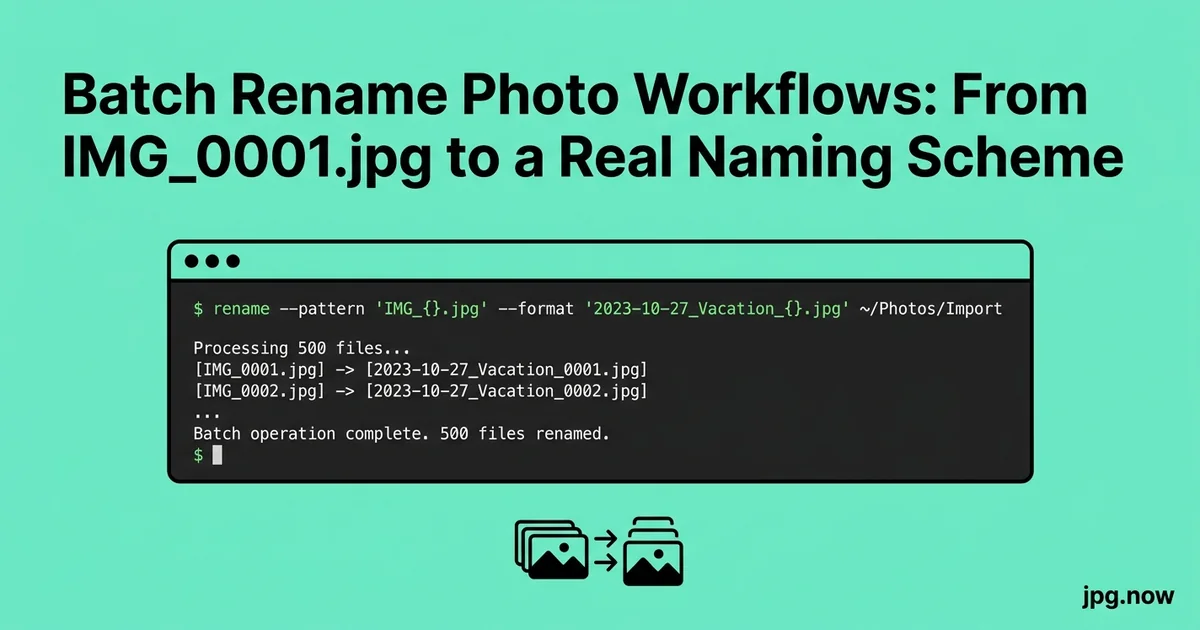
It is the third time this year. You sit down to find a specific photo from the Lisbon trip in 2023 and Spotlight returns nine files named IMG_4521.jpg across three different cameras and four different years. None of them are the right one. The actual photo you want is on a backup drive somewhere with the same name, taken on the same camera six years apart because the counter resets. You spend forty-five minutes finding it. This is a problem you fix once, and then you never have it again.
Every camera in the world produces files named IMG_0001.jpg, DSC02137.NEF, or P1090845.RW2, and every camera resets the counter eventually. After 18 months of casual shooting you have three files named IMG_4521.jpg taken in three different years on three different cameras, none of which Spotlight, Lightroom, or your operating system can disambiguate. A real naming scheme fixes this permanently and takes 20 minutes to implement once you decide on the pattern.
Why this matters for archives that last decades
Wedding photographers, photojournalists, and family archivists all face the same constraint: a working archive that needs to remain searchable, sortable, and identifiable in 10, 20, or 50 years across operating systems, file managers, and software that does not yet exist. Filenames are the only metadata layer guaranteed to survive every format conversion, cloud sync, and tool migration. Lightroom catalogs corrupt. EXIF gets stripped. XMP sidecars get separated from their parents. The filename, once written correctly, is forever.
Pick a pattern before you touch any files
The naming scheme worth using has four properties: it sorts correctly when listed alphabetically, it is unique across all your cameras and years, it survives being copied between operating systems, and it tells you something useful at a glance. The two patterns that meet all four criteria are:
- Date-prefix:
2026-08-14_143052_4521.jpgISO date, capture time, original camera counter - Date-event:
2026-08-14_smith-wedding_001.jpgISO date, event slug, sequence within event
The first works for everything. The second works better when you organize by job rather than by date and want the filename to tell you what the photo is part of without opening a folder.
Why ISO dates and zero padding matter
An ISO date (YYYY-MM-DD) sorts correctly in any file manager on any operating system without help. American-format dates (08-14-2026) do not. European-format dates (14-08-2026) do not. Use ISO 8601 and move on.
Sequence numbers must be zero-padded to the maximum expected count. A wedding gallery of 800 images needs three-digit padding (001 through 800). A long-term archive that may eventually hold 100,000 images per year needs six digits (000001). When in doubt, use four digits it covers most projects and still sorts correctly even if you exceed expectations.
Tool 1: Adobe Bridge for visual batch renames
Bridge ships free with any Creative Cloud subscription and is the GUI-friendliest option for photographers who want to preview the rename before committing. Select files, hit Cmd-Shift-R (or Ctrl-Shift-R), and build a pattern from blocks: Date Created, Sequence Number, Text, Filename. Preview shows the new names live as you edit the recipe.
Bridge's strength is the preset library. Save your wedding rename pattern, your travel pattern, your headshot pattern, and switch between them per job.
Tool 2: A Better Finder Rename (macOS) and Advanced Renamer (Windows)
A Better Finder Rename ($25 one-time) is the macOS standard for batch operations that go beyond what the Finder's built-in rename can do. Multi-step recipes strip prefix, add date from EXIF, add sequence, change extension to lowercase apply in any combination. Drag in files, build the recipe, preview, commit.
Advanced Renamer (free on Windows) is the equivalent. Both support EXIF-driven renames, regex find-and-replace, and undo of the most recent operation.
Tool 3: ExifTool from the command line
For shoots above a few hundred files or any kind of recurring workflow, ExifTool's -FileName rename is faster and more scriptable than any GUI. The one-liner:
exiftool '-FileName<DateTimeOriginal' -d '%Y-%m-%d_%H%M%S%%-c.%%e' /path/to/folder
Reads DateTimeOriginal from EXIF, formats it as YYYY-MM-DD_HHMMSS, appends a copy counter when two frames share a second, and preserves the original extension. Twenty-thousand files rename in under a minute on a modern SSD.
Tool 4: Lightroom on import
Lightroom Classic offers rename-on-import templates that combine date, sequence, and custom text in any order. This is the right place to do the rename if you import every shoot through Lightroom, because it happens once during the existing ingest step and the new names propagate to your catalog automatically.
The downside: if you ever work outside Lightroom second shooters delivering RAWs by Dropbox, a phone backup folder, scanned negatives from a lab you need a fallback workflow, which is where ExifTool or Bridge comes back in.
Step-by-step: rename a year of mixed archives
- Backup everything first. A full rsync to a second drive. Non-negotiable.
- Audit the EXIF on a sample. Run
exiftool -DateTimeOriginal -Make -Modelon 50 random files across the archive. Confirm dates look plausible. - Identify files with missing EXIF dates. Move them to a separate
UNDATED/folder for manual handling. - Decide pattern. Most archives benefit from date-prefix:
YYYY-MM-DD_HHMMSS.ext. - Test on 50 files in a sandbox folder. Run the ExifTool rename, verify output looks right.
- Apply recursively.
exiftool -r '-FileName<DateTimeOriginal' -d '%Y-%m-%d_%H%M%S%%-c.%%e' /Volumes/Archive/2024 - Verify file count matches before and after. A lost file is a serious problem worth catching early.
- Handle the UNDATED folder manually using folder-level event names plus sequential numbering.
The EXIF date is more reliable than the file modification date
Operating systems and cloud sync services rewrite file modification dates constantly. Google Drive, iCloud, and Dropbox have all stamped today's date on files from 2019 at various points in the last five years. The EXIF DateTimeOriginal tag is the original capture timestamp written by the camera and survives most file-level operations.
If you suspect EXIF dates are wrong on a batch a camera clock that was never set, or a camera that reset to 2003 after a battery swap fix them once with ExifTool's -AllDates+= shift recipe before you rename. Verify with the image info inspector on a sample of three to five files.
What to do when EXIF dates are missing
Scans of film negatives, screenshots, exported social media saves, and AI-generated files often arrive without EXIF capture dates. For these:
- Fall back to the file modification date if you trust it
- Group files by event or theme and assign a manual date prefix matching the event date
- Use a special prefix like
UNDATED_until you can sort them properly
Sequence resets across cameras and SD cards
The IMG_ counter inside the camera resets at 9999 and recycles. A working pro will accumulate dozens of files named IMG_4521.jpg over a career. The fix is to include the year and time in the new filename so the original sequence number becomes irrelevant or merely informational. Most rename recipes drop the original counter entirely once date and time are in the name.
Handling multi-camera shoots
Two-shooter weddings produce two parallel sequences from cameras that may not have synchronized clocks. Either:
- Sync clocks before the shoot, then rename strictly by EXIF date and time. Files interleave correctly
- Include a camera identifier in the filename:
2026-08-14_143052_A_001.jpgand2026-08-14_143052_B_001.jpg
The second pattern survives an unsynced clock and makes it easy to filter by shooter in post.
Common rename mistakes and fixes
- Using a date format that does not sort.
14-Aug-2026looks human-readable and sorts terribly. Fix: ISO 8601, always. - Forgetting zero padding.
001, 002, ..., 010, 100sorts correctly;1, 2, ..., 10, 100does not. Fix: pad to expected max plus one digit. - Skipping the backup step. One bad recipe deletes an archive irreversibly. Fix: rsync to a second drive before any rename.
- Renaming in place during cloud sync. The sync service treats renames as delete-plus-new and may double your storage temporarily, or lose files on slow connections. Fix: pause sync during rename.
- Renaming only JPG and leaving RAW alone. The pair breaks. Fix: rename both file types in the same operation.
- Trusting the file modification date. Cloud services rewrite it. Fix: use EXIF DateTimeOriginal exclusively.
Three real-world rename workflows
Wedding archive, Brooklyn studio, 12 years of shoots. Jessica's studio standardised in 2018 on YYYY-MM-DD_event-slug_NNN.jpg. The studio runs a Python script wrapping ExifTool that takes a shoot folder, prompts for the event slug, and renames recursively. Twelve years and 380,000 frames later, the archive remains searchable in 30 seconds via the OS file picker.
Personal archive, 25 years of family photos. Henrik consolidated three boxes of CDs, two backup drives, and a Google Photos export into a single archive over a holiday weekend. The recipe: ExifTool rename by EXIF date where present, manual folder-by-folder assignment for undated film scans. Net result, 42,000 files across 25 years in a single chronological folder structure.
News agency, Reuters stringer pool, Cairo desk. Each stringer uploads to a shared drive with files pre-renamed via a desktop ExifTool wrapper that includes byline initials and event code: 2026-08-14_143052_HM_protests.jpg. The desk editor can filter by date, photographer, and event from the filename alone without opening the catalog.
Comparison of rename tools
| Tool | Cost | Best at | Weakness |
|---|---|---|---|
| ExifTool CLI | Free | Speed, scripting, scale | No GUI, steeper learning |
| Adobe Bridge | Subscription | Visual preview, presets | Slow on large batches |
| A Better Finder Rename | $25 | Multi-step macOS recipes | macOS only |
| Advanced Renamer | Free | Windows multi-step | Windows only |
| Lightroom Import | Subscription | Built-in to ingest | Only during import |
| NameChanger (macOS) | Free | Quick one-off renames | No EXIF support |
| PowerRename (Windows) | Free | Regex on Windows | No EXIF support |
Verifying the rename did not lose anything
After any bulk rename, run a quick audit:
- Compare file count before and after they must match
- Spot-check 5 to 10 random files in the image info inspector to confirm metadata is intact
- Compare a renamed file against its previous version with the comparison tool if you suspect the rename touched anything beyond the filename
Most batch-rename tools never touch pixel data. ExifTool's -FileName is a filesystem rename, not a re-encode. But it is worth confirming once for any new tool you adopt.
Preserve raw and JPG pairs
If you shoot RAW+JPG, the rename must apply identically to both files so they continue to pair. ExifTool handles this if you point it at the folder; both .CR3 and .jpg for the same capture moment will receive the same base name. Most GUI tools do this correctly too, but verify with a small test run before committing 2,000 pairs.
Advanced rename techniques
- Time-zone aware renames append the original time zone to filenames for archives that span international travel:
2026-08-14_143052+0200_001.jpg. - Slug-from-folder wrapper scripts can read the parent folder name and inject it as the event slug, automating the most common manual step.
- Hash suffix for true uniqueness appending an 8-character file hash guarantees no two files ever collide, useful for forensic archives.
- Camera identifier from MakerNotes ExifTool can extract the camera serial number and inject a short tag, making multi-camera shoots disambiguable.
- Two-pass rename for safety first pass renames to a temporary scheme, second pass renames to the final scheme. Catches collisions before they overwrite.
- Use the image info inspector as a final QA step after large renames to confirm EXIF survived.
- Pair rename with cloud-sync pause on Dropbox, OneDrive, or iCloud to prevent the sync from seeing renames as deletes during the operation.
The 20-minute setup checklist
- Naming pattern chosen and documented
- Padding decided based on expected max sequence
- EXIF dates verified on a sample
- Tool chosen and recipe saved as a preset
- Test run on a copy of 50 files
- Audit passed file count matches, metadata intact
- Recipe rolled out to existing archive
Frequently asked questions
Should I include time in the filename or just date?
Include time. Multiple frames per day are guaranteed in any active archive, and time is the cheapest way to keep filenames unique while preserving sort order. HHMMSS in 24-hour format.
What about file extensions - should I lowercase them?
Yes. .JPG and .jpg are treated as different files on case-sensitive filesystems (Linux, some macOS configs) and same on case-insensitive ones. Lowercase the extension consistently. ExifTool: -Filename<Filename -d '%e' -ext jpg.
How do I handle bursts where multiple frames share the same second?
Use ExifTool's %%-c copy counter, which appends a sequence number when multiple files would receive the same name. Result: 2026-08-14_143052-1.jpg, 2026-08-14_143052-2.jpg.
Will renaming break my Lightroom catalog?
Yes, if you rename outside Lightroom. Lightroom catalogs reference files by path, and external renames produce "missing file" errors. Fix: use Lightroom's own rename-on-import, or rename before importing.
What if I want to rename only a subset of files in a folder?
Use ExifTool's -if condition: -if '$DateTimeOriginal ge "2026:08:01"' limits the rename to files matching the condition. Pair with date ranges, camera models, or any other EXIF criterion.
Should the event slug be at the start or end of the filename?
Date first, then event, then sequence. Date-first preserves chronological sort across all events; date-last makes events group together but breaks chronological sort.
How do I rename files from multiple cameras with different time zones?
Either pre-correct the camera clocks before the shoot, or correct in EXIF post-shoot with exiftool -AllDates+=, then rename. Mixed time zones in filenames are confusing and worth eliminating.
Migrating an existing archive to a new scheme
Most photographers do not get to start from scratch; they have ten or fifteen years of mixed naming conventions that need to be consolidated. The migration playbook: first, freeze the existing scheme (no more new files in the old folder structure). Second, take a full backup to a separate drive before any operation. Third, run a dry-run rename script that outputs proposed names to a CSV without modifying files. Fourth, audit the CSV for sanity (no collisions, no missing dates, sequence numbers look right). Fifth, run the live rename. Sixth, update any Lightroom catalogs, Capture One sessions, or external systems that referenced the old paths.
For Lightroom Classic specifically, use the Synchronize Folder feature after external rename to refresh the catalog. Capture One offers a similar feature. The exception is when sessions reference paths in raw text exports or shared XMP sidecars; those need to be regenerated.
Filename conventions for shared archives
When multiple people contribute to a shared archive (a small agency, a family photo collective, a documentary project), filenames need to be deterministic across contributors. Establish the scheme in writing, include it in the contributor onboarding doc, and provide a script that anyone can run before uploading. The most resilient pattern includes a contributor identifier: 2026-08-14_143052_PT_001.jpg where PT identifies the photographer. This survives clock drift between contributors and makes byline filtering trivial.
For collaborative archives in cloud-sync services, pause sync during bulk operations, then resume. Otherwise rename operations look like delete-plus-new to the sync engine and trigger massive bandwidth use as files re-upload.
Folder structure that complements the filename scheme
Filenames carry the most durable metadata, but folder structure carries the second-most. A common pattern that complements ISO-date filenames is a year/month folder structure: 2026/2026-08/2026-08-14_smith-wedding/. The year directory groups the archive by year for backup planning; the month directory provides medium-scale navigation; the event directory holds the actual files. Each level uses the same date format so the structure remains sortable at every level.
Avoid folder names that include client-sensitive information for archives that may be shared. "Smith wedding" is fine for an internal archive but problematic if you ever screen-share or hand a backup drive to someone. For sensitive work, use opaque event slugs (event-001, event-002) keyed in a separate index spreadsheet.
Working with second shooters and external contributors
The most common failure mode in multi-shooter weddings and editorial projects is the second shooter delivering files with their own naming scheme that does not match yours. Solve this at the contract stage: include a delivery-format requirement in the second-shooter agreement specifying ISO date filenames, included EXIF metadata, and an example file as reference. Provide a renamer script via shared Dropbox link that contributors can run before delivery.
For one-off contributors who will not invest in your tools, run your own rename script across their delivered files at ingest. Add a contributor identifier to disambiguate from your own files. The ingest step takes 30 seconds and saves you from a hybrid archive with two naming schemes living side by side forever.
Once the scheme is in place, every new ingest follows the same pattern and the entire archive becomes searchable by date, event, or sequence with nothing more sophisticated than the OS file picker. Run a sample folder through the image info inspector to confirm your EXIF dates are clean before committing to a recipe, and re-encode through the JPG compressor if you also need a clean file structure as part of the same pass. The image converter and compare tool cover the verification side of the workflow.