
How to Prepare JPG Images for Poster Prints Without Blurry Results
Prepare sharp JPG poster prints with pixel checks, print resolution calculations, sensible upscaling, and export settings that preserve detail.
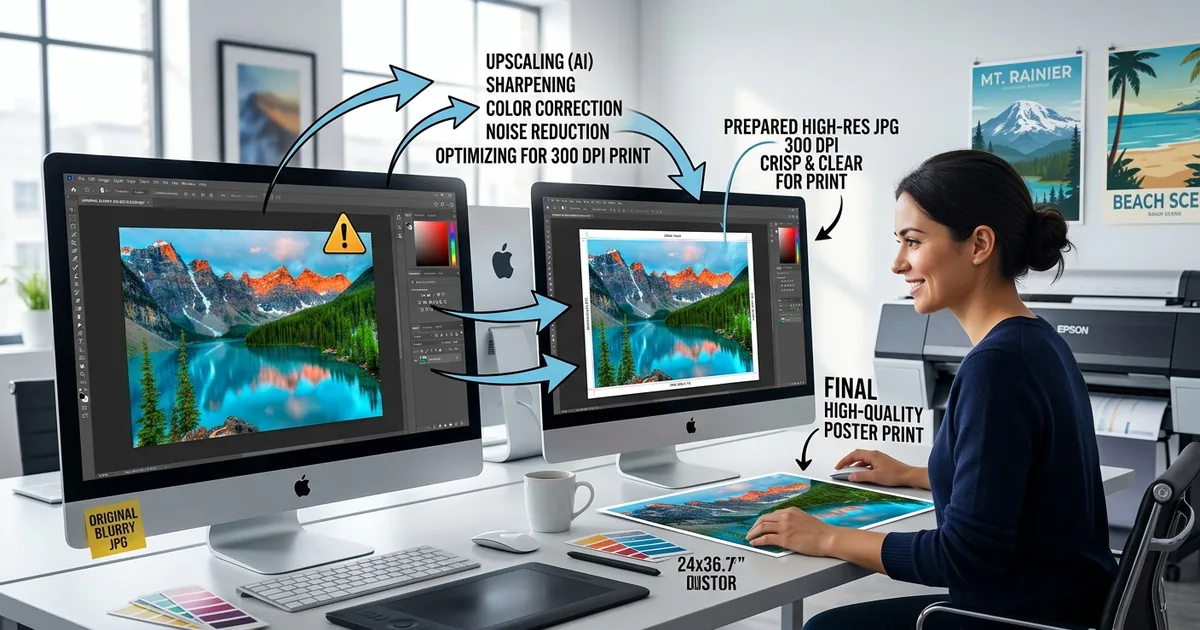
Your photo looks crisp on your phone. Then the poster arrives, and faces look soft, lettering looks fuzzy, and fine textures have disappeared. A small screen can hide problems that become obvious across a large sheet of paper. The best time to catch those problems is before you upload the file.
A sharp poster starts with enough pixels for its intended size. It also needs a clean source image, careful resizing, and a JPG export that preserves useful detail. You can check all three without expensive software. Start with the original file, work out its resolution at the finished dimensions, and inspect what you plan to send.
Your Sharp Print Checklist
- Check the original pixel dimensions before choosing a poster size.
- Calculate pixels per inch using the cropped image and final print dimensions.
- Export a high-quality JPG once, then inspect the saved file.
Start With the Original Image and Check Its Pixels
Use the largest original version you have. A camera file or full-resolution phone photo usually gives you a better starting point than an image saved from a message, screenshot, or social media post. Those copies may have fewer pixels and stronger compression.
Find the image dimensions in your device’s file details, photo information panel, or image editor. You want a width and height measured in pixels. A file listed as 6000 × 4000 pixels contains far more image information than one listed as 1500 × 1000 pixels.
File size alone cannot tell you whether a photo will print sharply. A heavily compressed image can have large pixel dimensions but damaged detail. A smaller file might contain a clean image with a simple background. Check both the dimensions and the actual picture.
Inspect the source at 100% zoom, where one image pixel corresponds to one screen pixel in the editor. Look at eyes, hair, fine lettering, and textured surfaces. If these areas are already smeared or out of focus, a larger export will carry those flaws into the poster.
Calculate Resolution at the Finished Poster Size
For image preparation, pixels per inch, or PPI, describes how many image pixels fit into each inch of the print. Printer specifications may also mention DPI, which describes printed dots. The terms often get mixed together, but your main calculation uses image pixels and physical inches.
PPI = pixel dimension ÷ print dimension in inches.
Run that calculation for both the width and height. A 3600 × 5400 pixel image printed at 12 × 18 inches provides 300 PPI in both directions. Print the same file at 24 × 36 inches, and it provides 150 PPI.
For artwork viewed close up, 300 PPI is a useful target. Around 200 PPI can work well for many photographic posters. Around 150 PPI may be acceptable for larger posters viewed from farther away. These are planning targets, rather than guarantees. Fine text, image quality, paper, and the printer’s requirements all affect the result.
To find the pixel dimensions you need, reverse the calculation:
Required pixels = print dimension in inches × target PPI.
For measurements in centimeters, divide by 2.54 to get inches first. A 30 × 45 centimeter print is approximately 11.81 × 17.72 inches. At 300 PPI, that needs roughly 3543 × 5315 pixels.
Pixel Requirements for Common Poster Sizes
| Finished Size | At 150 PPI | At 200 PPI | At 300 PPI |
|---|---|---|---|
| 12 × 18 inches | 1800 × 2700 pixels | 2400 × 3600 pixels | 3600 × 5400 pixels |
| 18 × 24 inches | 2700 × 3600 pixels | 3600 × 4800 pixels | 5400 × 7200 pixels |
| 24 × 36 inches | 3600 × 5400 pixels | 4800 × 7200 pixels | 7200 × 10800 pixels |
These dimensions cover the finished image area. If your printer requests bleed, use its full upload dimensions when preparing the file. Bleed extends the artwork beyond the trim edge and requires additional image area.
Match the Artwork Shape Before Resizing
A photo and a poster do not always share the same proportions. A 6000 × 4000 pixel photograph has a 3:2 aspect ratio. An 18 × 24 inch poster has a 3:4 portrait ratio, or 4:3 in landscape orientation. Filling that poster shape requires cropping unless you add borders.
When planning artwork for poster printing, choose the finished dimensions before making your final crop. This keeps faces, lettering, and other key details away from edges that may be removed. It also gives you an honest pixel count for the resolution calculation.
For example, cropping a landscape 6000 × 4000 pixel image to 4:3 leaves 5333 × 4000 pixels, approximately. Printed at 24 × 18 inches, that works out to about 222 PPI. Calculating from the original width would overstate the resolution available after cropping.
Keep proportions locked while resizing. Stretching an image to fit changes the shape of faces and objects. If a crop removes something you need, add a border or choose a print size that matches the original proportions.
Use Browser Tools to Prepare the Final Image
A browser-based converter can help turn supported source formats into JPG. This is useful when your image starts as HEIC, PNG, TIFF, or another format your printer does not accept. Check that the tool preserves the required pixel dimensions and lets you control output quality.
Conversion changes the file format. It does not automatically restore missing detail. A small PNG converted into JPG remains a small image unless you resize it. A blurry source remains blurry even if the exported file gets larger.
For transparent artwork, choose a background color before exporting. JPG cannot store transparency. Flattening onto a deliberate background prevents unexpected dark or light areas around cutout objects.
Browser tools can also help with resizing and AI upscaling. Check their input limits before starting. A tool may restrict file size, pixel count, or output dimensions. After processing, download the full output file rather than saving its preview image.
Choose Upscaling Only When the Source Needs It
Upscaling increases pixel dimensions. Traditional resizing estimates extra pixels from existing ones. AI upscaling may reconstruct textures and edges based on learned patterns. Neither method can guarantee an accurate recovery of detail absent from the original.
Suppose your cropped photo is 2400 × 3600 pixels and you want an 18 × 27 inch print. Its native resolution is about 133 PPI. A 2× upscale produces 4800 × 7200 pixels, which calculates to about 267 PPI at that size. The higher number describes the resized file, but its visual detail still depends on the source and processing.
Compare the result with the original. Pay special attention to faces, fingers, foliage, and lettering. AI processing can invent convincing but inaccurate features. For a poster with small text or a logo, rebuild those elements from clean originals when possible.
If the image already meets your chosen resolution target, skip unnecessary enlargement. Extra pixels increase file size without necessarily improving the print.
Export a JPG Without Crushing the Detail
Finish your crop, corrections, and resizing before the final JPG export. Keep a separate original or working copy. Repeated JPG saves can accumulate compression damage, especially around sharp edges and smooth gradients.
If the exporter uses a 0 to 100 quality scale, start around 90 to 95. Quality scales differ between tools, so treat the number as a starting point. Inspect the saved file before deciding whether you can lower it.
Maximum quality can create a much larger file with little visible benefit over a carefully chosen high-quality setting. Aggressive compression can create blocky areas, fuzzy edges, and speckling around letters. The right setting preserves the image while staying within the printer’s upload limit.
Use these export checks before downloading:
- Pixel dimensions: Confirm the final width and height match your calculated target.
- Quality setting: Start high and reduce compression quality only as needed to meet an upload limit.
- Color profile: Follow the printer’s instructions; many consumer photo services request sRGB.
- Background: Flatten transparent areas onto your intended color.
- Sharpening: Apply modest output sharpening and check for bright outlines around edges.
Changing a resolution field from 72 to 300 without resampling does not add pixels. It changes the intended physical size recorded in the file. The pixel dimensions remain your reliable measure of available image information.
Inspect the Download Before Uploading It
Open the actual JPG you downloaded. A browser preview may be smaller than the final file or may hide compression defects. Confirm its dimensions again and inspect detailed areas at 100% zoom.
Look for square patches in smooth backgrounds, ringing around lettering, and harsh outlines caused by sharpening. Check shadows and skies for visible bands. If the export looks worse than your working image, raise the JPG quality and export again from the working copy.
For a valuable print, make a small test of a detailed section at the intended physical scale. Avoid fitting the entire poster onto a small sheet, because that makes flaws harder to judge. A correctly scaled crop gives you a better preview of sharpness and text readability.
Follow a Repeatable Poster Preparation Workflow
Once you know the finished dimensions, the preparation process becomes straightforward. Follow the same sequence each time:
- Locate the largest original image and inspect its focus and detail.
- Check the printer’s size, bleed, color, format, and upload requirements.
- Crop to the required proportions and record the remaining pixel dimensions.
- Divide those dimensions by the print size in inches to calculate PPI.
- Choose a smaller print or test upscaling if the available resolution is too low.
- Export a high-quality JPG and inspect the downloaded file.
- Check the upload preview for unexpected cropping before submitting.
Send a File That Holds Up on Paper
A crisp poster depends on decisions made before printing. Start with a clean original. Calculate resolution after cropping. Use conversion to meet the required format, and use upscaling selectively when the pixel count falls short.
Your final check is simple: the saved JPG should have the dimensions you planned, preserve the details you care about, and meet the printer’s specifications. If the source cannot support the desired size, a smaller poster can produce a stronger result than forcing the image onto a larger sheet.