
ExifTool Deep Dive: The 20 Commands Every Photographer Should Memorize
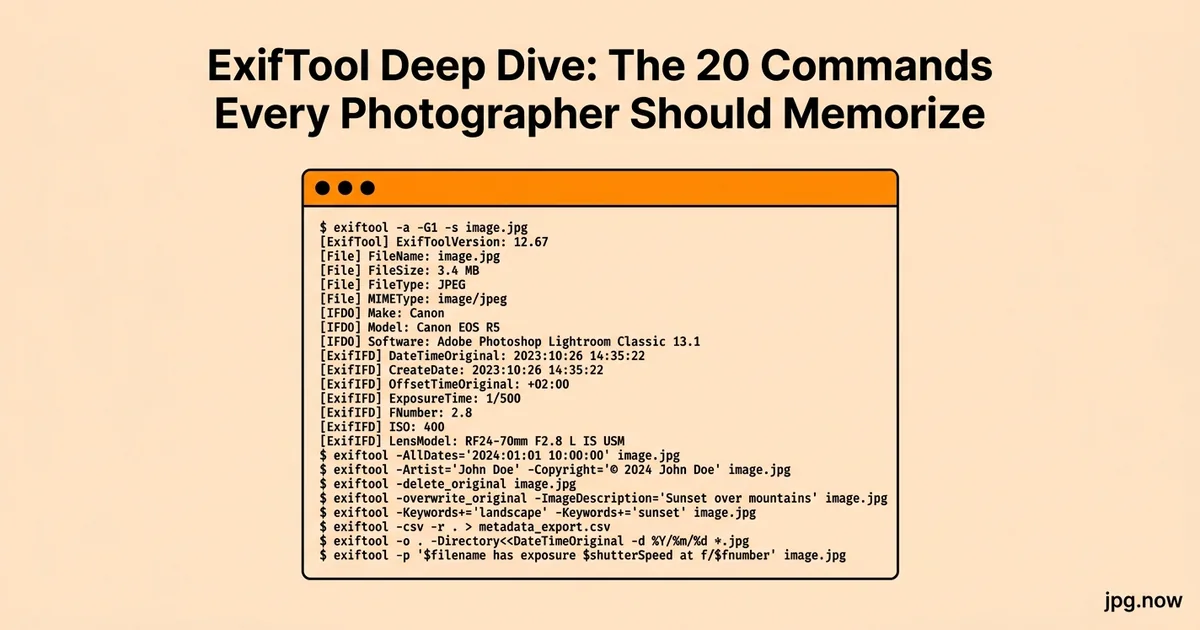
It is 8 a.m. on the Monday after a destination wedding in Tuscany. You are home, jet-lagged, with 4,200 RAW+JPG pairs across two cameras and two memory cards on your desk. Camera A's clock was correct. Camera B's clock was set seven hours behind because you forgot to update it when you landed. Lightroom is open. The bride wants a preview gallery by Friday. You have a choice: spend the morning manually shifting timestamps in Lightroom, one file at a time, or run a single ExifTool command that fixes all 2,100 frames from Camera B in under 30 seconds. The choice is not really a choice once you have done it once.
ExifTool is the most useful single piece of software in a working photographer's stack and almost no working photographer fully knows how to use it. The 20 recipes below are the commands that pay back the half-day you spend learning them, repeatedly, for the rest of your career. They handle the metadata problems that come up on real shoots date repair after a camera clock reset, batch GPS injection from a tracker, copyright tagging, lens-name corrections, and the dozen other small chores that turn into hours of clicking if you do them in Lightroom one file at a time.
What ExifTool actually is and why it wins
ExifTool is a Perl script by Phil Harvey that reads and writes essentially every metadata standard relevant to photography: EXIF, IPTC, XMP, MakerNotes (the camera-specific extensions Canon, Nikon, Sony, Fuji, and Olympus each invented), GPS, ICC profiles, and dozens more. It handles JPG, HEIC, TIFF, RAW from every major camera, PSD, PDF, video formats, and audio formats. It has been the de facto industry standard since roughly 2008 because no commercial alternative covers the same breadth.
Install once, then never think about it again
ExifTool ships as a single Perl script. On macOS: brew install exiftool. On Windows: download the .exe from exiftool.org and drop it in a folder on your PATH. On Linux: apt install libimage-exiftool-perl or your distro's equivalent. Verify with exiftool -ver. As of late 2026 the version is in the 12.x range.
Recipe 1: Read everything
exiftool image.jpg
The default verbose dump. 200+ tags on a typical mirrorless capture. Pipe to less or redirect to a file when there is too much to scroll.
Recipe 2: Read one tag
exiftool -DateTimeOriginal image.jpg
Use this when you are scripting around metadata and only need a specific value.
Recipe 3: Write copyright to every JPG in a folder
exiftool -overwrite_original -Copyright="© 2026 Your Name" -Artist="Your Name" *.jpg
Run this once per shoot or build it into your export preset. The -overwrite_original flag skips the .original backup that ExifTool otherwise creates.
Recipe 4: Fix a camera clock that was wrong
exiftool -AllDates+="0:0:0 3:0:0" *.jpg
Shifts every date tag forward by 3 hours. Use minus to go backward. Format is Y:M:D h:m:s. Indispensable when you fly across time zones and forget to update the camera.
Recipe 5: Rename files by capture date
exiftool '-FileName<DateTimeOriginal' -d '%Y-%m-%d_%H%M%S%%-c.%%e' *.jpg
Turns IMG_4521.jpg into 2026-08-14_143052.jpg. The %%-c adds a copy counter when two frames share the same second. See batch rename workflows for the full naming-scheme conversation.
Recipe 6: Inject GPS from a GPX track
exiftool -geotag track.gpx '-geotime<DateTimeOriginal' *.jpg
Match each photo to the GPS log by timestamp. Critical for landscape, wildlife, and journalism work where you cannot rely on the camera's built-in GPS.
Recipe 7: Strip all metadata for client delivery
exiftool -all= -overwrite_original *.jpg
Wipes EXIF, IPTC, XMP, the works. Useful when delivering files to a marketing team that should not know the GPS coordinates of your studio.
Recipe 8: Keep only copyright, strip the rest
exiftool -all= -tagsfromfile @ -copyright -artist -overwrite_original *.jpg
Wipe everything, then copy back two tags from the original. The right balance for public-facing delivery.
Recipe 9: Copy metadata from one file to another
exiftool -tagsfromfile source.jpg target.jpg
Transplants EXIF, useful when you re-encoded a file and lost its metadata along the way.
Recipe 10: Fix lens names that the camera got wrong
exiftool -LensModel="Sigma 35mm f/1.4 DG HSM Art" *.CR3
Third-party lenses on Canon and Nikon often record as "0mm f/0" or "Unknown." Fix once per session.
Recipe 11: Add keywords in bulk
exiftool -Keywords+=wedding -Keywords+=ceremony -Keywords+=2026 *.jpg
The += appends to the existing keyword list rather than replacing it.
Recipe 12: Extract the embedded thumbnail
exiftool -b -ThumbnailImage broken.jpg > thumb.jpg
Recovers a thumbnail from a corrupted file when the main image is not openable.
Recipe 13: Dump everything to CSV for spreadsheet work
exiftool -csv -filename -datetimeoriginal -gps* *.jpg > out.csv
One row per file, one column per tag. Open in Excel or Numbers to audit a shoot.
Recipe 14: Read recursively through subdirectories
exiftool -r -Copyright="© 2026 Your Name" /Volumes/Photos/2026
The -r flag walks subdirectories. Pair with date filters to limit scope.
Recipe 15: Filter by date range
exiftool -if '$DateTimeOriginal ge "2026:08:01" and $DateTimeOriginal lt "2026:09:01"' -Keywords+=august *.jpg
Conditional updates. Tag only August frames with "august."
Recipe 16: Add IPTC contact info that survives social media
exiftool -IPTC:By-line="Your Name" -IPTC:CopyrightNotice="© 2026" -IPTC:CreatorContactInfoCiEmailWork="[email protected]" *.jpg
IPTC fields are read by stock agencies, news desks, and many CMSes that ignore EXIF.
Recipe 17: Force JPG to embed an sRGB profile
Use the image converter for the actual color-profile conversion, then verify with: exiftool -ColorSpace -ProfileDescription image.jpg
Recipe 18: Compare two files' metadata side by side
diff <(exiftool a.jpg) <(exiftool b.jpg)
Spot the differences between an original and a re-saved copy.
Recipe 19: Set DPI without re-encoding
exiftool -XResolution=300 -YResolution=300 -ResolutionUnit=inches *.jpg
The print metadata tag, not actual pixel density. For real pixel-density work see the DPI converter.
Recipe 20: Audit what you just did
exiftool -a -G1 -s image.jpg
The -a shows duplicate tags, -G1 shows the group each tag belongs to, -s uses short names. Indispensable when investigating why a tag is or is not being written.
Step-by-step: a typical post-shoot workflow
- Ingest. Copy files from card to a dated folder on the working SSD.
- Audit metadata.
exiftool -DateTimeOriginal -Make -Model -LensModel *.jpg | head -20to confirm cameras and lenses look right. - Fix clock errors. Identify the offending camera and shift dates with the
-AllDates+=recipe. - Inject GPS if you carried a tracker.
- Tag copyright and artist across the whole folder.
- Rename to ISO-date scheme with the
-FileName<DateTimeOriginalrecipe. - Verify on a sample with the image info inspector.
- Import to Lightroom or Capture One with the catalog now seeing clean, properly tagged files.
Common ExifTool mistakes
- Forgetting
-overwrite_original. ExifTool creates .original backups by default, doubling folder size. Fix: add the flag once you trust the operation. - Using single quotes around expressions on Windows. CMD does not handle single quotes the same as Unix shells. Fix: use double quotes or switch to PowerShell.
- Running destructive operations without a test pass. A clock-shift on the wrong direction is reversible only if you remember which direction. Fix: test on a copy of 10 files first.
- Confusing EXIF DateTimeOriginal with FileModifyDate. They are different and can drift. Fix:
-AllDatescovers EXIF dates; use-FileModifyDateseparately if needed. - Stripping all metadata before reading what was there. The metadata may have been the most valuable thing in the file. Fix: dump to a sidecar XMP first with
exiftool -xmp file.jpg > file.xmp. - Forgetting that some MakerNotes are encrypted. Nikon and some Sony tags require specific options to read. Fix: read the ExifTool docs for your specific camera model.
Three real-world ExifTool workflows
Sports photographer, agency-side, Madrid. Diego shoots Champions League matches and delivers to Getty within minutes of the final whistle. His ingest script runs ExifTool to inject IPTC By-line, Copyright, Caption, and the agency's required keywords from a per-match config file. The script also crops to wire-service standard aspect ratio and uploads via FTP. Total elapsed time from card to wire: under 90 seconds per frame.
Wildlife photographer, Kenya. Aisha runs a Bushnell GPS logger on her belt during every shoot and pairs the GPX file to her Sony A1 RAW+JPG output with ExifTool's -geotag recipe. Lightroom then sees accurate coordinates for every frame and her stock agency clients receive properly geotagged deliveries without any manual work.
Wedding photographer, Brooklyn. Tyler's two cameras synchronize clocks via Bluetooth before each event, but he runs an ExifTool audit immediately after ingest to confirm the sync took. The audit script flags any frames with a timestamp offset above two seconds for manual review. The 30 seconds of automation has caught three clock drifts over the past year that would otherwise have produced misaligned dual-shooter sequences.
Comparison: ExifTool vs alternatives
| Tool | Strength | Cost | Best for |
|---|---|---|---|
| ExifTool | Breadth, scriptability, write support | Free | Everything |
| Lightroom Metadata Panel | GUI, catalog integration | Subscription | Per-file edits in catalog |
| Photo Mechanic | Speed for IPTC tagging on ingest | $139 | Sports / press workflows |
| EXIFPro | Lightweight Windows viewer | Free | Quick reads only |
| Browser-based EXIF readers | No install | Free | One-off lookups |
| image-info inspector | Browser, no install | Free | Verification after bulk operations |
Build these into a daily workflow
Pick three recipes that match the chores you actually do for most wedding and event shooters that is copyright tagging, date repair, and GPS injection and wrap them in a shell script that takes a folder argument. Run the script as the first step after ingest. The 20 minutes you invest in writing the wrapper saves an hour per shoot for the rest of the year.
Advanced techniques worth learning
- XMP sidecar workflow store metadata in a .xmp file alongside the image rather than embedding. Survives format conversions and avoids touching the original pixel file.
- Tag groups
-G1and-G2reveal which family each tag belongs to (EXIF:GPS:Latitude vs Composite:GPSPosition). Useful when chasing why a "GPS" tag is not appearing where you expect. - JSON output
-jproduces JSON that pipes into scripts and modern tooling cleanly. - Conditional writes
-ifwith complex expressions lets you write tags only when other tags match a pattern. - The config file ~/.ExifTool_config lets you define custom user-tags, default values, and shortcuts that persist across sessions.
- Preserve file modification dates during writes with
-Pso the OS file modification timestamp does not change when only EXIF is edited. - Use with find and parallel for very large archives:
find . -name "*.jpg" | parallel exiftool -Copyright=...for multi-core scaling.
Verify with image-info
After any bulk metadata change, spot-check a handful of files with the image info inspector to confirm the tags wrote correctly and nothing else was damaged. Run a sample through the comparison tool against a known-good reference if you suspect the encoder touched pixel data when it should not have. And re-encode through the JPG compressor when you need a clean copy with structurally tidy segments.
Frequently asked questions
Does ExifTool ever modify pixel data?
No. ExifTool only touches metadata segments. Pixel data is untouched even on large operations like recursive copyright tagging.
Will ExifTool work on RAW files?
Yes, every major RAW format including CR2, CR3, NEF, ARW, RAF, DNG, ORF, PEF, and 3FR. Some MakerNotes are encrypted and require specific options to read; the docs cover each camera.
How do I undo an ExifTool operation?
If you omitted -overwrite_original, the .original backup files restore the previous state. If you used -overwrite_original and have no backup, recovery is generally impossible. Always test on copies for unfamiliar operations.
Can ExifTool read C2PA Content Credentials?
Partial support as of late 2026. Basic manifest tags are readable; full verification of the C2PA cryptographic chain typically requires contentcredentials.org or the c2patool reference tool.
What is the difference between -overwrite_original and -overwrite_original_in_place?
The former writes to a temp file and renames; the latter writes directly. _in_place is faster on slow filesystems but riskier if interrupted.
Does ExifTool preserve XMP sidecar files?
Yes. ExifTool reads .xmp sidecars adjacent to image files and can write to them with -o file.xmp. Lightroom-style sidecar workflows are fully supported.
How do I write metadata that survives Instagram upload?
You generally cannot. Instagram strips most metadata. The exception is IPTC By-line and Copyright on some content types, and even those are inconsistent. Treat social platforms as metadata-destructive and watermark visually if attribution matters.
ExifTool for video files
ExifTool reads and writes metadata on MOV, MP4, M4V, and most prosumer video formats too. Common video recipes include shifting QuickTime metadata dates with -QuickTime:CreateDate+="0:0:0 3:0:0", embedding copyright in the moov atom with -QuickTime:Copyright="...", and extracting metadata from camera-original ProRes files for catalog import. Hybrid photo-video shoots benefit from running the same ExifTool wrapper script across both file types in a single pass.
Some camera-recorded metadata in video (the so-called "MakerNotes" equivalent for video) is encoded in proprietary structures that ExifTool reads but cannot always write. Test on a copy before committing to a video metadata workflow.
Performance notes for very large archives
Running ExifTool against a million-file archive takes longer than necessary if you use the wrong flags. Use -fast2 to skip MakerNotes and slow tags when you only need basic EXIF. Use -stay_open with a control file when invoking ExifTool repeatedly from another script; reusing the Perl interpreter cuts overhead by 5x to 20x. Use GNU parallel with -j matching your CPU core count to scale across cores. With these optimisations, a million-file folder audit drops from hours to minutes.
For very large archive operations, consider a two-phase approach: a fast first pass that reads only the tags you need into a CSV index, then a targeted second pass that operates only on the files matching specific criteria from the index. The CSV index is also useful as a permanent catalog snapshot for archival purposes.
Integrating ExifTool into Lightroom and Capture One
Lightroom Classic and Capture One both support external scripts as part of the export pipeline. The standard pattern: configure the export preset to run a post-process script that calls ExifTool against the exported files, applying any catalog-specific metadata that the catalog software did not include. Common use cases include adding agency-specific IPTC fields not exposed in the catalog UI, enforcing consistent IPTC By-line across exports regardless of catalog state, and stripping camera serial numbers before client delivery.
The script lives in the catalog application's plugins folder or in a dedicated automation folder. Test on a single file before applying to a 1,000-file export; a bad ExifTool flag can corrupt every exported file if it runs blindly.
Tag-writing standards across the industry
Stock agencies, news desks, and publishing platforms each have specific tag expectations that ExifTool can target precisely. Adobe Stock requires IPTC Description, Keywords, and By-line; Shutterstock additionally requires IPTC City, Country, and Categories; Getty has its own contributor metadata schema accessible via the contributor portal. A wrapper script per destination ensures each upload has the right tag set without manual tweaking. The 30 minutes invested in writing these wrappers pays back across every upload for the rest of the year.
ExifTool is one of those tools where the marginal cost of the next recipe is near zero once you have the first one working. Pick a single chore from your workflow that involves clicking the same Lightroom button more than 50 times in a row, and write the ExifTool equivalent this week. You will quietly recover an hour a shoot, every shoot, forever. The image info inspector, DPI converter, JPG compressor, and image converter handle the browser-side companions when scripting is overkill.