
How to Prepare Product Photos for Flyers With Transparent Backgrounds
Prepare product photos for printed flyers with clean cutout edges, transparent PNG exports, correct pixel dimensions, and printer-ready PDF settings.
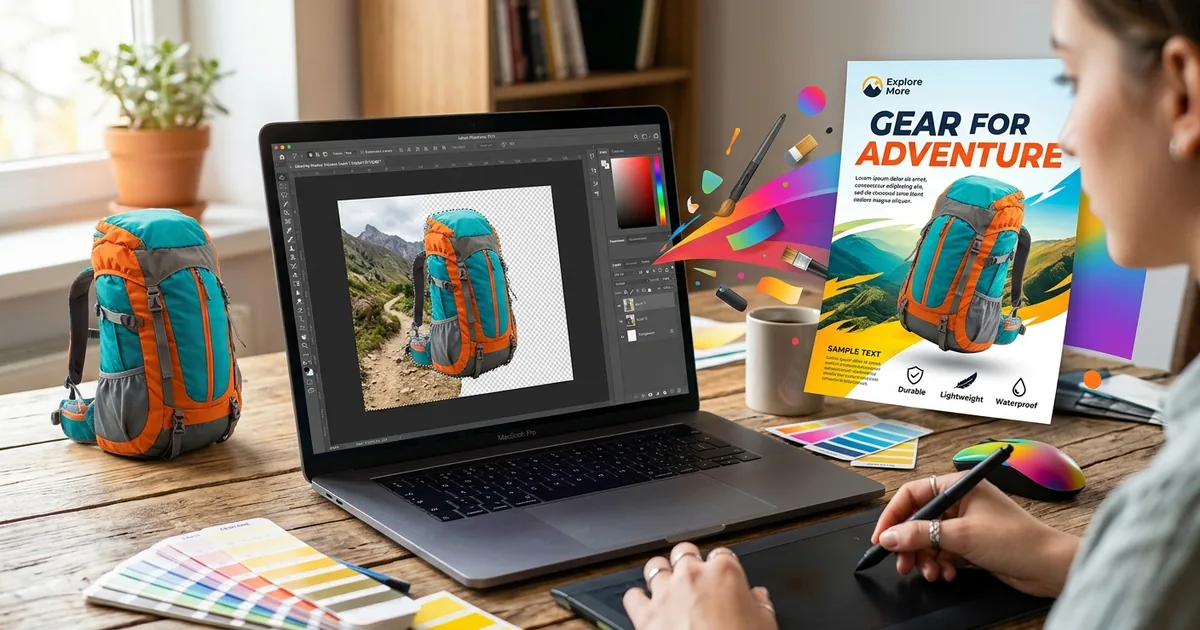
A pale outline around a product can spoil an otherwise sharp flyer. That outline may hide against a white screen, then appear as soon as you place the photo on a dark background. Preparing product photos for print means getting three things right: a clean cutout, enough pixels for the printed size, and a layout that survives PDF export. Here is a workable process from the original photo to the file you send your printer.
Your Cutout-to-Print Checklist
- Start with a sharp original photo and preserve an untouched copy.
- Check cutout edges against light, dark, and flyer-colored backgrounds.
- Export a PNG with transparency and enough pixels for its placed size.
- Arrange products with consistent spacing, scale, and shadows.
- Match the final PDF to your printer’s specifications.
Start With a Photo That Can Handle Print
Background removal cannot repair missed focus, camera shake, or unreadable packaging. Choose a photo where the product’s outline and label are sharp. Check the original at 100% zoom before editing. A small preview can hide problems that become obvious on paper.
Use the original camera file or the highest-resolution export available. Avoid screenshots and copies saved from messaging apps. These may have fewer pixels or visible compression marks around lettering. If your camera file needs conversion, retain its full dimensions and avoid repeated JPEG saves.
For a new shoot, clean the product and use soft, even light. Leave space around its edges. Pick a background that contrasts with the object. A white bottle against a white wall gives a removal tool very little separation to work with.
Keep an untouched original and a separate editable version. An editable file with layers or a mask lets you restore an edge later without starting again.
Remove the Background Without Losing Product Details
An automatic background remover is a useful starting point. Upload the photo, run the removal, and inspect what remains. Handles, straps, transparent lids, and thin wires need particular attention. A tool may remove them or leave background trapped inside their openings.
If your editor supports masks, use one. A mask hides unwanted areas while keeping the original pixels available. You can paint parts back into view when the first pass removes too much.
- Make the initial selection. Use automatic removal or a subject selection tool to separate the product from its surroundings.
- Restore missing details. Bring back clipped corners, narrow parts, and label edges with a small brush.
- Clear interior openings. Remove background inside handles and between separate components.
- Refine the boundary. Correct leftover background and rough transitions with small, controlled adjustments.
- Save an editable master. Preserve the mask before exporting the transparent image.
Match the edge treatment to the material. A cardboard box needs a firm boundary. Fabric may need fine fibers. Glass needs partial transparency and visible reflections. A hard outline around a clear bottle can make it look opaque.
Avoid applying a broad feather setting to the whole selection. Excessive softening can make a solid product look blurry. Adjust only the areas that need it.
Check the Cutout Against Different Backgrounds
The checkerboard in an editor usually represents transparency. It is helpful, but it does not reveal every defect. Put temporary white, dark gray, and flyer-colored layers behind the product.
Look for a pale halo on dark backgrounds and dark residue on light ones. Colored fringes may come from the original backdrop. If your editor offers edge color correction or defringing, apply it cautiously. Check that it has not changed the product’s real color.
Inspect at 100% zoom, then enlarge the view for detailed repairs. Work around the perimeter in sections. Check corners, curved edges, and gaps between parts. Restore clipped details rather than shrinking the whole selection to hide a fringe.
Return to the intended print size before deciding the cutout is finished. A repair that looks tidy at high magnification may make a thin handle look uneven at normal size. Both views matter.
Decide what to do with the original shadow. A shadow containing the old tabletop color will look awkward on a new background. Remove it and add a separate shadow in the layout, or retain it only if it blends naturally into the flyer.
Calculate the Pixels Needed for the Printed Size
Print instructions often ask for images at 300 DPI. For photo preparation, the useful measurement is pixels per inch, or PPI, at the size the image occupies on paper. Printer DPI describes printed dots. Your image needs enough pixels to meet the requested resolution.
Required pixels = printed size in inches × 300. Calculate width and height separately. A product photo placed at 3 inches wide and 4 inches tall needs 900 × 1200 pixels for 300 PPI.
For measurements in centimeters, divide by 2.54 to get inches. A 10 cm-wide image needs about 1182 pixels across at 300 PPI. Round upward when choosing export dimensions.
Pixel Requirements at Common Placement Sizes
| Printed Image Size | Pixels at 300 PPI | Typical Placement |
|---|---|---|
| 2 × 3 inches | 600 × 900 pixels | Small product panel |
| 3 × 4 inches | 900 × 1200 pixels | Featured product |
| 4 × 6 inches | 1200 × 1800 pixels | Large promotional image |
Transparent padding counts toward file dimensions. If a 1200-pixel-wide PNG contains a product only 600 pixels wide, the product itself has 600 pixels of detail. Crop unnecessary empty space or account for it when calculating the placement.
Changing a resolution field to 300 without adding pixels does not create detail. A 600-pixel-wide image placed at 4 inches is still 150 PPI. Use a larger original, reduce the placement size, or try careful upscaling. Inspect upscaled labels closely because invented detail can distort lettering.
Export a PNG That Keeps Its Transparency
Choose PNG and enable transparency in the export settings. JPEG cannot preserve transparent areas. Converting a JPEG to PNG also does not remove its background. Background removal must happen before export.
Use full-color PNG export with alpha transparency when available. This preserves partially transparent edge pixels and soft shadows. Limited-color export can reduce file size, but it may damage smooth transitions.
Keep the required pixel dimensions. Avoid options labeled for web optimization if they also resize the image. Lossless compression can reduce file size without changing pixels. Check any tool’s download limits, since some provide smaller exports than the uploaded original.
Reopen the exported PNG and place it over a colored background. Confirm that the transparent areas remain clear and that no white rectangle has appeared. Keep its color profile embedded when supported. PNG is generally an RGB asset; handle any required print color conversion through the layout and PDF workflow.
Arrange the Cutouts Into a Clear Promotional Flyer
Set the Page and Place the Main Product
Create the flyer at its final trim size using your printer’s template or specifications. Set the bleed before arranging the design. Bleed extends background artwork past the cut line. A common request is 3 mm, but your printer’s measurement takes priority.
Place the main product first. Leave room for its name, price, offer, and contact details. Keep text inside the printer’s safe area. Let background colors reach the bleed edge, while keeping product labels and other details away from trimming.
Add Supporting Graphics With Restraint
Once the main product and headline are positioned, transparent PNG assets can provide supporting graphics that sit cleanly alongside product photos. A small seasonal accent or simple arrow may help guide attention. Check the selected asset’s usage terms and pixel dimensions before using it commercially.
Keep these additions smaller than the product. Match their visual style to the flyer. A flat illustrated graphic can feel disconnected beside a realistic photograph if it dominates the layout.
Balance Spacing, Scale, and Shadows
Align several products along a shared baseline or within consistent panels. Judge their visible outlines rather than their file boundaries. Different amounts of transparent padding can make mathematically aligned images appear uneven.
Preserve proportions when resizing. Stretching a bottle or widening a shoe changes how the product looks. For related items, use a sensible relative scale so buyers can understand the range.
If shadows help the products sit on the page, keep their direction and softness consistent. Use subtle contact shadows near each base. Heavy floating shadows can distract from the packaging and price.
Check the placed image resolution after arranging everything. Enlarging a PNG reduces its effective PPI. If an image falls below the printer’s target, replace it with a larger export or reduce its printed size.
Export the PDF to Your Printer’s Requirements
The transparent PNG is a layout asset. The finished flyer usually needs to be delivered as a PDF. Get the printer’s instructions before export so you can match the required PDF preset, bleed, color handling, and font settings.
PDF/X-4 supports live transparency, while PDF/X-1a requires transparency to be flattened. Use the version your printer requests. Do not flatten the entire flyer into one low-resolution image to simplify delivery. That can soften text and product detail.
Follow the requested RGB or CMYK workflow and use the specified color profile or output intent. Avoid converting colors repeatedly. Bright screen colors may print differently, especially on uncoated paper. A proof is useful when packaging colors need close matching.
Include the required bleed and add crop marks only if requested. Export individual pages rather than spreads unless the printer asks otherwise. Embed fonts and check image compression settings. Prevent downsampling below the printer’s required resolution.
Open the exported PDF as a separate file. Check the page size, product edges, prices, and small text. If your software offers preflight, use it to check fonts and image resolution. Inspect transparency overlaps for unexpected lines or boxes.
Give the Finished Flyer a Paper Check
Print a copy at actual size, with page scaling disabled. This helps you judge product scale, spacing, label readability, and the offer’s prominence. An office print is a layout check rather than an accurate prediction of the final press colors.
Keep the original photos, editable cutouts, exported PNGs, layout file, and approved PDF in one project folder. When a price changes or a product needs replacing, those files make the next revision easier.
A flyer is ready when the products look clean on its background, the images hold enough detail at their printed size, and the PDF matches the printer’s specifications. Give those three checks a few extra minutes before sending the file. They are far easier to fix on screen than after a print run.